When working with external labelling solutions such as Bartender or Loftware the information printed on the labels will be fed from Business Central into the relevant label design template using the built-in integration functionality that is included with Clever Labelling.
For any "Clever Label Design" that uses Bartender or Loftware (identified by the Design Type field) you must setup the data attributes which will be interfaced to the relevant platform for each label.
From the Label Design menu, select the Data Items option which will open the "Label Design Data Items" screen, an example of which is shown below.
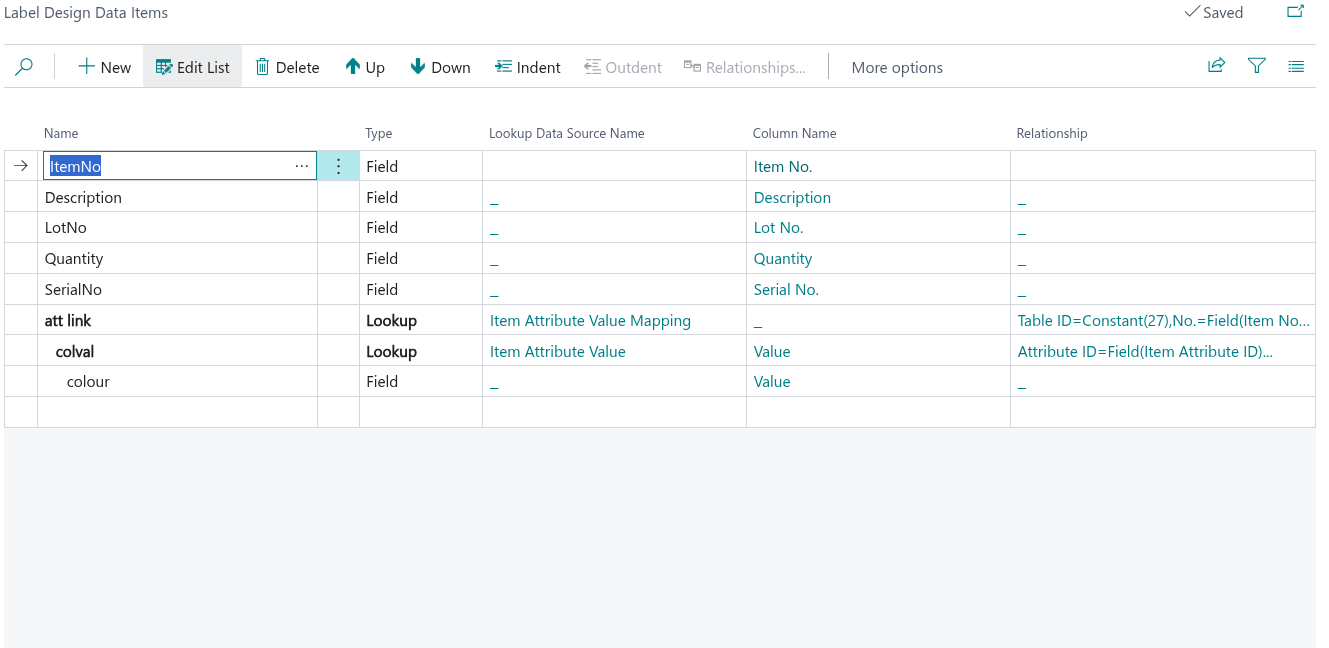
For each attribute you wish to show on the Label Design the following information can be specified.
Name
This value must match the name of the Data Source attribute within the label design software.
Type
The Type controls how the Data Item will be retrieved, with the following options being available.
| Field | Defines that the value will come from the table identified as the Source Table Name of the "Clever Label Design" record. |
| Lookup | Used when you want to retrieve a value from a table that is linked to the Source Table Name (using the Lookup Data Source Name attribute) record by one or more related fields as setup using the Relationship attribute. E.g. you can use this Type to enable you to use the Description from the "Item" record for the Item No. specified on an "Item Ledger Entry" record. |
| Sum | Allows you to sum up Integer/Decimal values from a linked table using the same method as you would use for a Lookup field. |
| -Sum | This works the same way as Sum, but after retrieving the value it will be inverted, which is useful for some types of data held within Business Central. |
| Item Attribute (New in v1.1) | Retrieves an Item Attribute value for the item associated with the label source record. Multi-level table relationships are supported, enabling Item Attribute resolution from any trigger source table. See Item Attribute Data Items below. |
| Clever Comment (New in v1.1) | Retrieves comment text from Clever Comments for the entity associated with the label source record. Requires Clever Comments to be installed. See Clever Comments Data Items below. |
Lookup Data Source Name
Will provide a list of Tables that are available within Business Central and is relevant when the Type is either Lookup, Sum or -Sum.
Column Name
Using the lookup functionality, this field will show a list of fields from either the source table of the "Clever Label Design" (where the Type is Field) or the fields from the Lookup Data Source Name table when the Type has been set to Lookup, Sum or -Sum.
Relationship
When using Lookup, Sum or -Sum as the Type and where the Lookup Data Source Name has been specified, the Relationship attribute will define the data relationship used to link the Source Table Name of the "Clever Label Design" to the Lookup Data Source Name table record(s). You can define the Relationship(s) using the Relationships menu option, as is detailed in the section below.
Data Item Relationships
As documented above, with Clever Labelling you are able to use attributes from more than one table that can then be included in the Dataset which is interfaced to a 3rd Party Labelling solution, such as Bartender or Loftware.
To define the relationship between the table records defined through the Source Table Name and Lookup Data Source Name you will use the "Clever Label Relationship" screen which is accessed from the Relationships option of the menu and is shown below.
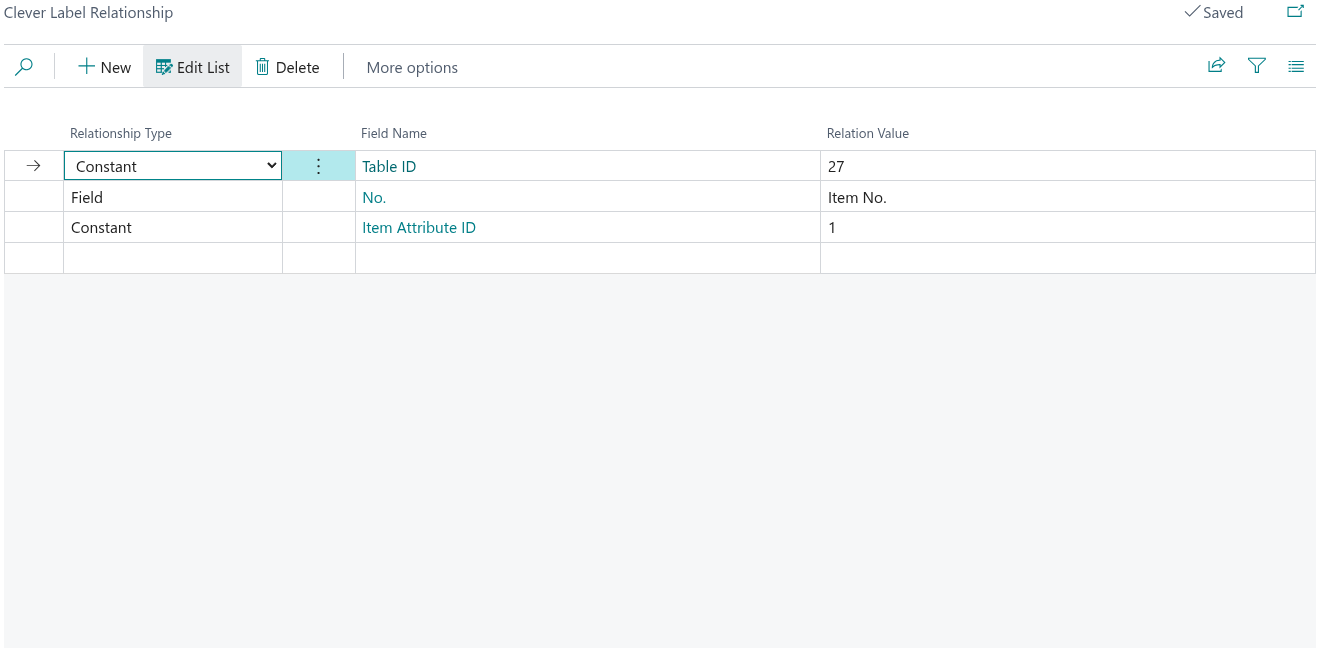
You are able to define multiple rules for how the source record is linked to a lookup record(s) by specifying the following information.
| Relationship Type | Field should be used when you want to tell the system that the Field Value from the Source Table Name record must be the same as the Relation Value from the Lookup Data Source Name record(s). Constant can be used where you will manually enter a specific value (in the Relation Value field) that the Linked Table value must match. |
| Field Name | Specify the field from the main Data Item record (Source Table Name) to be used in the relationship link. |
| Relation Value | When the Relationship Type is set to Field, you are able to select the field from the relation table (Lookup Table Name) to be used in the relationship link. Where the Relationship Type is set to Constant you will manually enter a value that will be used to filter the records in the Lookup Table Name. |
Item Attribute Data Items (New in v1.1)
From version 1.1, Item Attribute values can be included as Data Items on BarTender and Loftware label designs. Previously, Item Attributes were only accessible on Word Layout-based labels.
When the Type is set to Item Attribute, the following additional field becomes relevant.
| Attribute Name | Select the Item Attribute name (as defined in Business Central Item Attributes setup) whose value you wish to expose on the label. This must match exactly the attribute configured in Business Central. |
Multi-Level Relationships for Item Attributes
Retrieving Item Attribute values requires navigating from the label source table to the Item table. Where the Source Table Name of the Label Design is not the Item table (for example, Item Ledger Entry → Item), Clever Labelling supports multi-level table relationships to resolve the correct Item record.
Where the Source Table Name of the Label Design is not the Item table, configure the relationship chain using the Relationships screen:
- Define a Lookup relationship from the Source Table to a table that contains the Item No. field (e.g. Item Ledger Entry → Item).
- The system uses this chain to look up the Item record and then resolve the named attribute value.
Example: For a Label Design with Source Table = Item Ledger Entry, add an Item Attribute Data Item with Attribute Name = "Colour". Configure a Lookup relationship from Item Ledger Entry (Item No.) to Item (No.). The attribute value for the item on each ledger entry will then be passed to the BarTender or Loftware template as a data item.
Clever Comments Data Items (New in v1.1)
From version 1.1, Clever Labelling integrates with Clever Comments, allowing comment text to be included as a data item on labels printed via BarTender, Loftware, or Business Central Report (Word Layout) labels.
Note: The Clever Comments app must be installed. If Clever Comments is not installed, the Clever Comment data item type is gracefully unavailable and no errors are raised.
When the Type is set to Clever Comment, comment text is resolved using the full Clever Comments rules engine, respecting the following:
| Comment Type Filtering | Only comments of the configured Comment Type are returned, ensuring that only the relevant comments (e.g. "Quality" or "Special Handling") appear on labels. |
| Internal/External Visibility | Comments are filtered based on their visibility setting in Clever Comments, controlling whether internal-only comments are included or excluded from label output. |
| Date Validity | Only comments with a valid date range (Start Date / End Date) covering the date of the label printing event are resolved. Expired or future-dated comments are not included. |
| Inheritance Chain | Where Clever Comments is configured to allow comment inheritance (for example, comments at the Item Category level being inherited by individual Items), the full inheritance chain is respected during resolution. |
When more than one comment resolves for the same entity, the default behaviour is to concatenate all matching comment texts, separated by a line break.
For BC Report (Word Layout) labels, the resolved comment text is rendered on the Word layout as plain text; any rich text formatting from Clever Comments is stripped to ensure Word layout compatibility.
For BarTender and Loftware labels, the resolved comment text is passed to the template as a plain text data item value. The Name field must match the corresponding data source field name in the template exactly. Any text formatting should be applied within the BarTender or Loftware template design itself.