A tolerance can be set against "Customer", "Vendor" and "Unit of Measure" which signifies anything Business Central will prohibit backorders for.
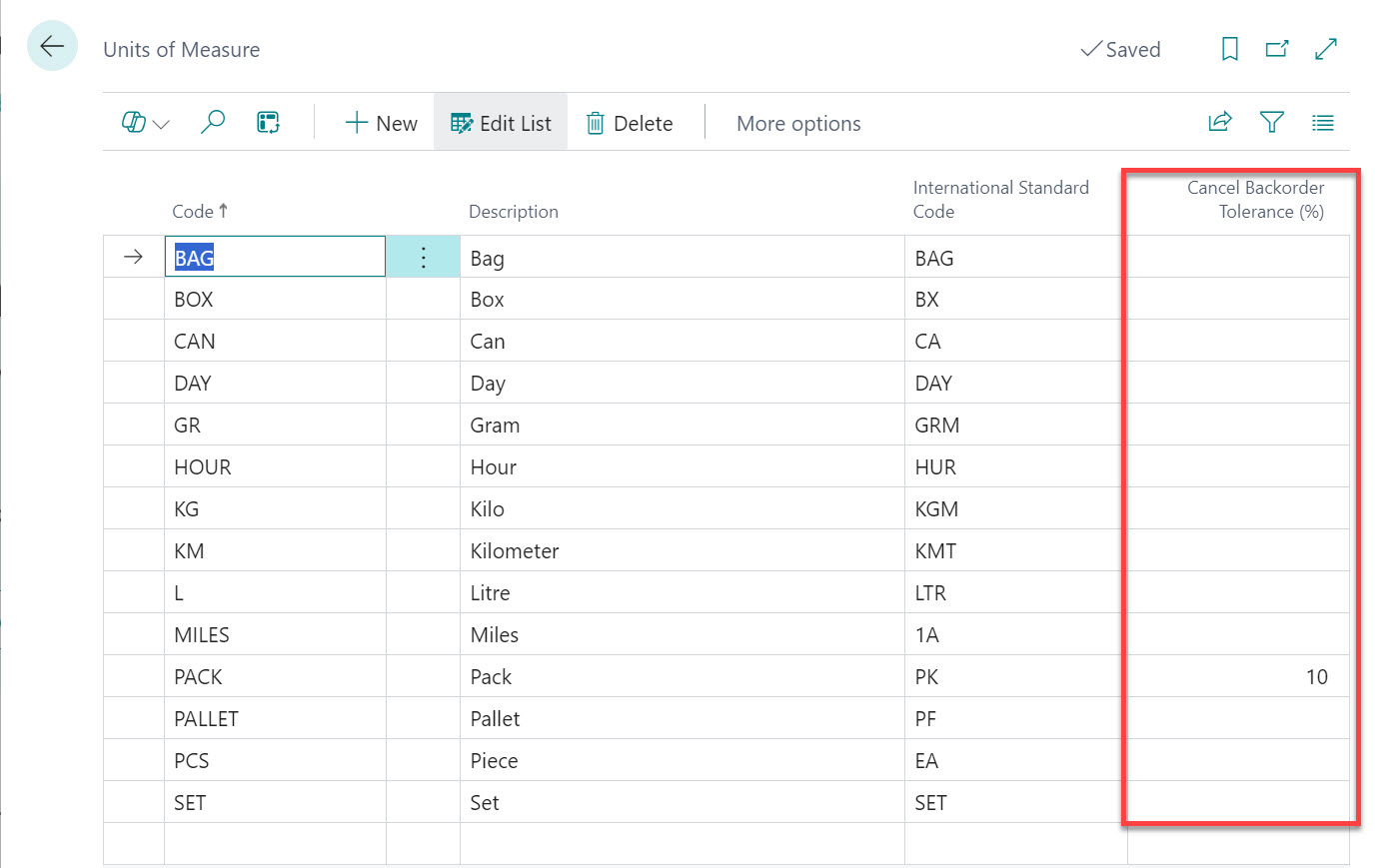
The Cancel Backorder Tolerance (%) field has been added to the "Unit of Measure" screen. Here the acceptance tolerance can be set per unit of measure.
For example, set your Cancel Backorder Tolerance (%) to 10%. Using Sales as an example, the Quantity on the Item is originally 100. The "Warehouse Shipment" is created and 95 is shipped, leaving 5 outstanding.
The "Warehouse Shipment" will get automatically closed where the quantity remaining falls within the tolerance %, so in the above example, anything less than 10 outstanding will close down the Shipment.
If the quantity outstanding falls outside of the tolerance %, i.e. more than 10% in this example, the "Warehouse Shipment" will remain open to be fulfilled.
Sales
Fields added to the "Customer Card" screen:
- Prohibit Backorders: Where True, backorders are not allowed, therefore warehouse documents will be closed automatically. Where False, the Warehouse document will remain open as per standard Business Central processes to allow for more receipts/shipments against the original quantity.
- Cancel Backorder Tolerance (%): If left empty and Prohibit Backorders is True, the system will cancel the order regardless of what quantity was shipped. When a percentage value is set, the system will close down the order within that tolerance. If the remaining quantity exceeds the tolerance the order will remain open.
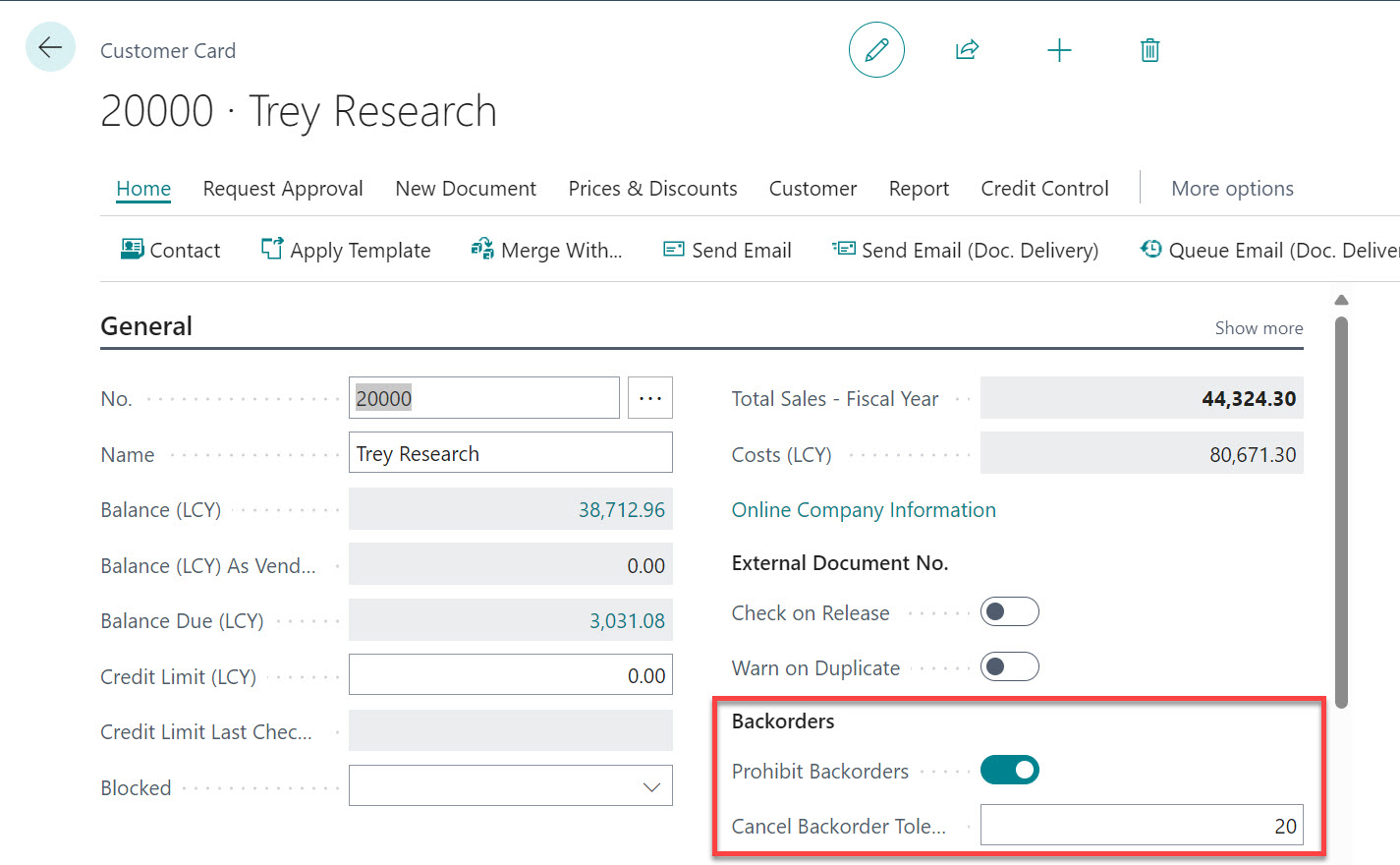
If percentages are set on both the "Unit of Measure" screen and the "Customer Card" screen, the system will prioritise the Customer value.
- Check "Customer Card" to get the Cancel Backorder Tolerance (%)
- If the Cancel Backorder Tolerance (%) on the "Customer Card" is 0 then check the "Unit of Measure" record
- The Cancel Backorder Tolerance (%) is then checked against what is left to be shipped
Purchase
Fields added to the "Vendor Card" screen:
- Prohibit Backorders: Where True, backorders will automatically be cancelled.
- Cancel Backorder Tolerance (%): If left empty and Prohibit Backorders is True, the system will cancel the order regardless of what quantity was received. When a percentage value is set, the system will close down the order within that tolerance. If the remaining quantity exceeds the tolerance the order will remain open.
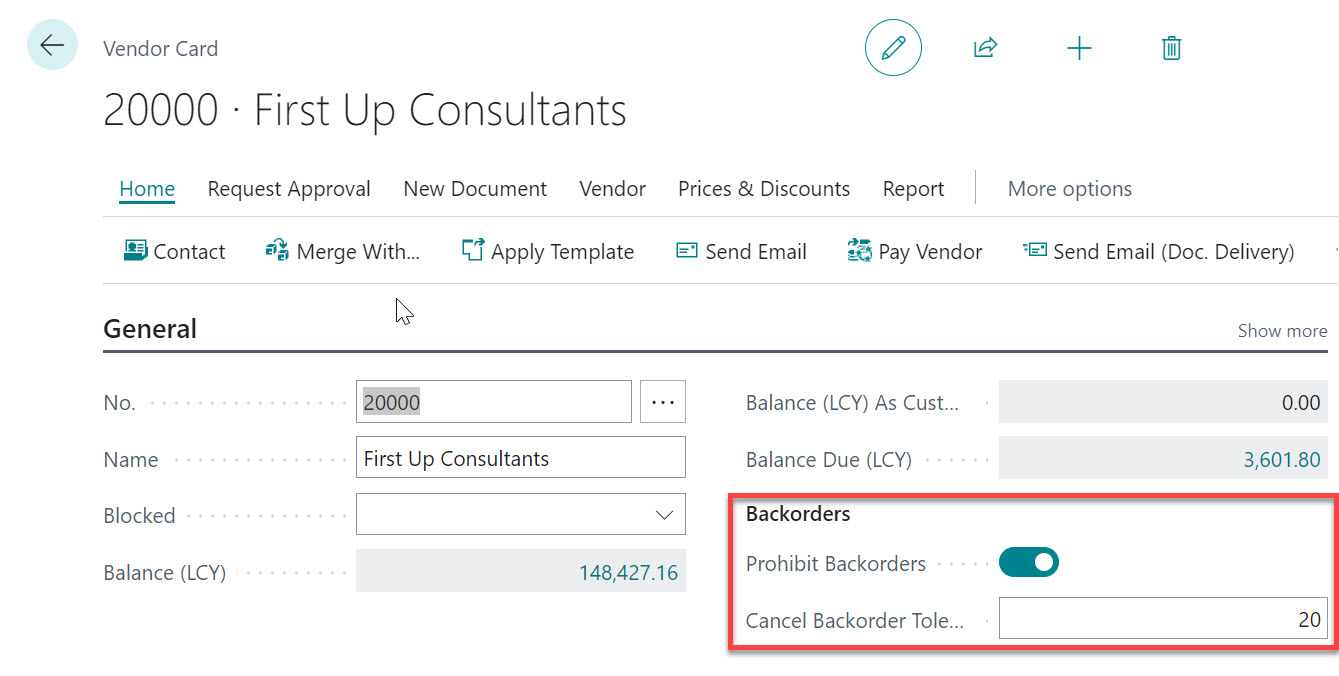
If percentages are set on both the "Unit of Measure" screen and the "Vendor Card" screen, the system will prioritise the Vendor value.
- Check "Vendor Card" to get the Cancel Backorder Tolerance (%)
- If the Cancel Backorder Tolerance (%) on the "Vendor Card" is 0 then check the "Unit of Measure" record
- The Cancel Backorder Tolerance (%) is then checked against what is left to be received
Customer Templates
The Prohibit Backorders and Cancel Backorder Tolerance (%) fields can also be configured on a "Customer Template Card" screen. When a new Customer is created using a template, these values will automatically be applied to the new Customer record, removing the need to configure these fields manually on each Customer individually.
Opening a "Customer Template Card" screen and navigating to the General FastTab will show a Backorders group containing both fields. These behave identically to the same fields on the "Customer Card" screen - where Prohibit Backorders is True and a Cancel Backorder Tolerance (%) value is set, any Customer created from this template will automatically inherit those backorder cancellation settings.
Making the Cancel Backorder Reason Code mandatory
When a back order is cancelled, either manually or automatically, a Cancel Backorder Reason Code can be recorded against the Order so that you can report later on why the quantity was never fulfilled.
By default this is optional. If you want to ensure that no back order can be cancelled without an explanation, the Reason Code can be made compulsory.
Fields added to the "Sales & Receivables Setup" and "Purchases & Payables Setup" screens:
- Cancel Backorder Reason Mandatory: Specifies whether a Cancel Backorder Reason Code must be entered on a sales or purchase order before its backorder can be cancelled.
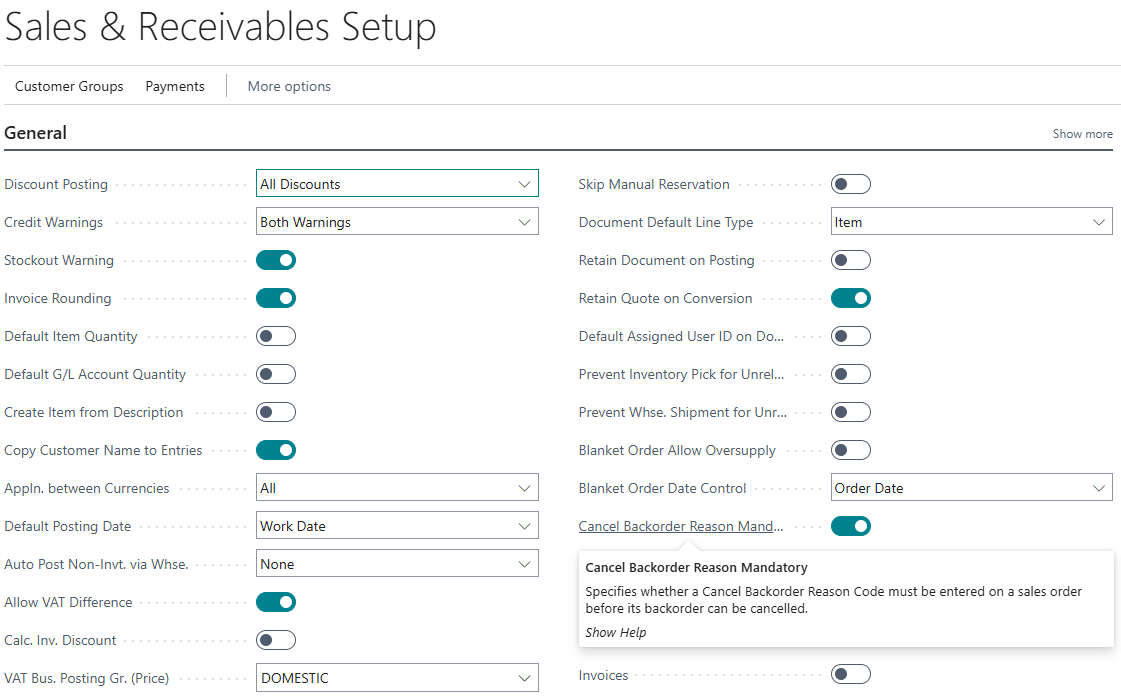
Where this is set to True, an attempt to cancel a back order on an Order that has no Cancel Backorder Reason Code will produce an error and the cancellation will not take place. This applies equally to the manual Cancel Back Order action and to the automatic cancellation that occurs when Prohibit Backorders is set.
Note: if you intend to use automatic back order cancellation alongside a mandatory Reason Code, remember that the Reason Code must be populated on the Order before the shipment or receipt is posted, otherwise posting will fail.
The Reason Codes themselves are the standard Business Central Reason Codes and can be maintained by choosing the 🔍 icon, entering "Reason Codes", and then choosing the related link.
Every cancellation, with its Reason Code, is written to the "Cancelled Backorder Log". See Cancel Back Order for details of the log.