The Blanket Order enhancements focuses on 7 key features:
- Auto-consumption so that Items added manually onto Sales or Purchase Orders can automatically be linked to the existing Blanket Order and consume directly from it.
- New From and To date fields on the Blanket Order. When using Auto-consumption, Business Central can calculate which Blanket Order is relevant and know which one to prioritise based on those dates.
- Set up a restriction at Item level for Items you ONLY want to use via Blanket Orders. This will then prohibit a User manually adding this Item onto a Sales or Purchase document.
- Exclusion at Customer and Vendor level to bypass the Item Restriction — great to use where you have a specific Item you only ever want to draw down from a Blanket Order except in exceptional circumstances where some Customers or Vendors are allowed the Items ad-hoc.
- New Factboxes for added visibility on Blanket Orders and Sales/Purchase Orders.
- Allow Blanket Order Oversupply to handle scenarios where more quantity than the Blanket Order line allows is required.
- Blanket Order Date Control to configure whether the Order Date or Shipment/Receipt Date is used when evaluating which Blanket Order to consume from.
1. Auto Consumption
Auto Consumption does exactly what it says on the tin. It allows the User to add goods into Sales or Purchase Orders that exist on a released Blanket Order, so that when the Item No. and Quantity has been populated on the Sales/Purchase line, Business Central will automatically link this to the relevant Blanket Order document, as well as the correct line to draw down stock from. Auto-consuming from a Blanket Order will also pull across the price from the Blanket Order onto the Sales/Purchase line. This can be overwritten if required.
Opening up a "Customer Card" or "Vendor Card" screen, in the Invoicing FastTab are 2 fields in relation to Blanket Orders: Auto Consume Blanket Orders and Exclude Blanket Only Restriction, which is detailed further down this page.
When Auto Consume Blanket Orders is No, regardless of any other setup in Business Central, Items can be manually added into Sales and Purchase documents and Business Central will not automatically check to see if this Item exists on a Blanket Order. Lines therefore need to either be created directly from the Blanket Order itself or linked to the Blanket Order manually from the Sales/Purchase document.

When this option is Yes, when a Blanket Order exists and is released, an Item that appears within that Blanket Order can be added manually into a Sales or Purchase Order and checks will be done to see if it falls into the dates specified. Where it does, the item will be automatically linked to the relevant Blanket Order and line, immediately updating the availability for that Item line on the Blanket Order, taking into account goods that have been drawn down. There are some differences in how this works across Sales and Purchase documents so refer to the Guide article for more information.
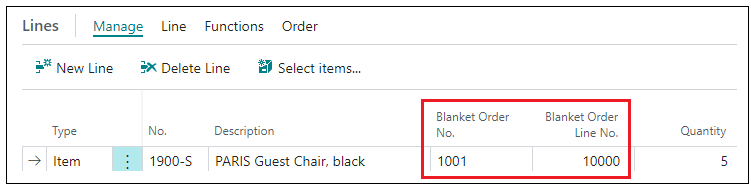
When the goods are received and invoiced on a Sales/Purchase Order, the available quantity on the Blanket Order will be adjusted automatically.
2. From and To Dates on Blanket Orders
For added visibility and to use alongside Auto-consumption, there are 2 fields within both "Blanket Sales Orders" and "Blanket Purchase Orders" screens. These are the Blanket From Date and Blanket To Date.
Opening up a Blanket Order will show these 2 fields in the General FastTab.
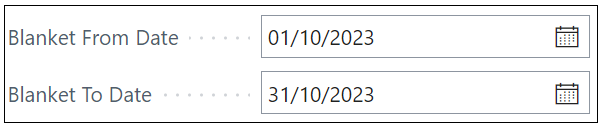
Not only can these be populated to give Users visibility as to when the goods should be used between, but these 2 fields also help drive the Auto Consumption enhancement. When Auto Consume Blanket Orders is Yes and an item is added to a Sales/Purchase Order, a check is done using the date configured in Blanket Order Date Control (see Section 7). By default this uses the Order Date of the Sales/Purchase document. This will then check any released Blanket Orders with a matching Vendor or Customer that includes the same Item No. Where dates are populated in the Blanket Order and the control date falls within them, that Blanket Order will be the one consumed from. Where no dates are specified on the Blanket Order, the auto consumption will simply find the earliest entry to satisfy the Quantity (however Sales and Purchase work slightly differently so check the Guide for more information).
The From and To dates are therefore most useful where you have multiple Blanket Orders for the same Vendor/Customer that include the same item — for example one covering Quarter 1 and another covering Quarter 2. The configured control date on the Sales/Purchase Order will then determine which Blanket Order to draw down from automatically.
3. Blanket Order Only Items
On an "Item Card" screen within the Price & Sales FastTab, items can be marked as Order Against Blanket Only. When this is Yes, unless this Item has been added to a Sales/Purchase Order via the Make Order option within a Blanket Order, an error will occur if a User attempts to add the Item manually onto an Order, prohibiting it from being purchased ad-hoc when not created directly from a Blanket Order.

Adding an Item into a Sales/Purchase Order where this is Yes will result in an error similar to the below.
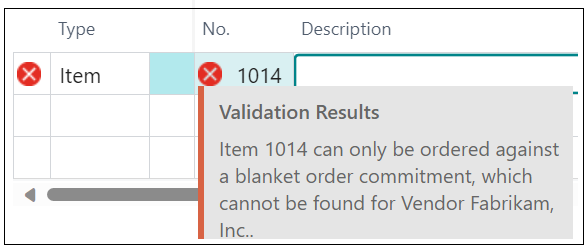
If you want Users to be able to add Items into Orders manually with no restriction, ensure this option on the "Item Card" screen is No.
4. Customer/Vendor Override for Items
The above section restricts Users from adding individual Items to Sales/Purchase Orders manually. However, in some instances you may want to exclude certain Customers or Vendors from this restriction — for example, the rule may stand for most Customers and Vendors except one or two who are permitted to order them outside of Blanket Orders.
An override is available on the "Customer Card" and "Vendor Card" screens. Opening one of these and navigating to the Invoicing FastTab will show a field called Exclude Blanket Only Restriction. Where this is No, the Order Against Blanket Only setting takes priority and this rule will apply for all Customers and Vendors where this option is No.
Changing this to Yes will override the check, so that if the Item is entered into a Sales/Purchase document manually rather than via a Blanket Order, it will be added successfully and no error will occur.
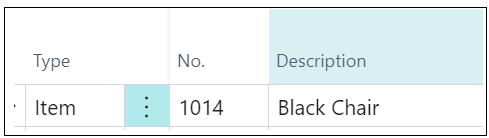
Using the same Item from the above example that errored, where the Vendor is now marked as Exclude Blanket Only Restriction, the Item can be used manually on a "Purchase Order" screen successfully.
5. Factboxes for Improved Visibility
There are 2 Factboxes available for Blanket Orders. These auto-update when changes occur (e.g. goods are auto consumed so availability reduces on a line) and provide Users much needed data at a glance.
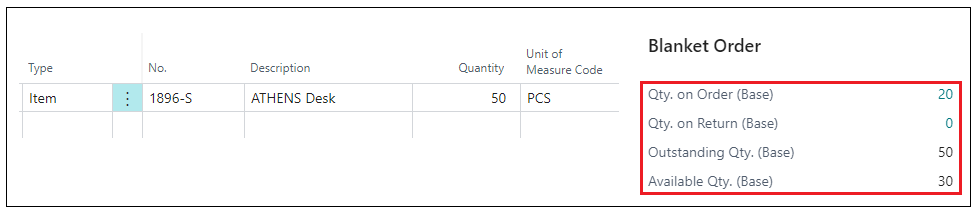
Within the Sales/Purchase Blanket Order, a FastTab details key information about the Item's inventory: Qty On Order (whether the item is used on an Open Sales/Purchase Order), Qty On Return, Outstanding Qty, and Available Qty, which takes all of the above into account. In the below example, whilst the full quantity to draw down from was 50, because 20 has been used on another Sales Order, only 30 remains available. Both Qty on Order and Qty on Return are flowfields, meaning you can click into the number to show the entries that make up the figure.
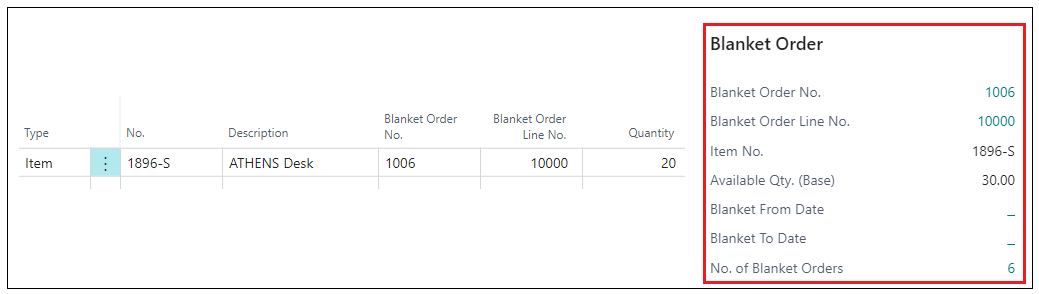
From the Sales/Purchase Order, information about the related Blanket Order and the inventory situation is also visible. In the below example, using the same Item viewed from a "Sales Order" screen, the Factbox displays information about the linked Blanket Order including the No. and Line No., the Available Qty remaining, and where Blanket From Date and Blanket To Date have been populated on the Blanket Order, these will also be displayed. There is also a flowfield for No. of Blanket Orders which lists all Blanket Orders where this Item features, allowing you to check availability across other Blanket Orders directly from here.
6. Blanket Order Oversupply
To handle oversupply, the Allow Blanket Order Oversupply field is available in both the "Sales & Receivables Setup" screen and the "Purchases & Payables Setup" screen.

This setting allows more quantity to be added than was originally inserted for the related Blanket Order line.
7. Blanket Date Control
When Auto-consumption is enabled and a Sales or Purchase Order line is matched against a Blanket Order's Blanket From Date and Blanket To Date, the system uses the date configured in the Blanket Order Date Control field to determine which date on the Sales or Purchase document is used for this comparison.
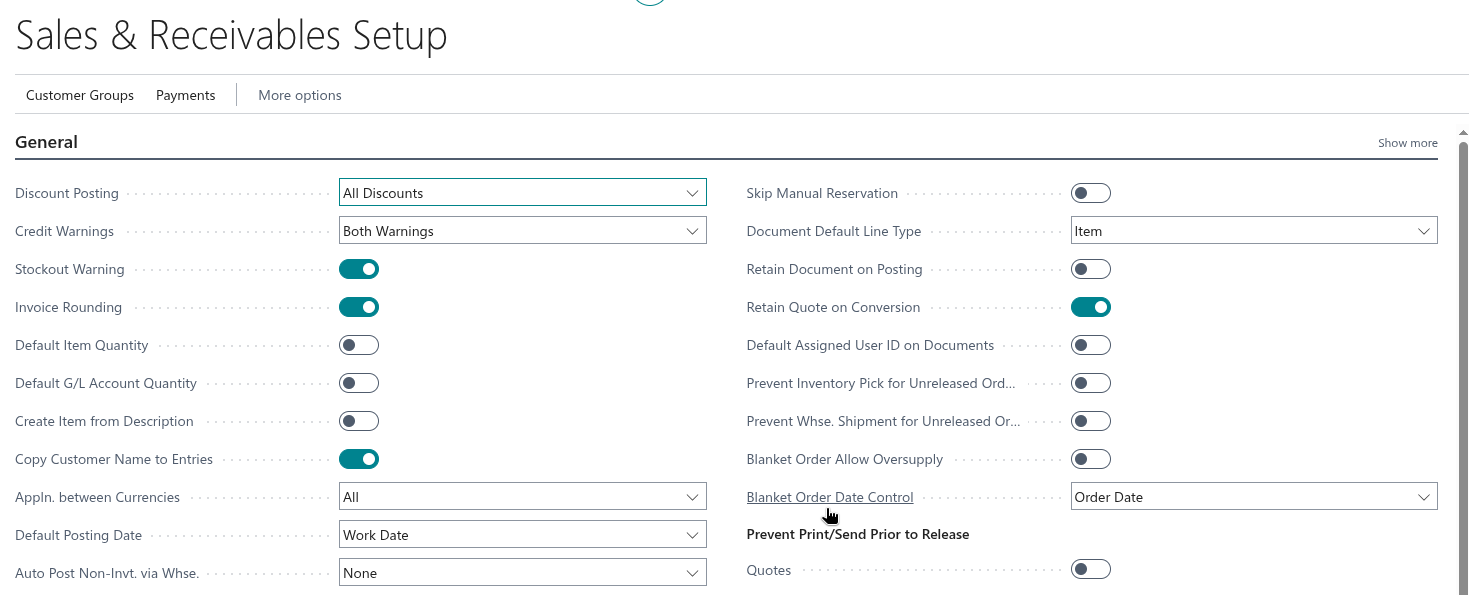
This field is available in both the "Sales & Receivables Setup" screen and the "Purchases & Payables Setup" screen within the General FastTab. The available options are:
Order Date — The Order Date on the document header is used when evaluating which Blanket Order commitment period to consume from.
Shipment Date — For Sales Orders, the Shipment Date on the individual Sales line is used. For Purchase Orders, the Expected Receipt Date on the Purchase line is used.
This is particularly useful in scenarios where an order is placed in advance but the actual shipment or receipt is scheduled to fall within a different Blanket Order period, ensuring the correct Blanket Order is consumed from based on when goods are expected to move.
Note: these settings can be configured independently in the "Sales & Receivables Setup" screen and the "Purchases & Payables Setup" screen, allowing different behaviour for Sales and Purchase documents if required.
To read how to utilise these functions within the Blanket Order process, please refer to the Guide in the next article.