There are multiple ways that "Quality Orders" can be reported on, either via using the in-app certificates or via the Quality Statistics throughout Business Central featured in the next 2 articles.
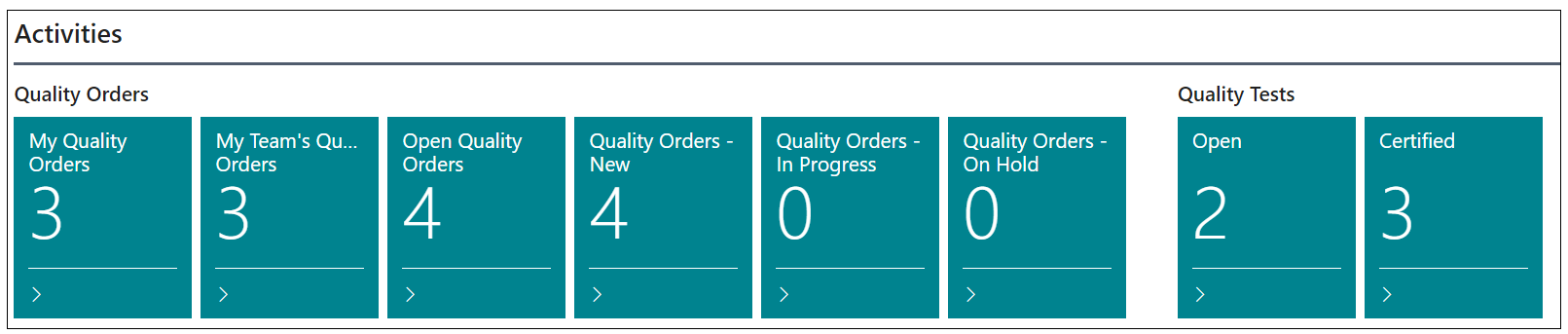
When set to use the Profile ID 'Quality RC CQMTMN', Role Center ID '70084435' as below, the "Role Center" will also display relevant tiles that can be used to drill down into the Quality lists, including things such as Open Quality Orders, Quality Orders - In Progress and Certified Quality Tests to name a few.

Clicking into one of the tiles in the "Quality Orders" section below will open up a list view of the orders, whilst the "Quality Tests" tiles will display a list of all Open or Certified Tests within Business Central.
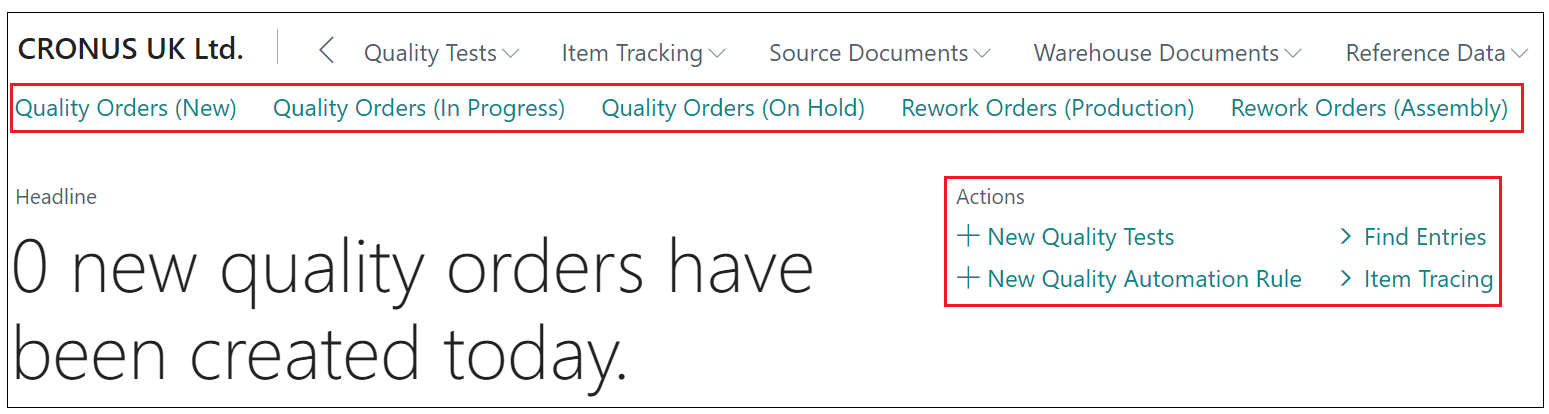
In the ribbon when using the 'Quality Tester' Role center, you can click into History which will give you the ability to open the "Posted Quality Orders" list page.

Also from the Role Center, you have the means to quickly access pages such as new or in progress Quality Orders and Rework Orders as well as creating new tests or automation rules. All of this is designed to assist the User in finding what they need to access quickly and easily.
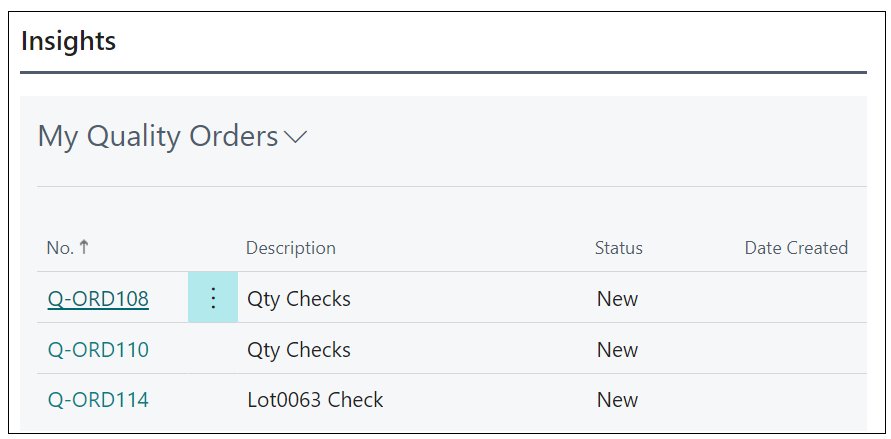
Finally, the Insights section will show you all of the Quality Orders that are assigned to your User. This helps you prioritise so you can focus on the "Quality Orders" that are your responsibility.
You can also view "Posted Quality Orders" from the search. When you click into a Posted Quality Order, you are able to select the View Source Document option in the ribbon. This will take you to the source document that caused the quality order to be created. For example, Purchase Order automated quality orders will take you to a "Posted Purchase Receipt". If the Source document was a Warehouse Receipt, it'll take you to the Posted Warehouse Receipt. It's also important to note that if you have a Quality Order or Posted Quality order against a still open "Purchase Order", "Sales Return" or "Transfer Order", you can access the Quality Orders from the Quality action in the ribbon.
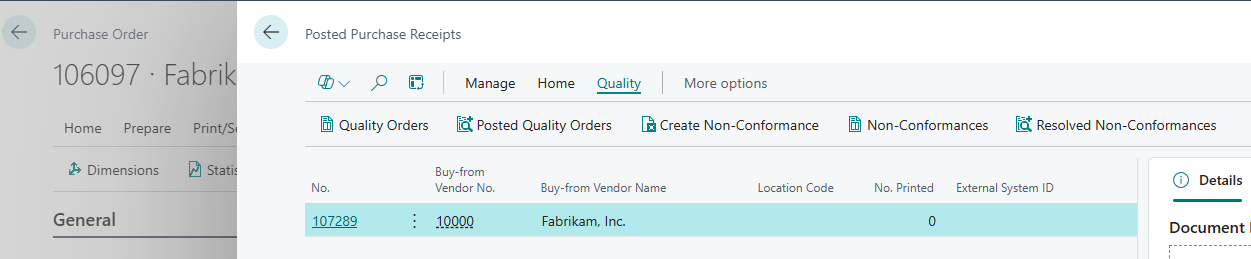
In the example below, you can open the Purchase Order, in the ribbon selecting Order and then Receipts. From this new screen, you can then choose the Quality Order or Posted Quality Order that is related to it.