1. Where is the Contact Name on the shipping label populated from?
The Contact Name for the recipient is populated from the Ship-to Name on the Consignment.
When the consignment is created, for each of the following tables the system finds the first non-blank entry and uses that.
Sales Shipments:
-
Sales Shipment Header table, Contact field
-
Sales Shipment Header table, Ship-to Name field
Sales Returns:
-
Return Shipment Header table, Contact field
-
Return Shipment Header table, Ship-to Name field
Transfer Shipments:
-
Transfer Shipment Header table, Contact field
-
Transfer Shipment Header table, Ship-to Name field
If the consignment is created from a Posted Warehouse Shipment header it uses the sales shipment header related to the first line of the Warehouse Shipment Header to obtain the Contact or the Ship-to Name.
For all three of the functions to return names, there is an event published to allow you to override this logic.
2. How to resolve the Collection/DateTime field error on Submit of Consignment

When you Submit a Consignment, you may get an error like the above referring to the CollectionDateTime field. This comes up because the Shipment Date/Time field is dated in the past. When submitting a consignment you need to confirm the collection date and time for the Shipping Agent which should be in the future, so simply changing the date or time in the field below is dated in the future will allow you to Submit successfully.

3. How to resolve missing parameters (& where to check for these)
When submitting a consignment, sometimes it fails due to missing parameters. There are actually 2 places to check for such details.

- Interfaces (also accessible from the Shipping Agent Integration wizard)
- Shipping Agent card
The "Interfaces" screen shows you the Shipping Agents Clever Shipping Agent Integration works with. When selecting one of these, in the ribbon you can view the parameters. These are the parameters used to connect the Shipping Agent to Business Central.
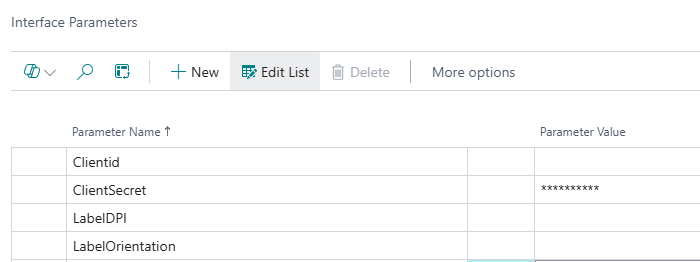
Note: The Parameter Name will all look different dependant on the Shipping Agent selected, above is just 1 example.
However, regardless if these are populated, when you submit the Consignment, it may still error due to missing Parameter Values.
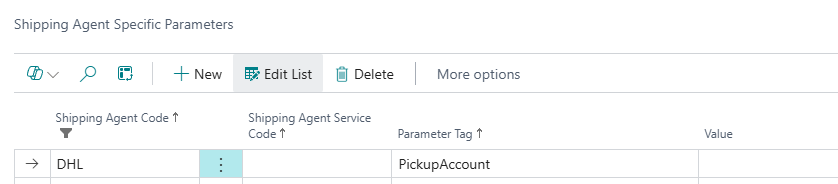
In this instance, go to your "Shipping Agent Card", click "Related" in the ribbon and view the Parameters. Here, you may find additional Parameters are required. These are specific to the Customer and the Shipping Agent so the details should be held in the customers Shipping Agent account. Once populated, your Consignment should Submit successfully.
4. Why your Shipment is marked as Export when it's Domestic
Sometimes due to missing setup, a Shipment for Domestic Customers may be marked as Export. Here's a few places to check your data to ensure this is correct.
- Country/Region Code is not set in your Location Card. The Shipment needs to know which country the Location is based and will assume Export if not populated.
- ISO codes on the "Countries/Regions" table. Always ensure these are populated.
- Ensure the Country/Region Code is set on the Company Information page.