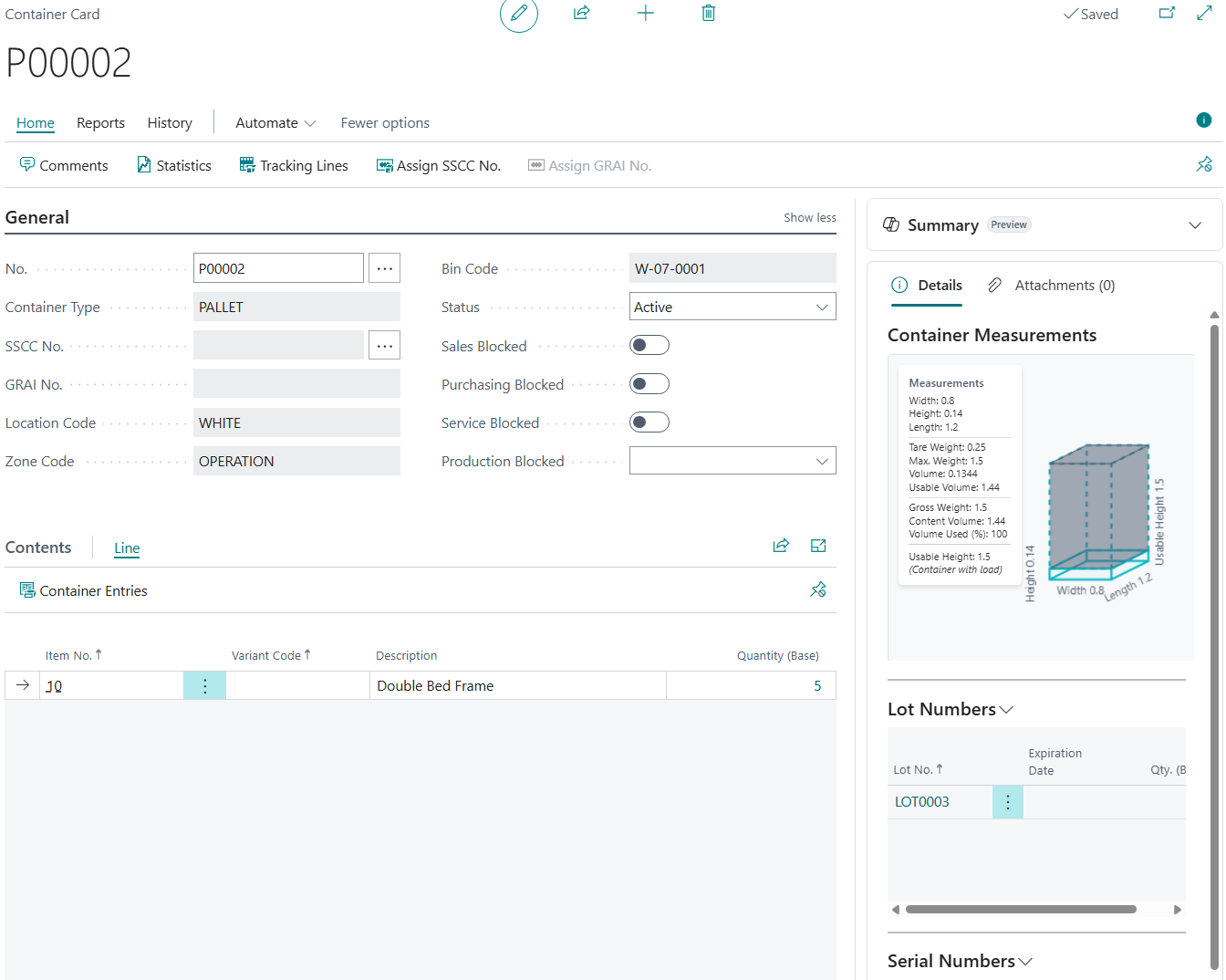
The container card screen shows all the essential details for managing a container in the warehouse. It is useful for tracking container status, location, and contents, as well as understanding its physical measurements for space planning and shipping efficiency.
Menu Ribbon
The Menu here have the same functions as on the "Containers Screen"
General FastTab
| No. | Unique identifier for the container. Can be controlled using a No. Series (linked to the Container Type) or entered manually if required. |
| Container Type | Indicates the type of container that has been assigned to the container (for example, Pallet, Cage, Tote). |
| SSCC No. | Serial Shipping Container Code (SSCC) assigned to the container. This can be used to uniquely identify the container for outbound logistics and scanning processes. |
| GRAI No. | Global Returnable Asset Identifier (GRAI) assigned to the container. Typically used for returnable transport items (RTIs) and tracking reusable assets. |
| Location Code | Current storage location where the container exists in the warehouse. |
| Zone Code | For locations that use zones, this identifies the current warehouse zone in which the container is located. |
| Bin Code | For locations that use bins, this identifies the current warehouse bin in which the container is located. |
| Status |
Confirms the current state of the container, with the following options.
|
| Sales Blocked | When enabled, the container is blocked from sales-related processes (for example, picking/dispatching against sales documents, depending on your warehouse processes). |
| Purchasing Blocked | When enabled, the container is blocked from purchase-related processes (for example, receiving/put-away against purchase documents, depending on your warehouse processes). |
| Service Blocked | When enabled, the container is blocked from service-related processes (where service documents are used in your environment). |
| Production Blocked | Defines whether the container is blocked for production-related processes. Use this to prevent the container being used in production activity where applicable. |
Contents
The contents section lists items grouped within the container:
This provides quick visibility of what’s inside without physically checking, improving speed and accuracy during picking and packing.
Container Measurements
On the right-hand side, the summary panel shows the details of the container itself:
-
Width:
-
Length:
-
Height:
-
Volume:
-
Volume Weight:
-
Usable Height:
A diagram visually represents these dimensions, helping with space planning and load optimisation.
If the container has contents the Diagram will visually represent this based on the items Units of Measure.