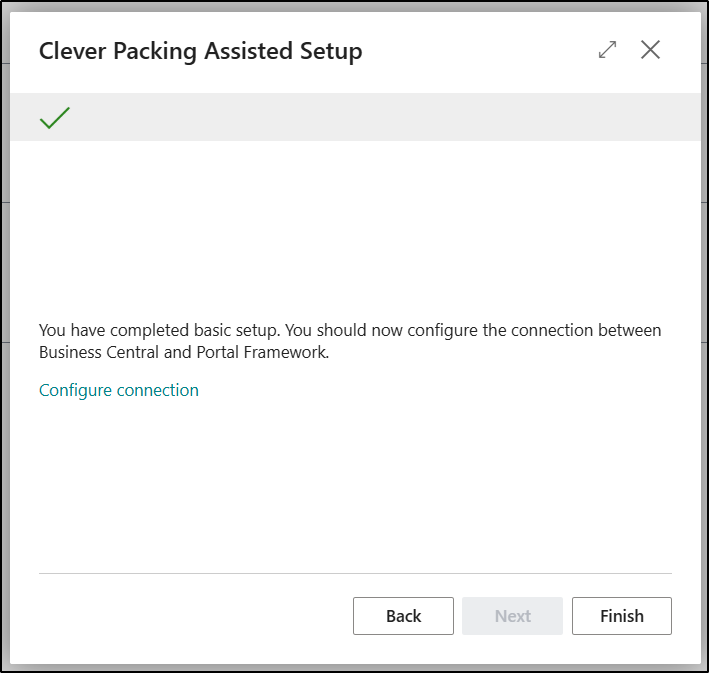
The Assisted Setup option can be selected in order to open up the Clever Packing Assisted Setup Wizard.
The purpose of the Wizard is to guide you through the whole Configuration process and make it quick and easy to set and use application without having to go into each separate Page individually. This is the process we would always recommend that users should follow when setting up the Clever Packing Application.
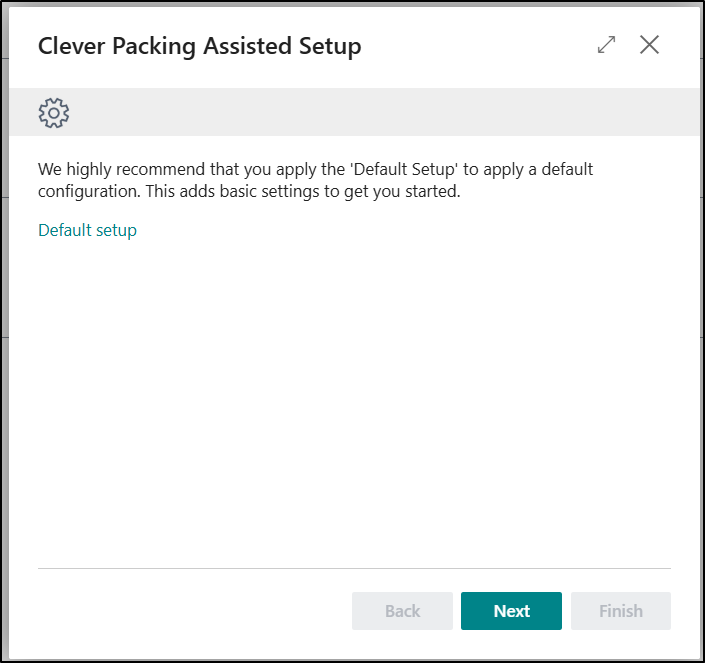
The first Page on the Wizard suggests that you should apply the settings from the Clever Dynamics - Default Configuration Package. This can be completed by clicking on the Default Setup option and confirming the message that appears.
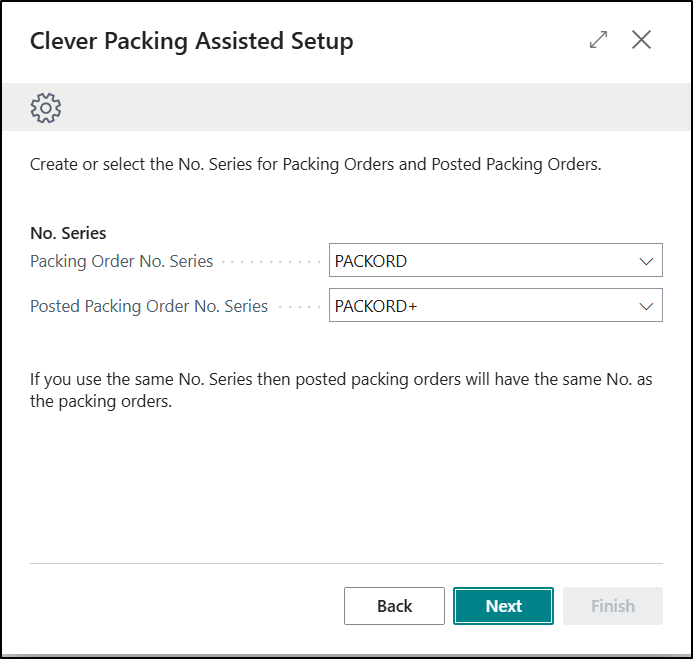
The next Page allows you to be able to define which number series should be used for numbering both the Packing Orders and Posted Packing Orders. The information entered here will then be recorded on the General FastTab of the Clever Packing Setup Page.
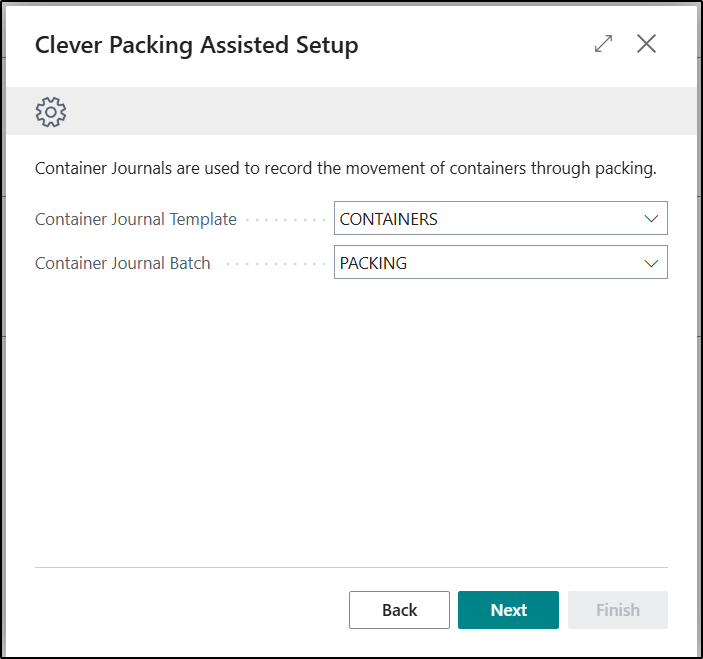
The next Page allows you to be able to define which Container Journal Template and Batch you would like to use to record the movements of Containers when using the Clever Packing App. The details entered here will be recorded on the Clever WMS Containers FastTab of the Clever Packing Setup Page.
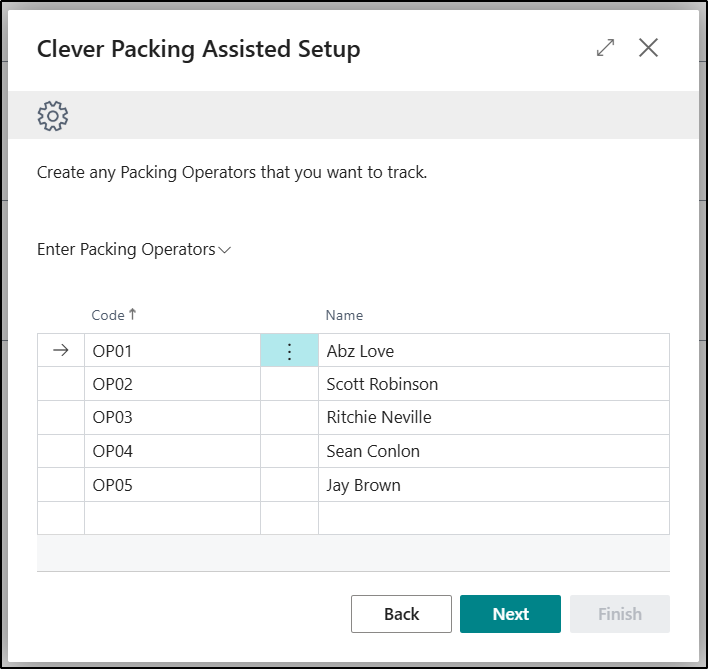
The next Page allows you to be able to create the required Packing Operators. This information will be recorded on the Packing Operators Page.
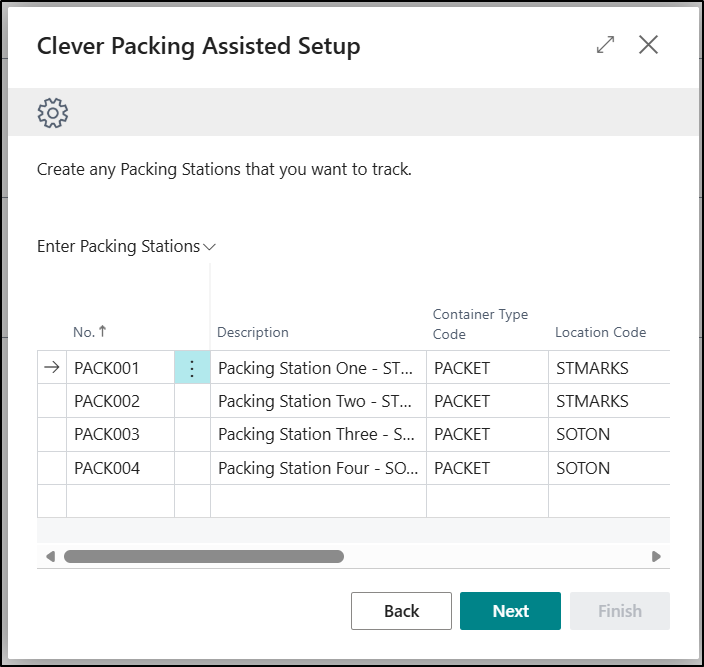
The next Page provides you with the ability to be able to create the required Packing Stations. This information will then be recorded on the Packing Stations Page.
The next Page is where you need to define the how you would like the Portal Framework Devices to be created. You will need to select one of three options displayed:
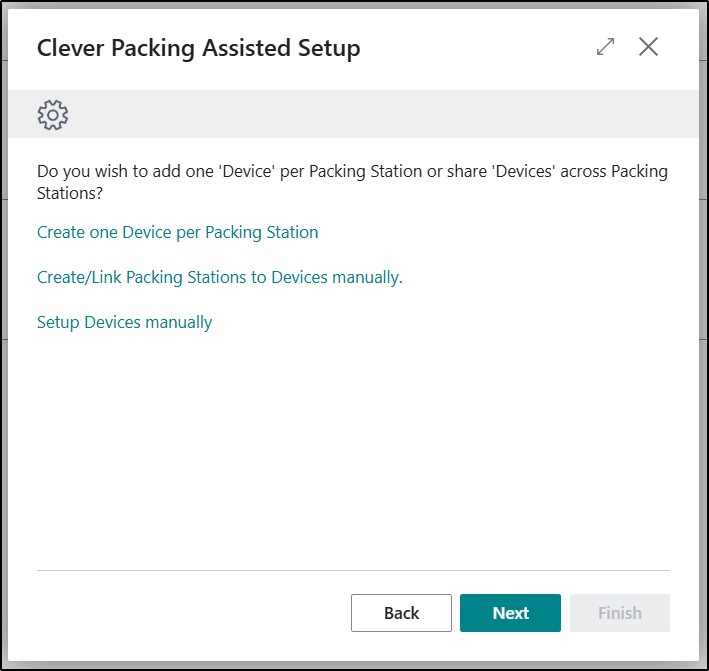
| Create one Device per Packing Station | If you select this option, then one Device entry will be automatically created for each of the Packing Stations entries created. |
| Create/Link Packing Stations to Devices Manually | If you select this option, then the Packing Station Page will be automatically opened. You will need to create the required Devices manually by clicking on the Create/Link Device Function as described here. |
| Setup Devices Manually |
If you select this option, then the Portal Framework Devices Page will be automatically opened. The entries can then be created as required. |
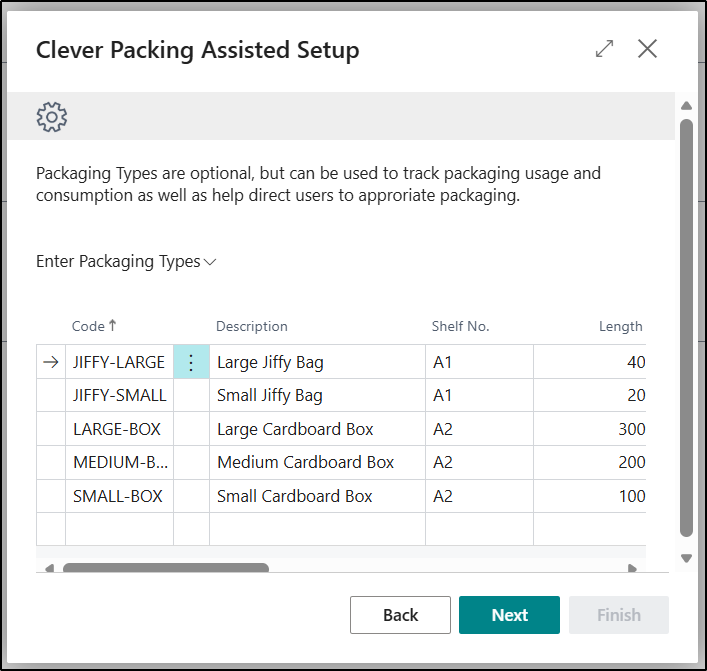
The next Page allows you to be able to define any Packaging Types you might want to use. This information will be recorded on the Packaging Types Page.
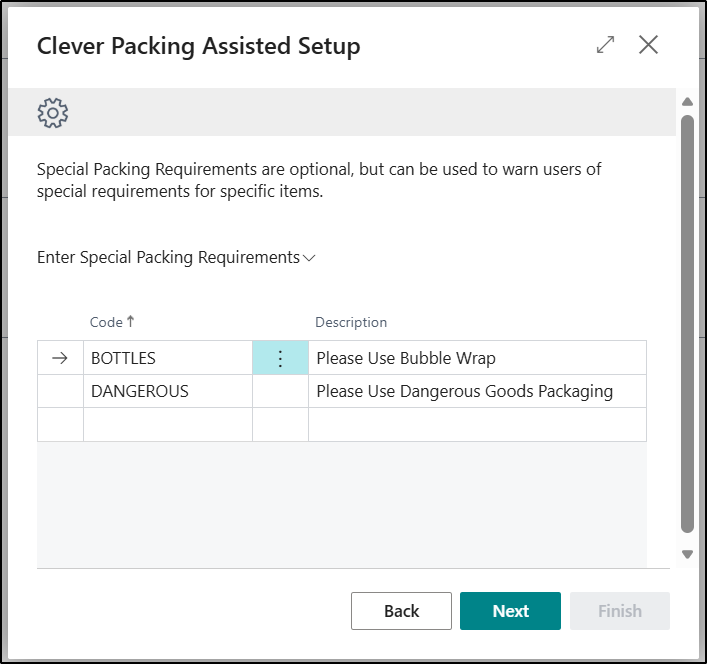
The next Page allows you to be able to define any special packaging requirements that could be applicable to specific items. Any information entered here will be recorded on the Special Packaging Requirements Page.
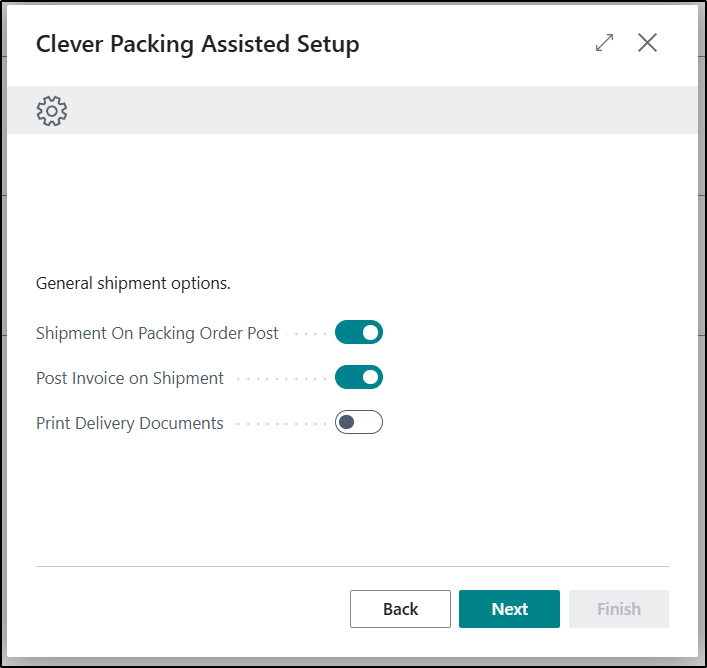
The next Page allows you to define various options relating to the Packing Order and the Posting of Shipments. The options selected here will be recorded on the Shipment FastTab of the Clever Packing Setup Page.
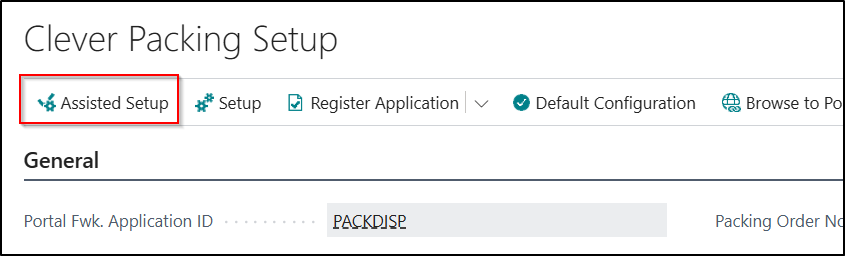
The last Page on the Wizard allows you to Configure the Connection between Business Central and the Clever Packing Portal.