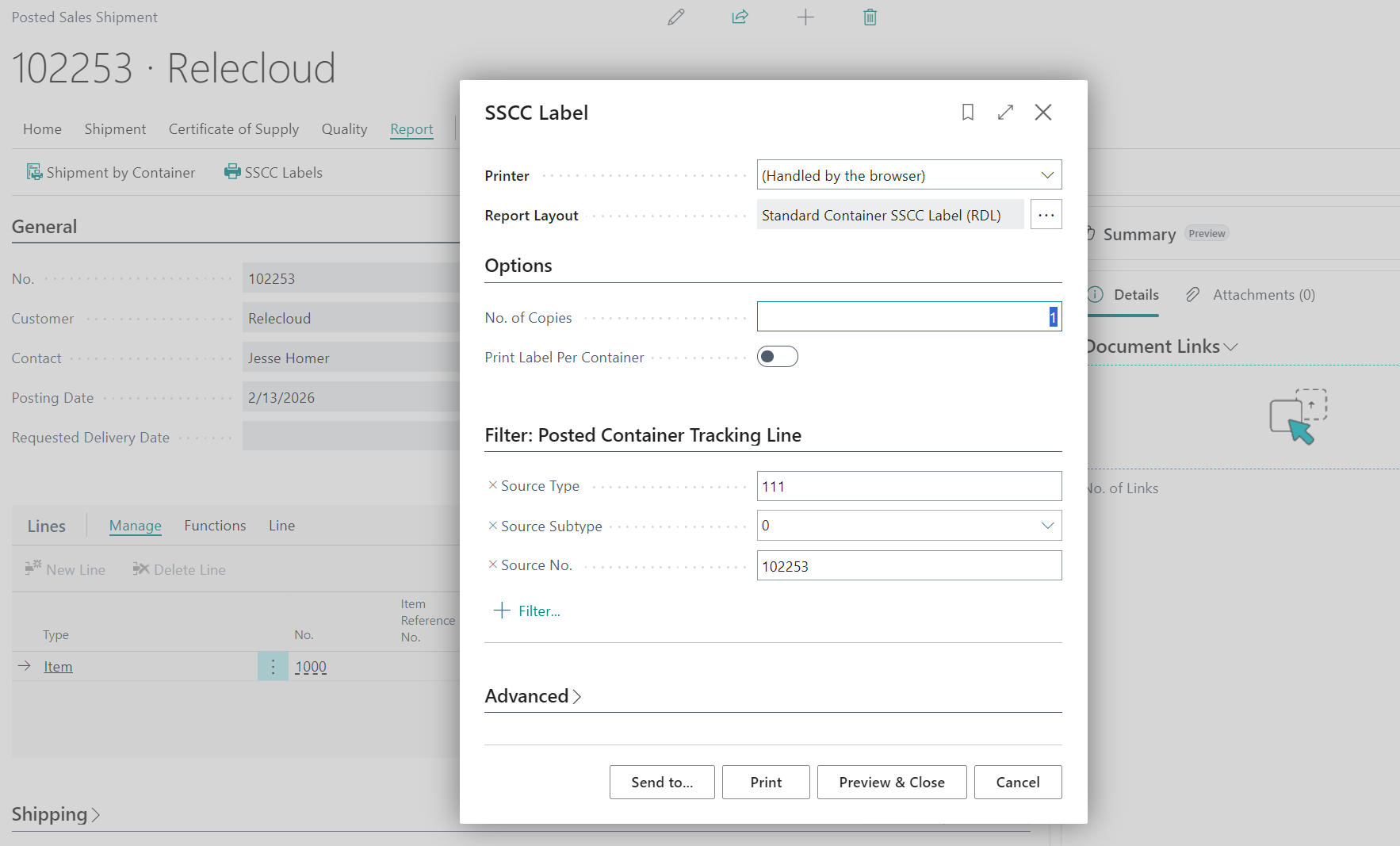
This page explains label setup and printing using the "Report Selection - Containers" screen, "Container Label" report, "Container Content Label" report, and "SSCC Label" report.
Configure report selections
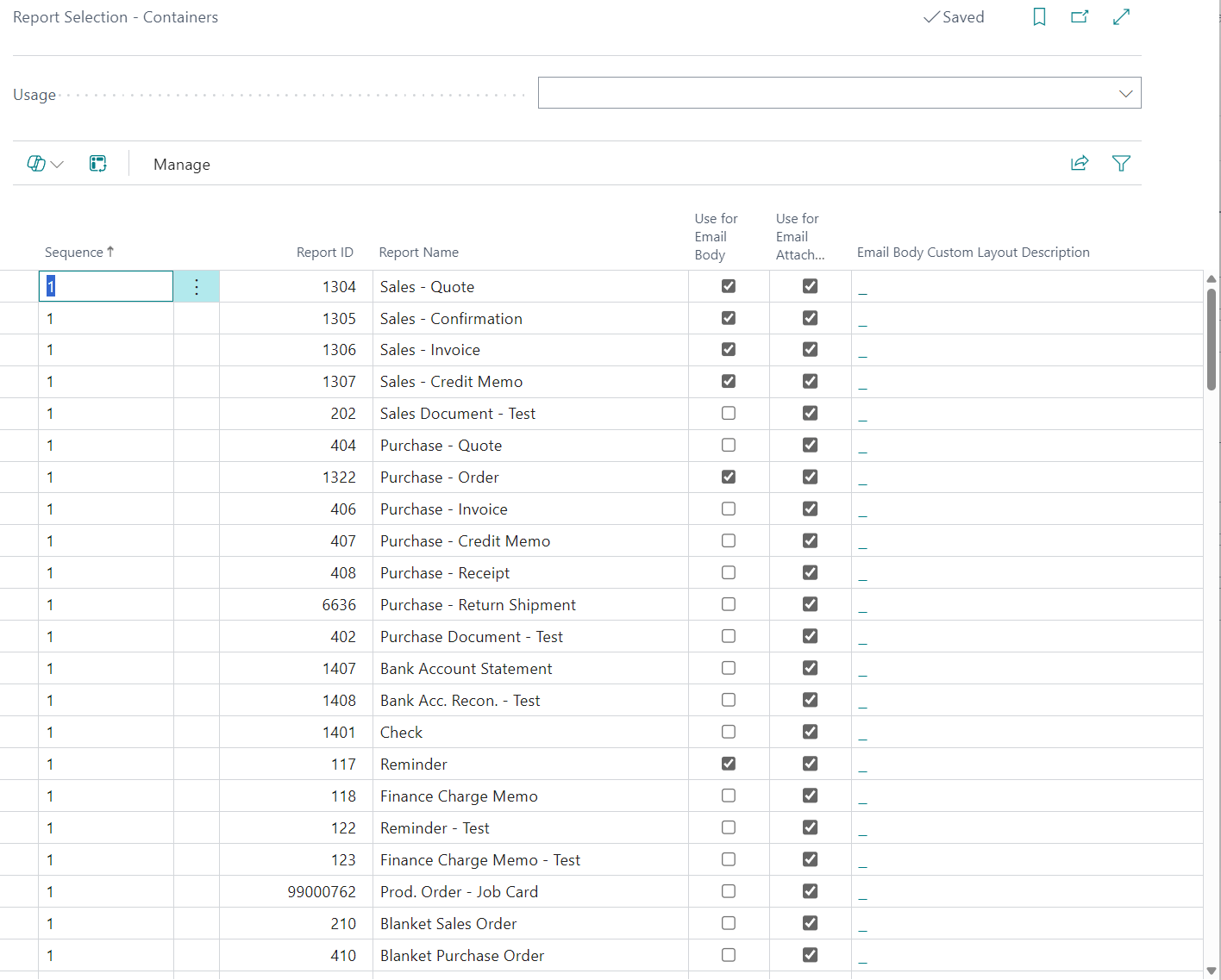
Open the "Report Selection - Containers" screen from the "Clever WMS Containers Setup" screen by selecting Report Selections.
Set Usage to Container Label or Container Content Label, then define Sequence, Report ID, and optional email settings.

Print "Container Label" and "Container Content Label"
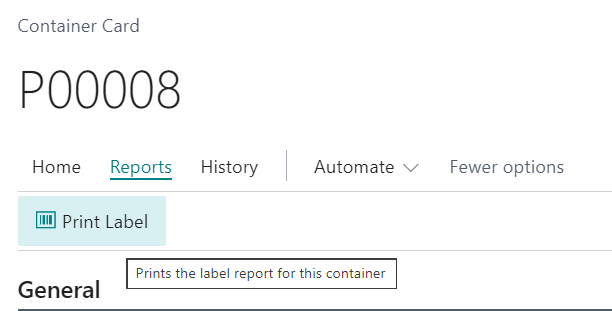
From container pages, use Print Label for the "Container Label" report and use your content label print action for the "Container Content Label" report.
For "Container Label", set No. of Copies on the request page before printing.
Print "SSCC Label"
Open the "SSCC Label" report from supported posted shipment screens (for example by selecting SSCC Labels).
Set No. of Copies and Print Label Per Container on the request page, then print.
- Select the posted document or posted tracking lines to print from.
- Select SSCC Labels.
- Set request options and run the report.
Note: Keep report selection entries and operational print actions aligned so users always print the expected label layout.