Use the "Container Return Journal" screen to receive containers back from external parties and register the return in Business Central.
Open the "Container Return Journal" screen
Open the "Container Return Journal" screen and select the correct Batch Name for your user.
Confirm the journal lines are in the correct batch before continuing.
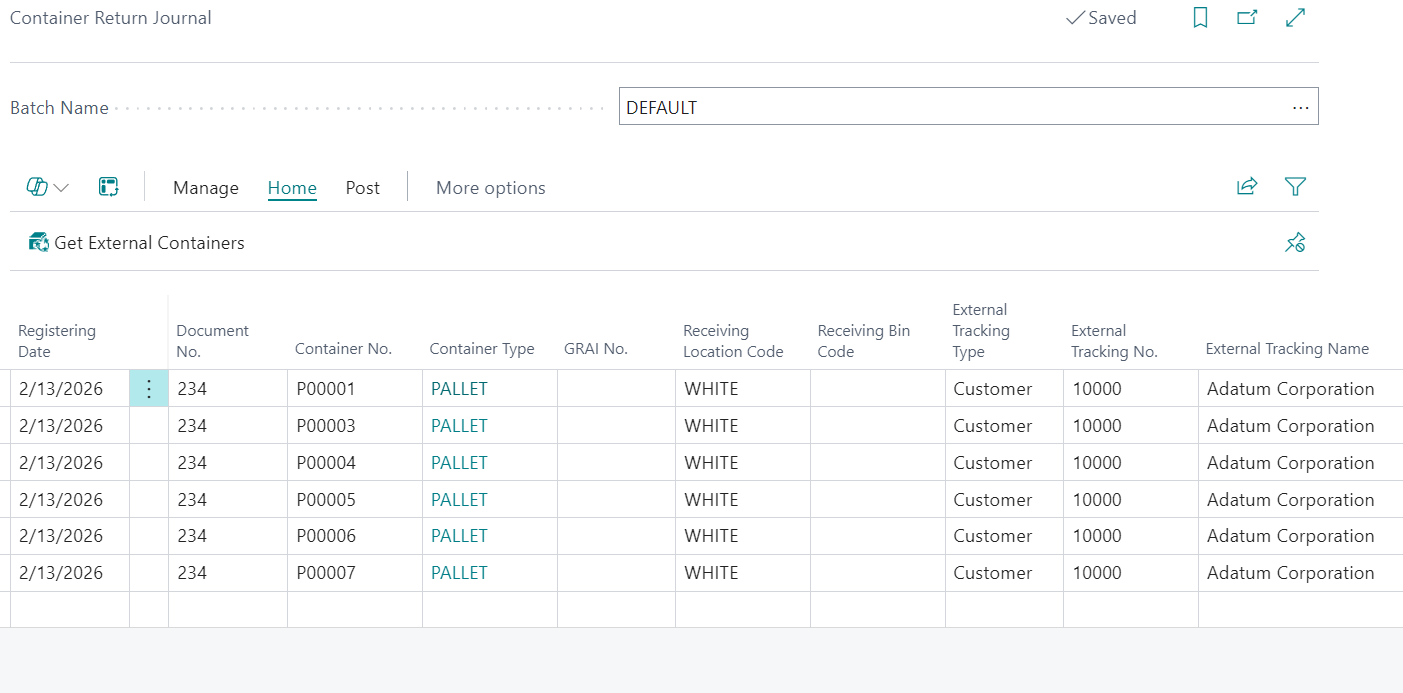
Retrieve external containers
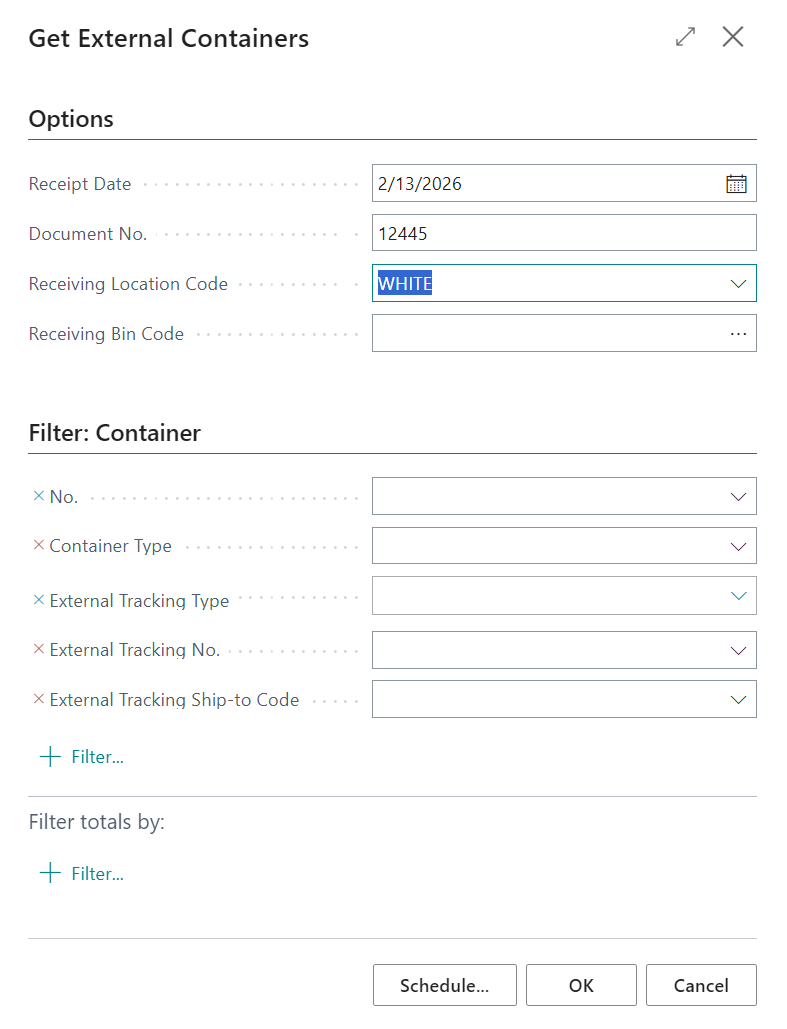
Select Get External Containers to load containers currently held externally so they can be received back.
After retrieval, review key fields including Posting Date, Document No., Container No., Container Type, Receiving Location Code, Receiving Bin Code, External Tracking Type, External Tracking No., and External Tracking Name.
Typical External Tracking Type values are Customer and Vendor.
- Select Get External Containers.
- Review the returned lines.
- Update Receiving Location Code and Receiving Bin Code where required.
- Confirm Posting Date and Document No. are correct.
Post the return journal
When the lines are complete, select Post to register the container return entries.
- Validate all required fields on each line.
- Select Post.
- Review posted results in your related container history screens.
Note: Run Get External Containers before Post whenever you need the system to load externally tracked containers automatically.