Initial Setup Overview
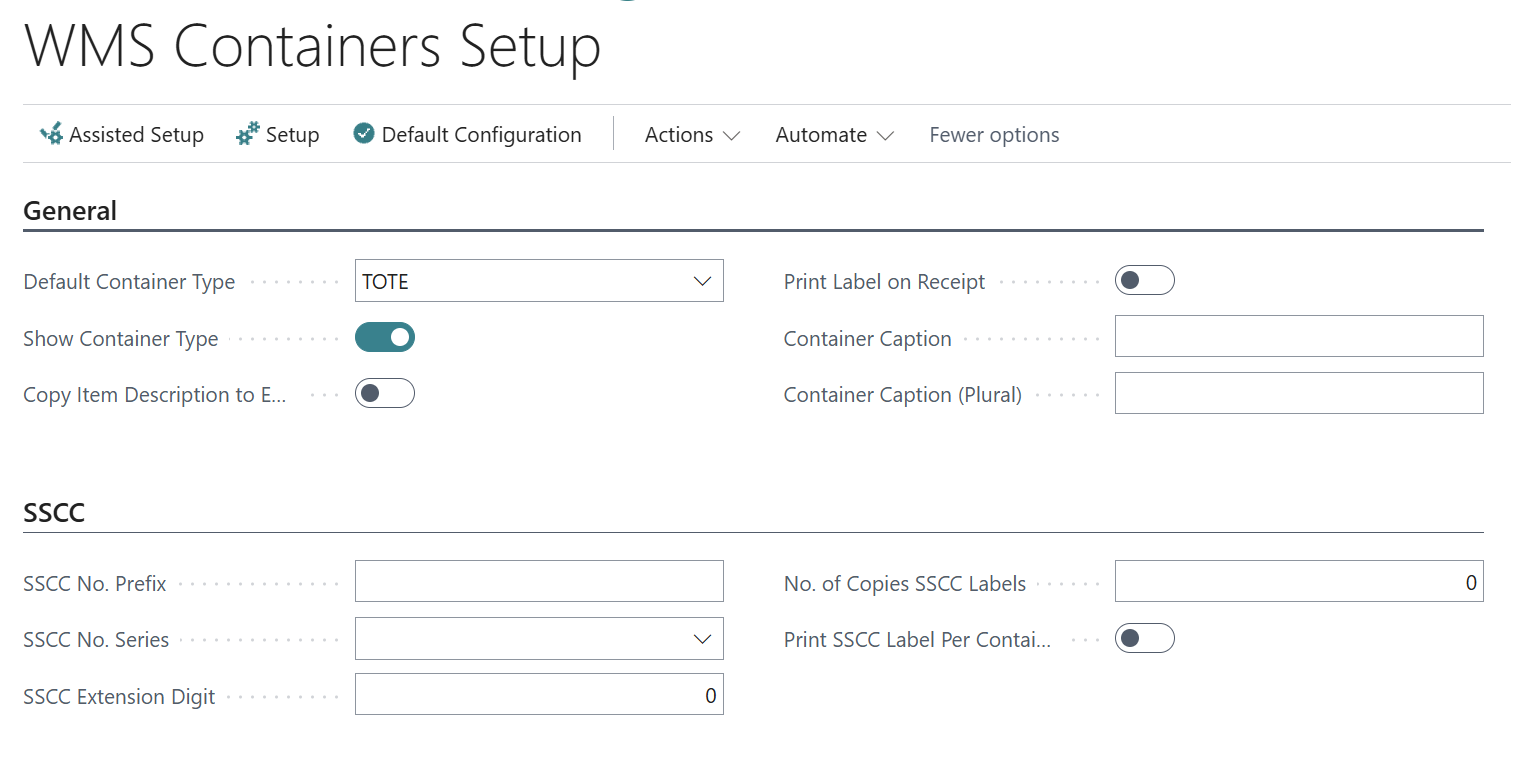
After installing Clever WMS Containers, you're presented with three setup options:
-
Assisted Setup – a guided walkthrough ideal for first-time configuration.
-
Manual Setup – for advanced users who prefer full control.
-
Default Setup – applies a standard configuration suitable for most warehouses.
You can also access the User Guide from this screen for additional reference.
Enable HTTP Requests for Licensing
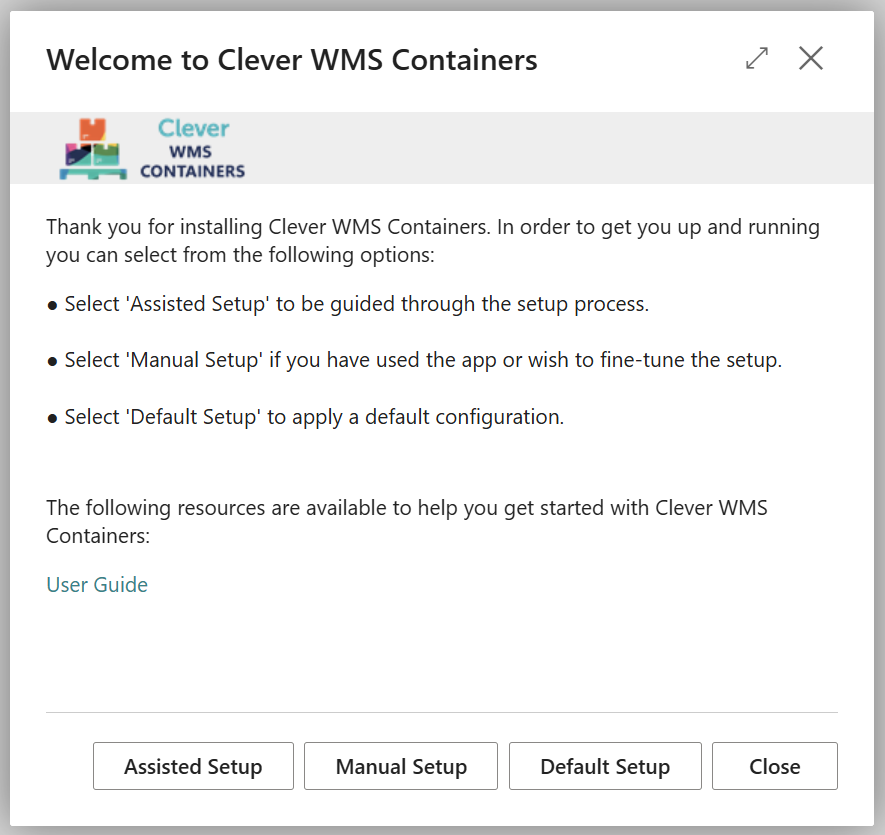
To activate your Clever license, you must allow HTTP requests:
- Go to "Extension Management".
- Locate "Clever Config".
- Enable HttpClient Requests to ensure proper license activation and communication.
Configuration Type Selection
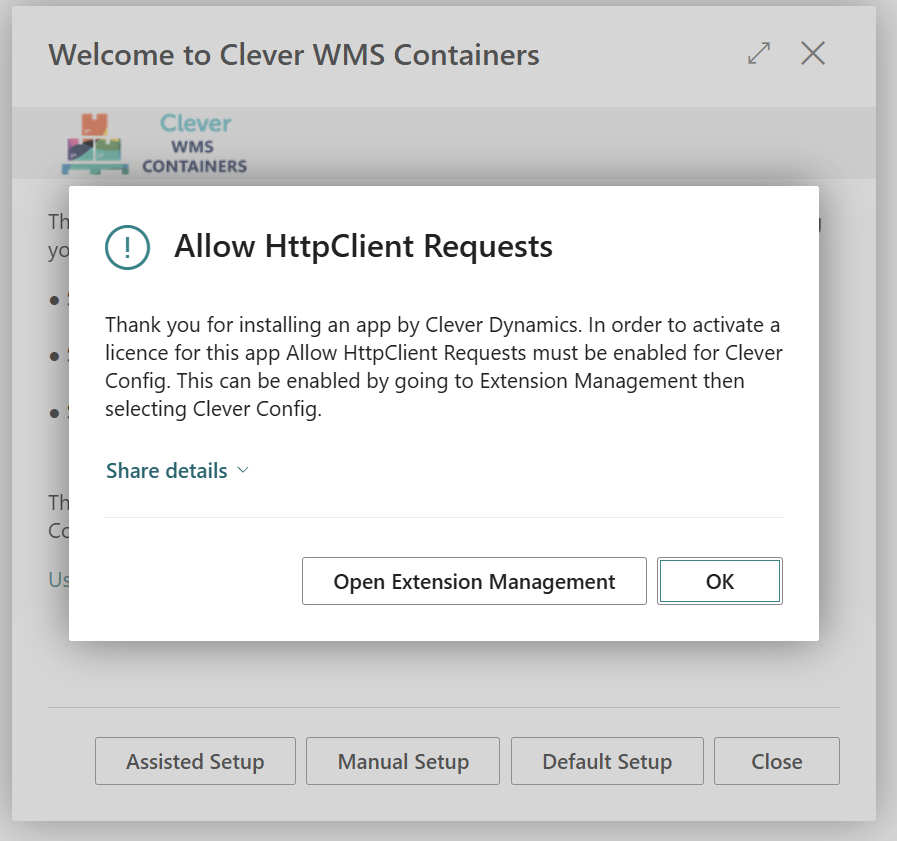
Choose between:
-
Default Configuration – applies standard container settings.
-
Demo Configuration – useful for training or testing environments.
Click OK to confirm your choice and proceed with setup.
Assisted Setup
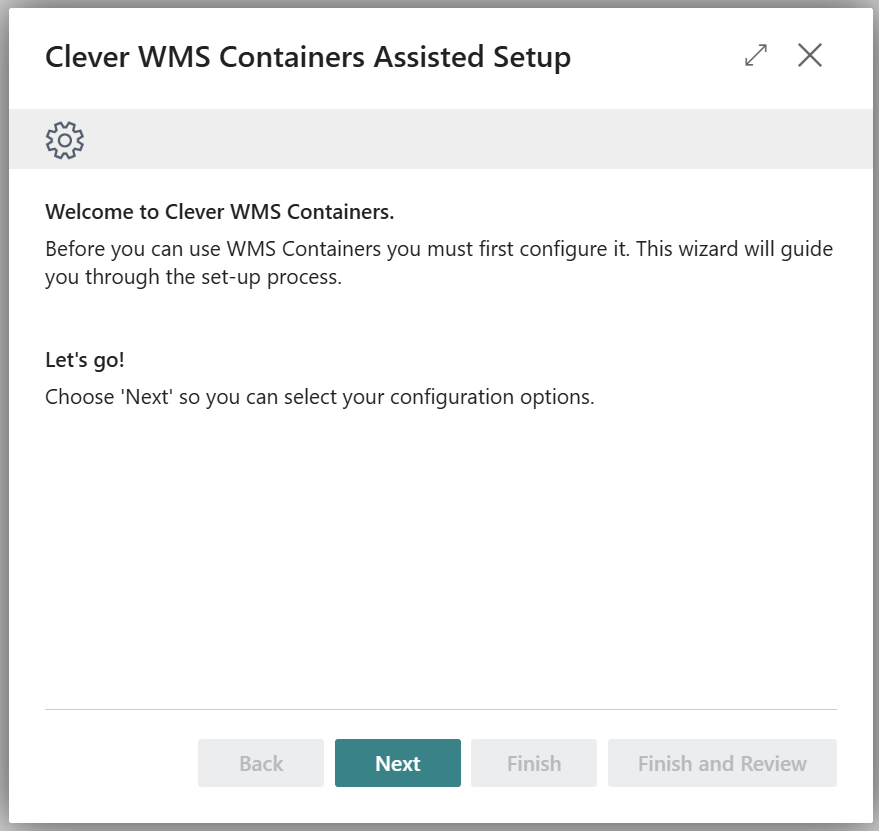
The welcome screen introduces the setup process and highlights that configuration is required before use. Click Next to begin selecting your preferences and defining how containers will be managed in your warehouse.
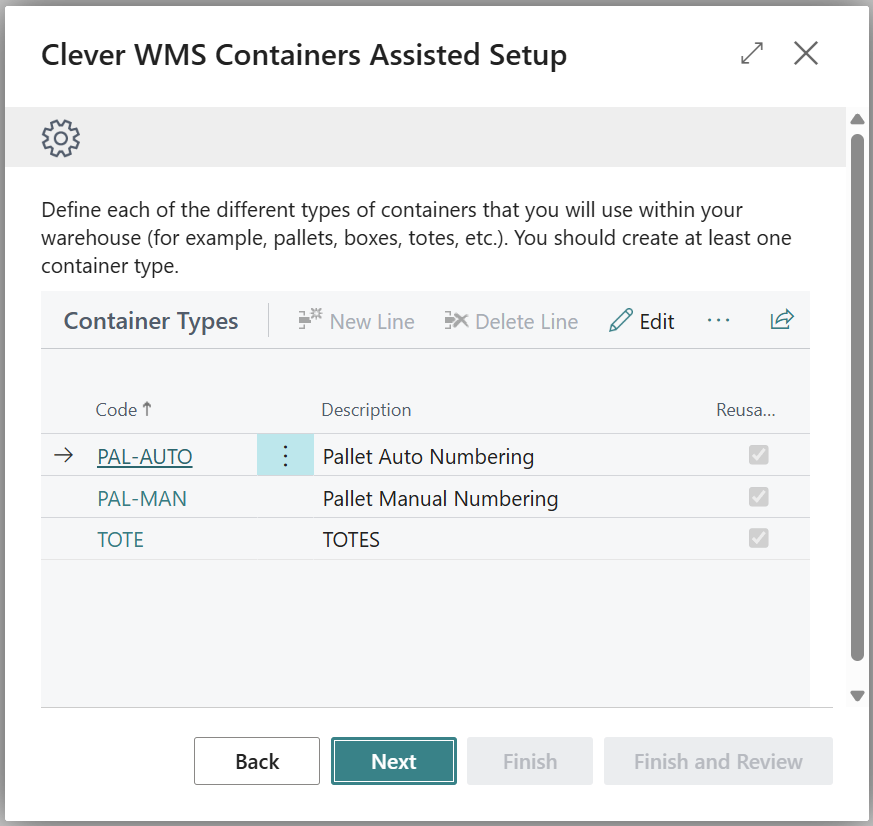
Define Container Types
Specify the types of containers used in your warehouse operations:
- Examples include PAL-AUTO (automatically numbered pallets), PAL-MANUAL, and TOTE.
- You can add new container types or edit existing ones to match your operational needs.
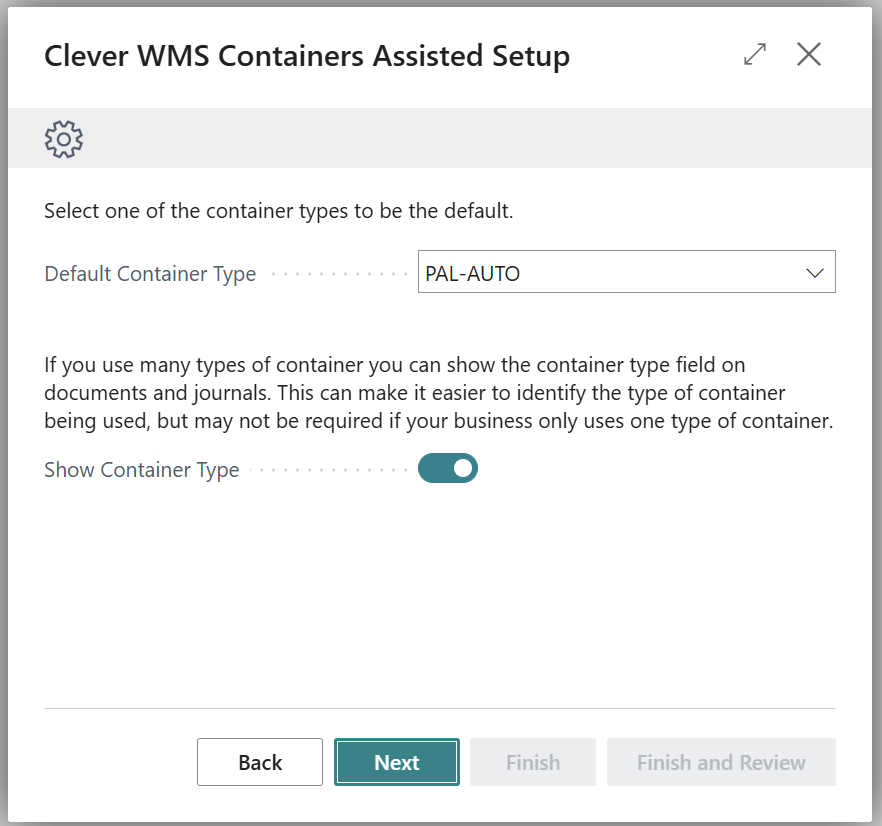
Set Default Container Preferences
Choose a Default Container Type that will be used across documents and journals.
- You can also toggle whether the Container Type field should be visible on warehouse documents and journals for better traceability.
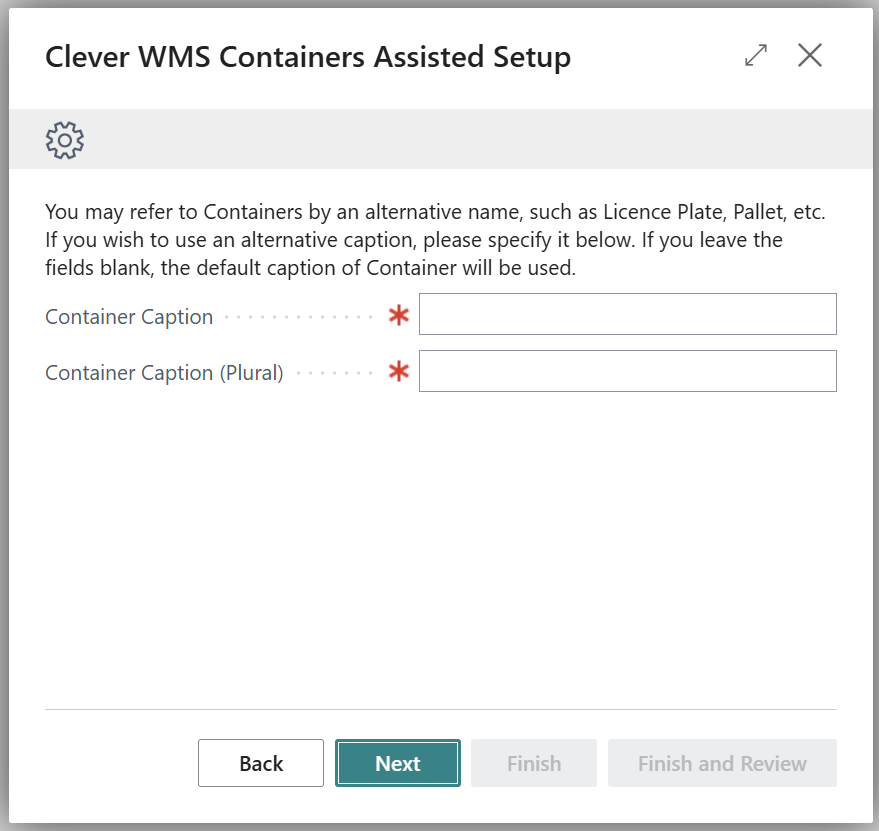
Customise Container Captions
This part of the setup allows you to define how container names appear throughout your warehouse system. It ensures the terminology used in the system matches the language your team uses day to day.
You will be asked to enter:
- Singular Caption – the name used when referring to a single container, such as Pallet, Crate, or Tote.
- Plural Caption – the name used when referring to multiple containers, such as Pallets, Crates, or Totes.
These captions will appear on documents, journals, labels, and reports wherever containers are referenced. This helps maintain consistency and clarity across your warehouse operations.
The concept is similar to what is commonly known as "Licence Plating", where containers or handling units are identified and tracked using unique labels or codes. By assigning clear and familiar names to your containers, you make the system easier to understand and use for all staff.
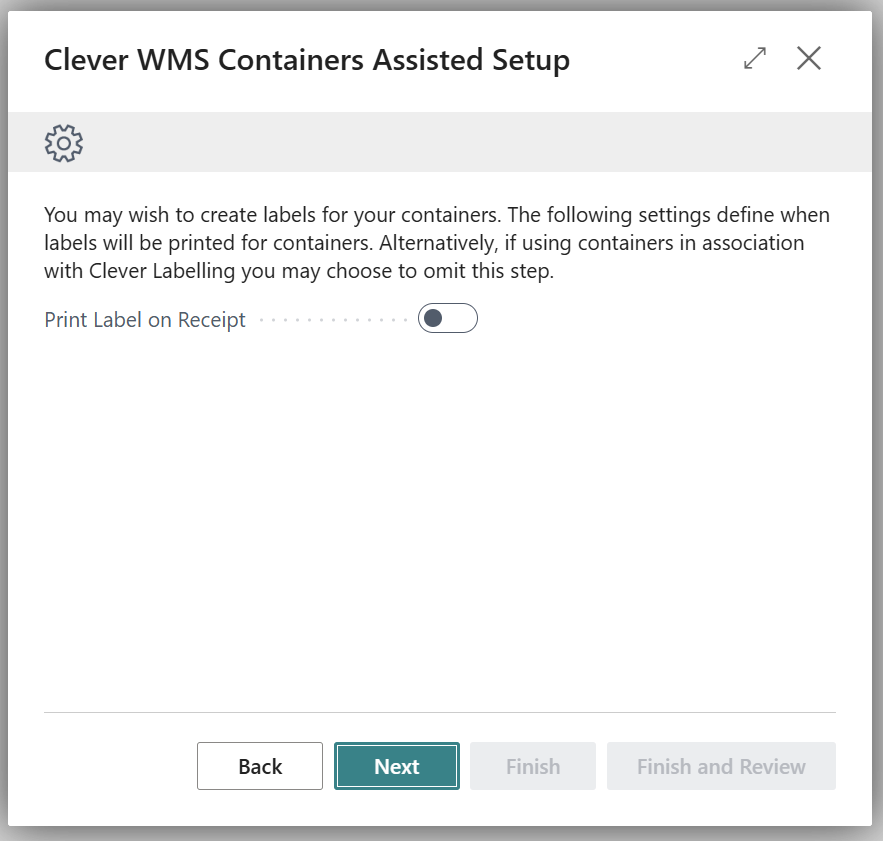
Label Printing on Receipt
Decide whether container labels should be printed automatically upon receipt:
- Use the toggle switch to enable or disable this feature.
- This is useful for operations that require immediate labelling for tracking or compliance.
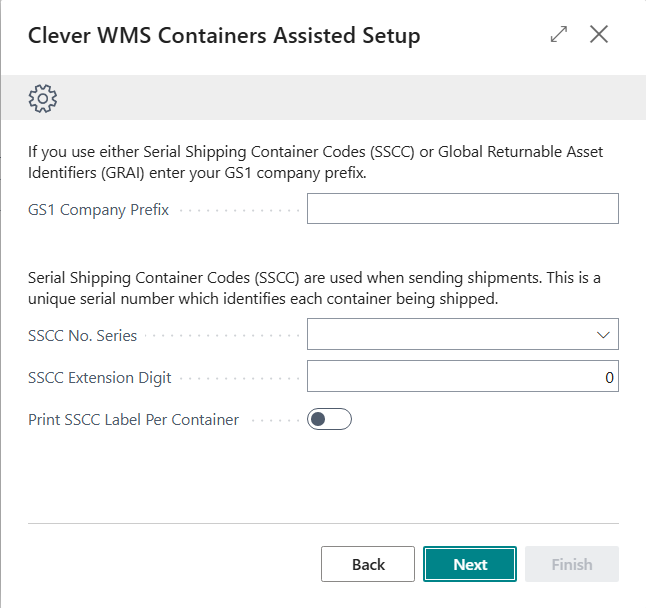
Configure SSCC & GS1 Prefix Settings
If you use either Serial Shipping Container Codes (SSCC) or Global Returnable Asset Identifiers (GRAI) you can enter your GS1 company prefix here.
Set up Serial Shipping Container Codes (SSCC) for container tracking:
- Define the SSCC No. Prefix, Series, and Extension Digit.
- Choose how many label copies to print.
- Enable the option to Print SSCC Label per Container if required for your logistics process.
Final Review and Completion
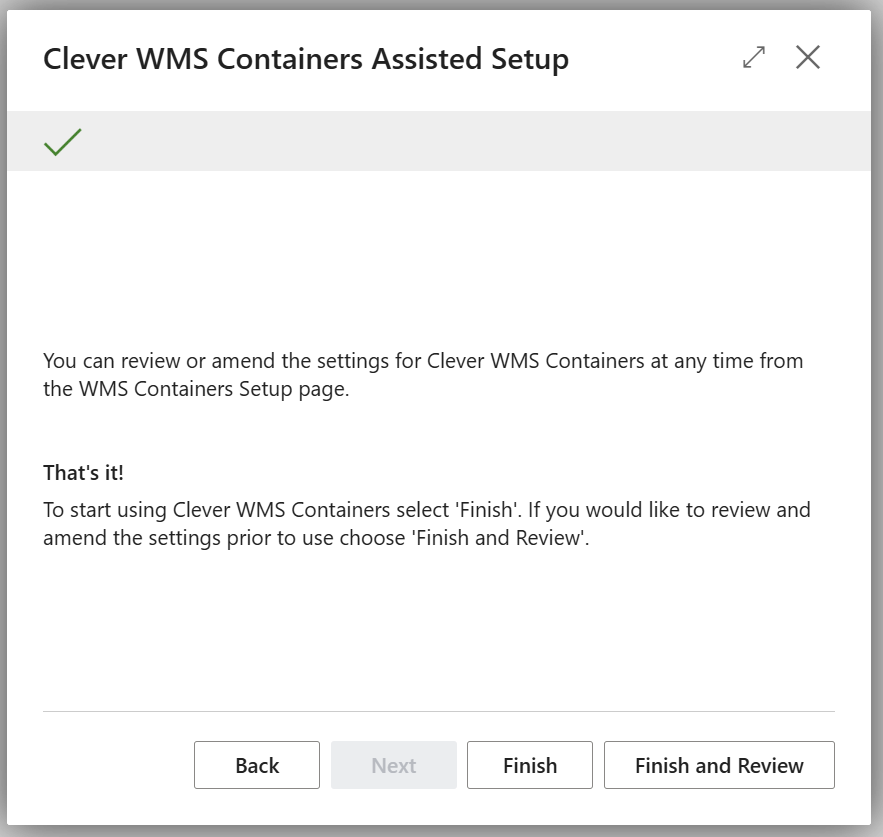
Once all settings are configured:
- Click Finish to complete the setup.
- Or choose Finish and Review to double-check and adjust any settings. You can revisit and amend these configurations anytime via the "WMS Containers Setup" page.
Final Review and Completion
Once all configuration steps are complete, you will be presented with the option to either Finish or Finish and Review.
-
Clicking Finish will complete the assisted setup and apply your settings.
-
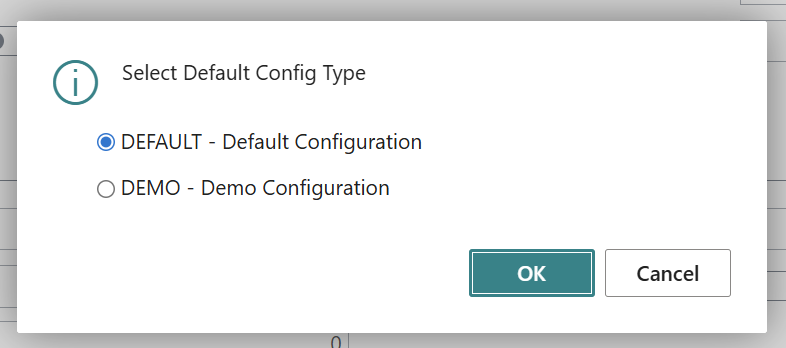
Clicking Finish and Review will open the WMS Containers Setup screen, where you can view and amend any of the configuration options you’ve just set.
This screen allows you to:
-
Adjust container types and captions
-
Change label printing preferences
-
Update SSCC settings
-
Modify default container behaviour
If you need help navigating or using the WMS Containers Setup screen, [click here to go to setup screen instructions].