From the "Container Types" Screen Click New to create a new container type.
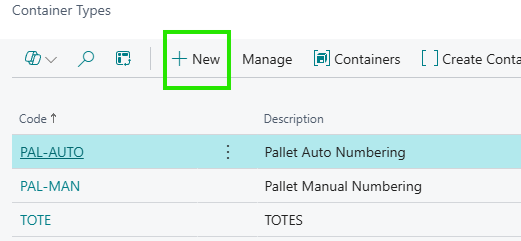
The Container Types screen will open and is used to define the characteristics of a new container that will be used for storing and moving items in your warehouse.
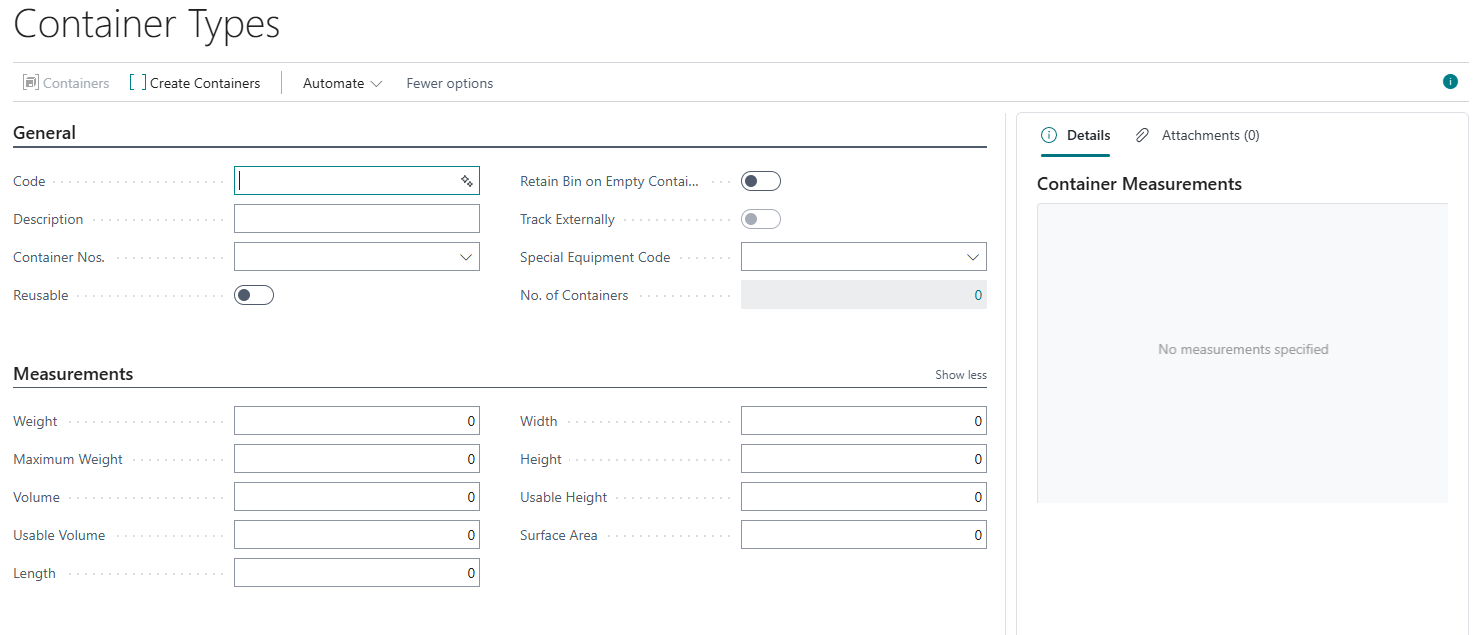
General FastTab
| Code | Enter a unique identifier for the container type (e.g., TOTE, PALLET). |
| Description | Provide a descriptive name (e.g., Plastic Tote, Wooden Pallet). |
| Container Nos. | Select a numbering series for containers if available. |
| Reusable | Toggle ON if the container can be reused multiple times. |
| Retain Bin on Empty Container | Switch ON to keep bin assignment even when empty. |
| Track Externally | Enable if the container needs external tracking. |
| Special Equipment Code | Select if special equipment is required (e.g., forklift). |
| No. of Containers | Displays the number of containers linked to this type (auto-calculated). |
Measurements FastTab
| Weight | Enter the empty weight of the container. |
| Maximum Weight | Enter the maximum load the container can safely carry. |
| Volume | Enter the total internal volume of the container. |
| Usable Volume | Enter the actual usable space inside the container. |
| Length, Width, Height | Enter the container dimensions in your preferred unit. |
| Usable Height | Enter the height available for stacking items inside. |
| Surface Area | Optional: Enter the footprint space if needed. |

Once you have filled out the relevant information, in the details pane you will now see a visual representation of the container type. This Container Type will now be available when creating new containers.