Within Clever Quality, there may be the scenario where goods have gone through a Quality Order and some of the Lot/Container has passed, with the remaining qty that Fails. Rather than posting them all together as 1 Quality Status, you can now split the Lot or Container within the Quality Order prior to posting. This means you can accurately represent what actually happened to the goods and treat them accordingly.
Below will take you through how to use these 2 functions.
Split Lot
Firstly, the Split Lot functionality is very similar to the Sub-Lotting function from the Lot No Information list, where part of the Lot Number can be split out and identified with a new number. Below will simply allow you to do this function from a Quality Order. For a brief overview of the Sub-Lotting functionality, see the Sub-Lotting article. You will also need to define the number format for your Sub-Lots before you create any. You can do this on the Clever Item Tracking Plus Setup page in the Sub-Lot Number format field. More information on how to use these are here.
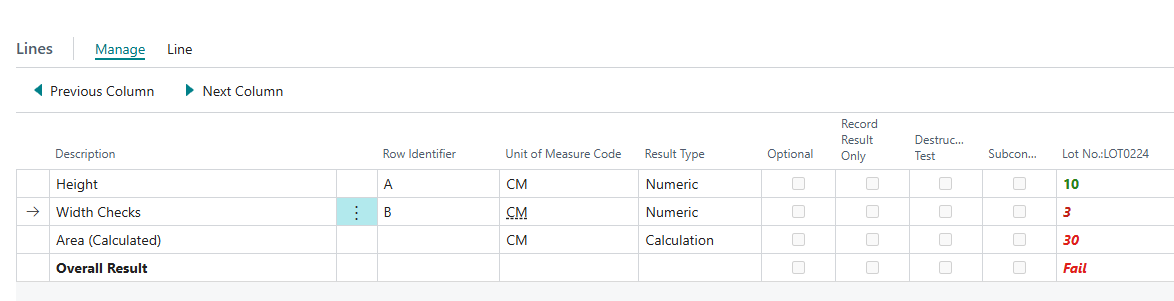
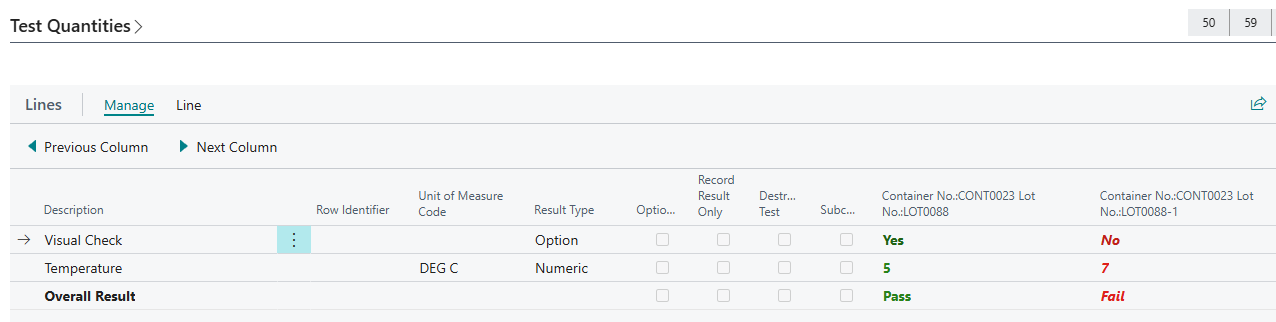
Within a Quality Order for 1 or multiple Lot numbers, there may be the instance where some of the checks pass and others fail. See below as an example.
In this instance, without splitting the Lot, it would fail my full sample qty here because the Overall Result is 'Fail'. However, realistically, some of the Lot is acceptable.
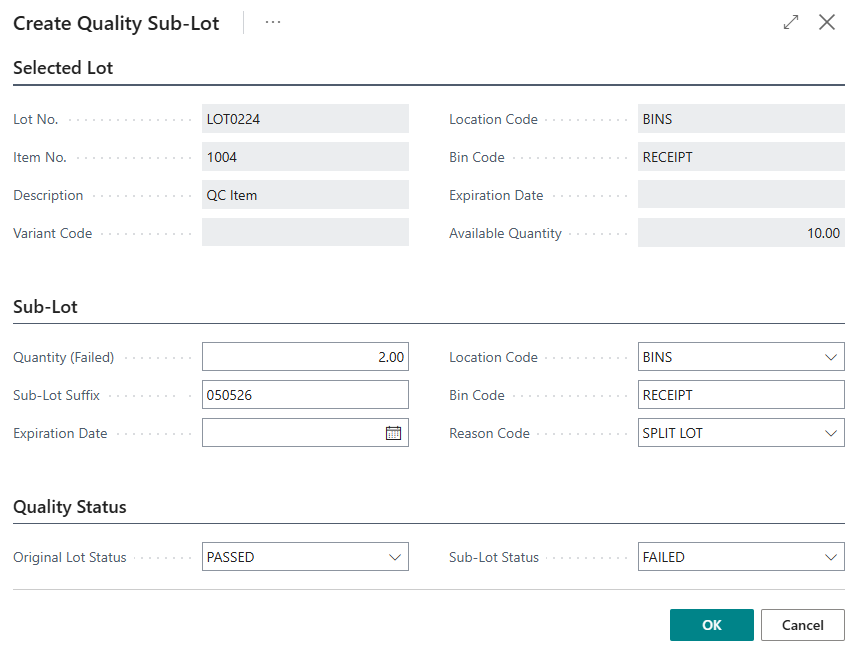
In the Failure Responses within the Quality Order ribbon, there is now the option to Split Lot. Clicking into this option will do one of two things. If the Quality Order has just 1 Lot number within it, it will open up a screen like the below. This will pre-populate most of the fields within the Sub-Lot card and it will also show the Original Lot Status and Sub-Lot Status. It defaults these values (so original will always default to your Passed status and Sub-Lot Status will default to the Failed Status but they can be overwritten.
The Quantity (Failed) will always default to the full qty that was tested but again, this can be overwritten. Whatever value you enter here will be removed from the original lot Number and pushed to the new one. You can simply press OK to this screen.
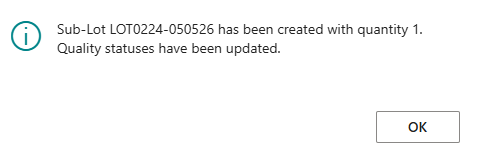
A confirmation box will appear after, confirming the new Lot number and corresponding Qty, and to confirm the statuses are updated accordingly. Where I only sub-lotted 1, you'll now see this has been confirmed and my Lot Numbers are now updated.
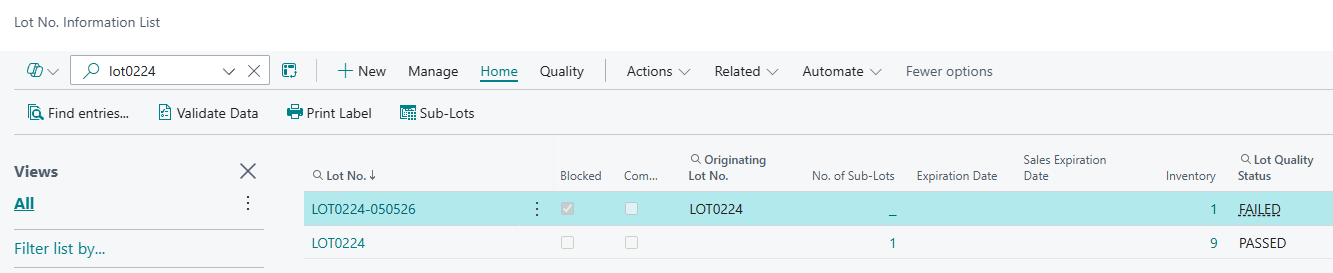
You'll see the correct Inventory Qtys are shown, along with the No of Sub-Lots available from my original Lot Number for traceability. I can also view the Originating Lot No from the new Sub-Lot.
In the instance of the Quality Order displaying more than 1 Lot Number, when the Split Lot function is clicked in the Failure Responses, a different initial screen will appear, displaying the Lot Numbers along with their Qty Passed/Qty Failed statistics. You can then select which Lot number to split and click the Split Lot action which takes you through the above process to confirm the qtys, reason code and Status.
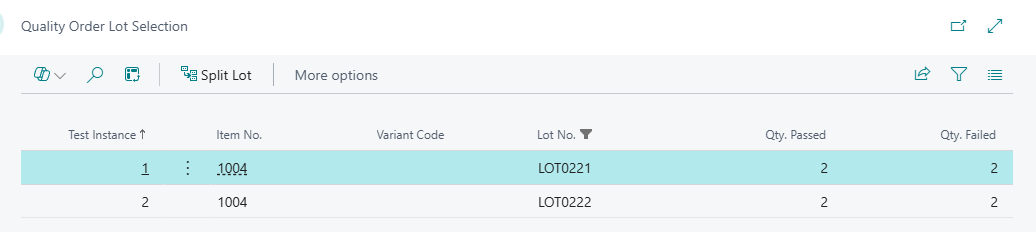
You can of course choose to only create a Split Lot for 1 or some of the Lot's shown in this list.
Sub-Lots can also be created directly from the Lot No Information list & Card. See here for instructions on how to do this.
Split Containers
Similarly to the above, when you're within a Quality Order for goods within a Container and some may have passed and some may have failed, you have the ability to move the failed goods into a different container.
In the Failure Responses in the Quality Order ribbon, select Split Container. This opens up the screen below, showing you the Lot/Serial/Package/Container no's and how many of each have passed or failed.
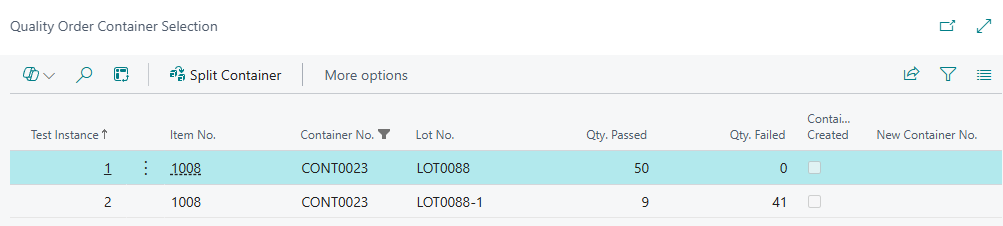
Select the Test Instance you want to split and click the Split Container option in the ribbon. This will show a screen detailing the Item, Lot or Serial of the item as well as it's current location, Bin and Container No. Here you can define how much you want to move from the existing container to another.
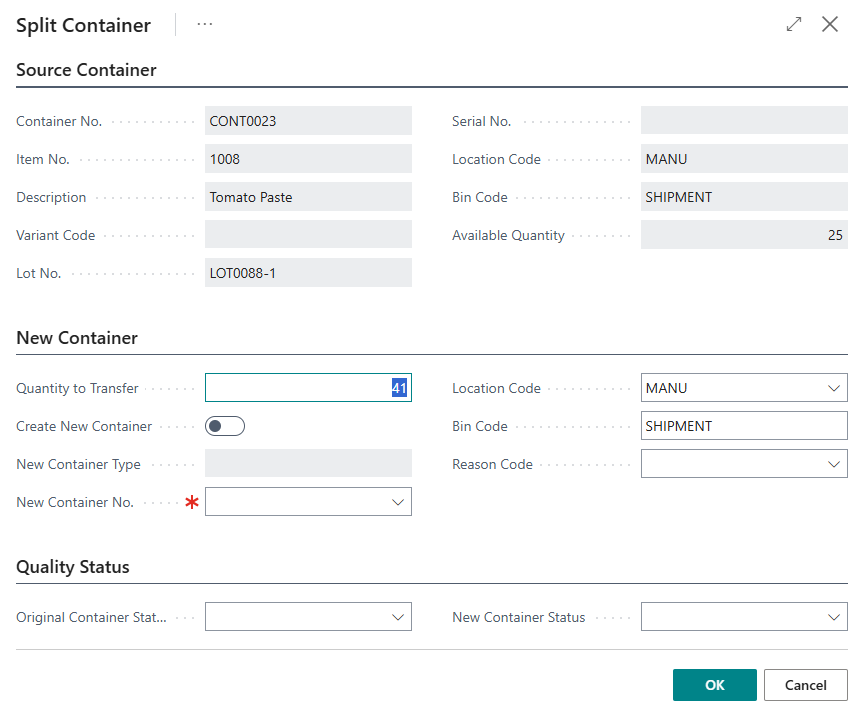
You'll notice that the Quantity to Transfer defaults to the qty that failed. You can overwrite this if you wish. Now you need to decide whether to move the failed goods into a new container or choose an existing one. If you want to move to a new one, change the Create New Container to 'Yes'. This allows you to choose an option from the New Container Type field to confirm what type of Container you want to move these to. If you want to move them to an alternative Location or Bin Code you can change these values too. You can also add a Reason Code if you want to report on this movement at a later point in time.
The Quality Status shows the Original Container Status and New Container Status. These should default to the current and Failed statuses but you can overwrite them if necessary. Press OK to confirm the movement.
If you wanted to choose an existing Container to move these to, you keep Create New Container as 'No' and instead, choose an existing Container No from the New Container No field.
When you go back to the previous screen to see the list, you'll notice the lines moved to new/existing containers is now updated to show this movement.
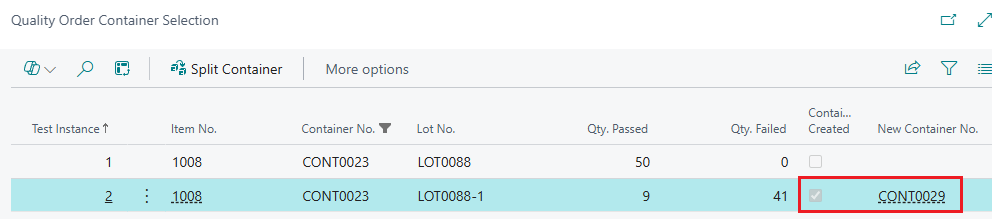
The Quality Order can now be posted as normal.
To view this change, go to "Containers" in Business Central and click into the container you moved the goods from. Either from the ribbon or from the lines section, go to Entries. Here you will now see a negative movement of the goods.

The Quantity (Base) on the Container Lines will also be updated to reflect the qty remaining in this container. Doing the same in the new container you moved goods to will show the Container lines with the Quantity (base) reflecting the qty you moved, the Quality Status you assigned in the Split Container screen and the Entries will show a positive adjustment of the goods.
