Sales Configurator
The "Sales Configurator" screen guides you through a step-by-step workflow to configure an item on a sales document. Each step presents options, parameters, or customisation fields that you select or complete before advancing to the next step. Once all steps are finished, the configured item, price, and components are applied to the sales line.
Note: The Sales Configurator opens automatically when you add or modify a configurable item on a Sales Order or Sales Quote line.
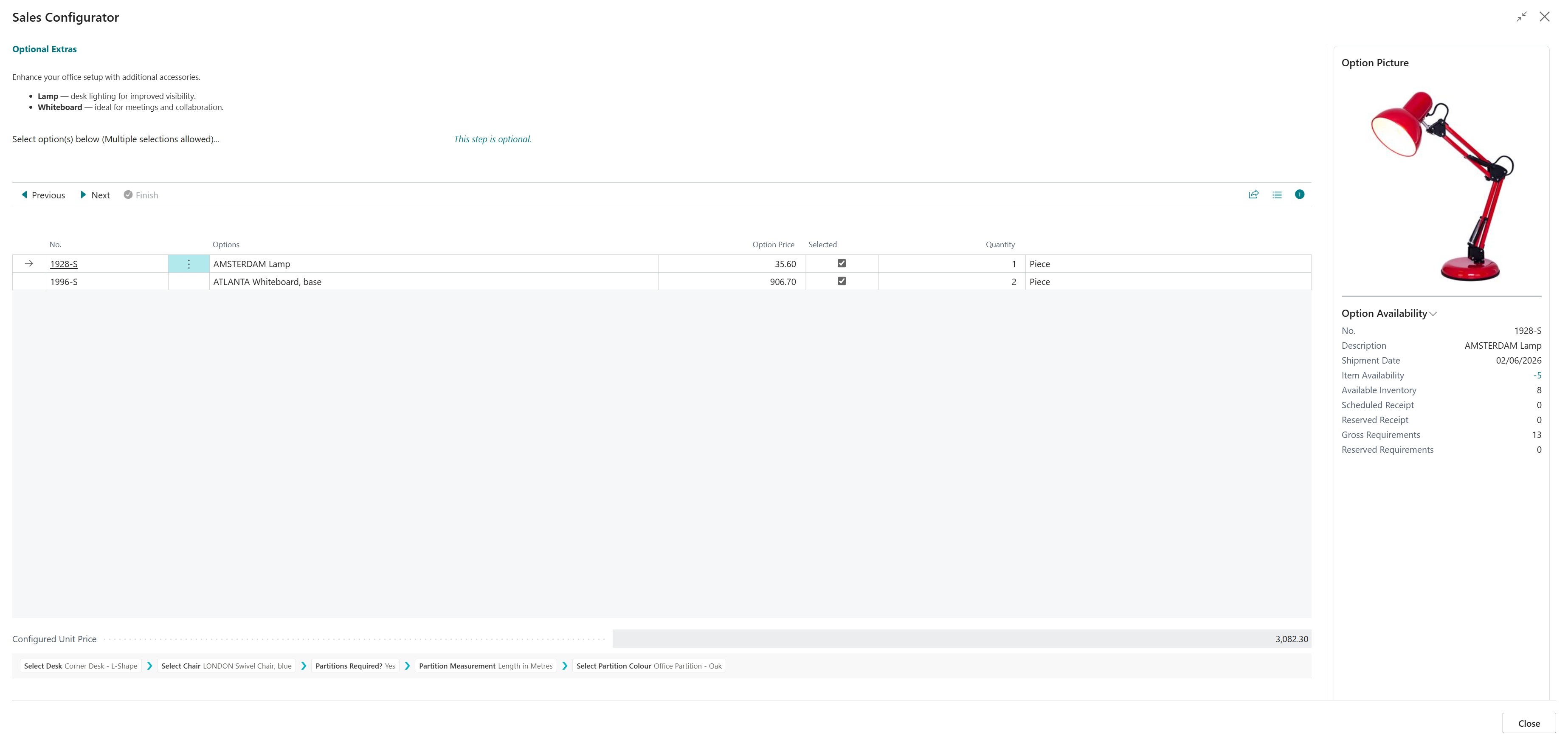
Page Actions
Three actions are available at the top of the page to navigate through the configuration workflow:
| Action | Shortcut | Description |
| Previous | Ctrl+P | Go back to the previous step to review or change your earlier selections. Your current selections on this step will be preserved. |
| Next | Ctrl+N | Confirm your selections and advance to the next step of the configuration. You must complete any mandatory fields before proceeding. The system validates your selections (required fields, quantity limits, selection counts) before allowing you to advance. |
| Finish | Ctrl+F | Complete the configuration and apply all selections to the sales line. The configured item, price, and components will be updated on the sales document. This action is only available on the final confirmation screen. |
Note: The Previous button is disabled on the first step. The Next button is disabled on the final screen, and Finish is only enabled on the final screen.
Step Heading
At the top of the page, a heading displays the current step description in bold accent styling. When all configuration steps are complete, the heading changes to: "Sales configuration complete - Select 'Finish' to update sales line."
User Instructions
If the workflow step has user instructions configured, they are displayed in a rich-text viewer below the step heading. This area is only visible when the Display User Instructions setting is enabled in the "Configure to Order Setup" screen and the current step has instructions defined.
Information Lines
Below the heading, up to four information lines provide guidance for the current step. These are automatically populated based on the step type and configuration:
- Line 1: General instruction (e.g. "Select option below...", "Select option(s) below (Multiple selections allowed)...", "Enter customisation below...", "Enter parameters below...").
- Lines 2-4: Additional constraints such as selection limits, quantity restrictions, or "This step is optional." These are highlighted in an attention style to draw your eye to important constraints.
Options List
The main area of the page displays the available options for the current step in a list. The columns shown vary depending on the step type:
| Field | Description | When Visible |
| No. | The item number, resource number, or option code. This is a read-only reference field. | When Display Item No. is enabled in setup, and the step type is Item. |
| Options (dynamic caption) | The description of the available option. The column heading changes based on the step type:
On some steps, this field is editable (e.g. when adding unlisted items). |
Always visible. |
| Customisation Text | Free-text field where you enter customisation text for the line. A mandatory indicator appears if a minimum character length is required. | On Customisation (Text) steps only. |
| Restrictions | Displays the character length restrictions for the customisation text (e.g. "Minimum 5 characters (Including Spaces). Maximum 20 characters (Excluding spaces)."). | On Customisation (Text) steps only. |
| Option Price | The price impact of selecting this option. Depending on the workflow setup, this shows either the absolute option price or the price difference relative to the currently selected option. | When pricing is enabled and the step type supports pricing (Item, Resource, Option). |
| Selected | Tick this checkbox to choose the option for your configuration. If the step does not allow multiple selections, selecting a new option automatically deselects the previous one. Deselecting the only selected option is not permitted on mandatory steps. | On all steps except Parameter steps. |
| Quantity (dynamic caption) | The quantity, parameter value, or run time for the selected option. The column heading changes based on the step type:
The field is highlighted in red if the entered value is outside the allowed range. A mandatory indicator appears when required. |
When the step allows quantity changes or has a quantity formula applied. |
| Unit of Measure | Shows the unit of measure and any minimum/maximum quantity constraints (e.g. "PCS (Between 1 and 10)", "PCS (Minimum 1)", "PCS (Maximum 10)"). | When the Quantity field is visible. |
| Setup Time | The setup time for a manufacturing operation. This is the fixed time required to prepare the work centre or machine centre before processing begins. | On Production Operation steps when quantity changes are allowed. |
| Filename | Displays the filename of the uploaded customisation image. Click the assist-edit button to upload an image file. | On Customisation (Images) steps only. |
Adding Unlisted Items
On certain step types, additional links appear below the options list to allow you to add items, resources, or operations that are not in the predefined list:
| Link | Description | When Available |
| Add Unlisted Item | Opens a lookup to select an item that is not included in the predefined list for this step. | On Item steps where Allow Unlisted Items is enabled on the workflow step. |
| Add Catalogue Item | Opens a lookup to select a catalogue (nonstock) item. Catalogue items are only available on sales quotes. | On Item steps where Allow Catalog Items is enabled on the workflow step, and the sales document is a Quote. |
| Add Unlisted Resource | Opens a lookup to select a resource that is not included in the predefined list for this step. | On Resource steps where Allow Unlisted Resources is enabled on the workflow step. |
| Add Unlisted Machine Centre | Opens a lookup to select a machine centre not in the predefined list. | On Production Operation steps where Allow Unlisted Operations is enabled. |
| Add Unlisted Work Centre | Opens a lookup to select a work centre not in the predefined list. | On Production Operation steps where Allow Unlisted Operations is enabled. |
Pricing Fields
At the bottom of the page, pricing fields display the running total as you progress through each step:
| Field | Description | When Visible |
| Configured Unit Price | The running total unit price of the configured item based on all selections made so far. This updates automatically as you progress through each step. You may override the price on the final screen if the workflow allows price overrides. | When Display Unit Price is enabled in the "Configure to Order Setup" screen. |
| Configured Setup Price | The running total setup price of the configured item. The setup price covers one-off costs such as tooling or machine preparation that are independent of the order quantity. | When the workflow's Configuration Method is set to Production Order. |
Note: The price fields are read-only during configuration. If Allow Price Override is enabled on the workflow, the price fields become editable on the final confirmation screen before you click Finish.
Finished Quantity
| Field | Description | When Visible |
| Finished Quantity | Enter the number of units of the configured item to produce or add to the sales document. This defaults to the quantity from the sales line. | When Allow Quantity is enabled on the workflow. |
Breadcrumb Navigation
A breadcrumb trail at the bottom of the page shows all completed steps and a summary of what was selected at each one. You can click on any completed step in the breadcrumb to jump back to it directly.
Note: Clicking a breadcrumb step will discard all selections made on steps after the target step. The target step will be reloaded with your previous selections pre-filled.
FactBoxes
The right-hand panel displays contextual information about the currently highlighted option. The FactBoxes shown depend on the step type and setup configuration:
| FactBox | Description | When Visible |
| Option Picture | Displays the picture associated with the current step and selected option. | When Display Pictures is enabled in the "Configure to Order Setup" screen. |
| Option Availability | Shows the inventory availability of the highlighted item option, including quantities on hand, on order, and available. | On Item steps when Display Option Availability is enabled in setup. Not shown for catalogue items. |
| Option Item Attributes | Displays the item attributes (e.g. colour, size, material) of the highlighted item option. | On Item steps when Display Item Attributes is enabled in setup. Not shown for catalogue items. |
| Option Item Information | Shows detailed item card information for the highlighted item option. | On Item steps when Display Item Information is enabled in setup. Not shown for catalogue items. |
| Calculations | Displays the results of any calculation formulas defined for the workflow. Calculations update automatically as selections change. | When Display Calculations is enabled in setup and the workflow has calculation formulas defined. |
Validation Rules
When you click Next, the system validates your selections. The following rules are enforced depending on the step type:
Option, Item, Resource, and Production Operation Steps
- At least one option must be selected (unless the step is marked as optional).
- If the step has a Minimum No. of Selections, you must select at least that many options.
- If the step has a Maximum No. of Selections, you cannot select more than that many options.
- If quantity changes are allowed, every selected option must have a non-zero quantity.
- The quantity for each option must fall within its minimum and maximum limits.
- If the step has Minimum/Maximum Total Qty. constraints, the sum of all selected quantities must fall within range.
Parameter Steps
- All non-optional parameters must have a value entered (non-zero).
- Parameter values must fall within their defined minimum and maximum range.
Customisation (Text) Steps
- Text entries must meet the minimum character length requirement (if defined).
- Text entries must not exceed the maximum character length (if defined).
- Character counting may include or exclude spaces, as configured on the customisation text line.
Closing the Configurator
Note: If you close the "Sales Configurator" screen before clicking Finish, a confirmation message will appear warning that any changes will be lost. Only click Finish to save your configuration to the sales line.