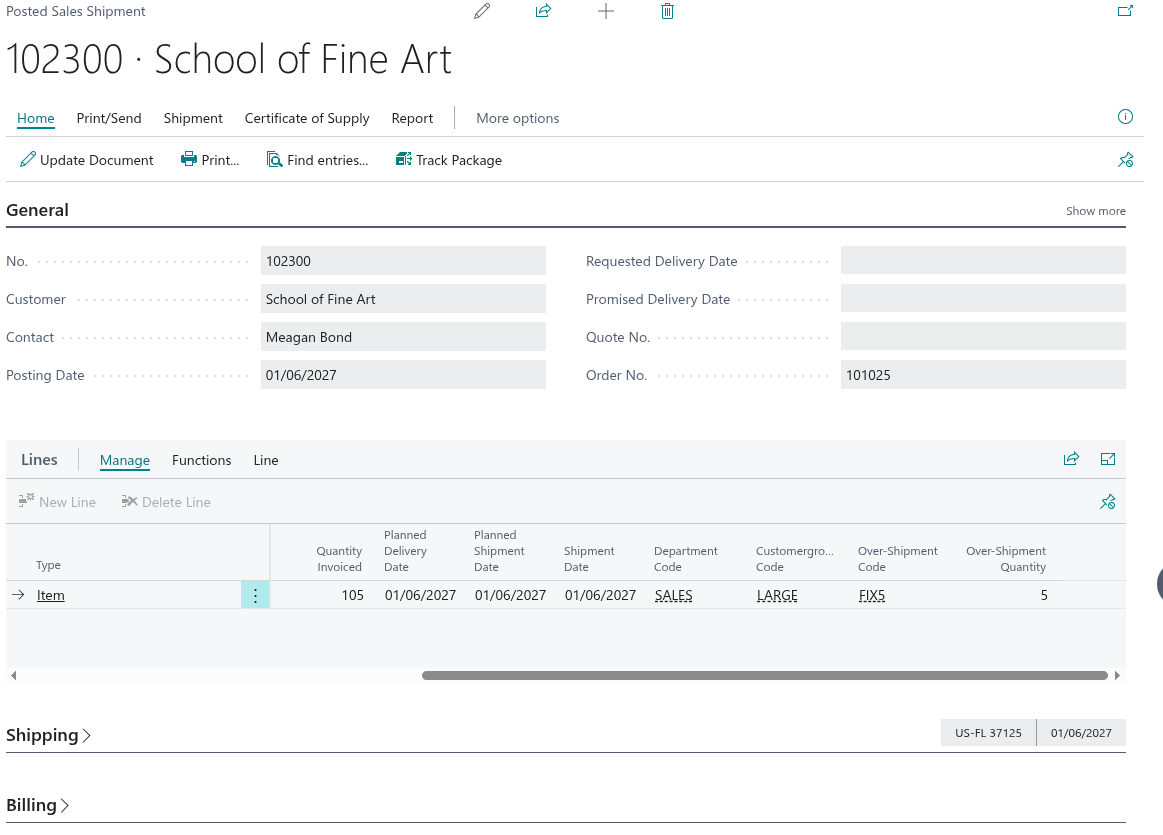
The Over-Shipment functionality allows businesses to ship more than the originally ordered quantity on a Sales Order, within a controlled tolerance. This is particularly useful in industries where slight quantity variances are common - for example, where goods are picked by weight or where rounding to full units results in shipping marginally more than requested. By defining tolerance rules centrally and assigning them at multiple levels, you can ensure over-shipments are permitted only where appropriate and always stay within agreed limits.
Over-Shipment works across the full shipping process: directly on the Sales Order, through Warehouse Shipments, Warehouse Picks, and Inventory Picks. The over-shipment quantity is tracked on the order and carried through to posted documents for full traceability.
Setup
Enabling Over-Shipment
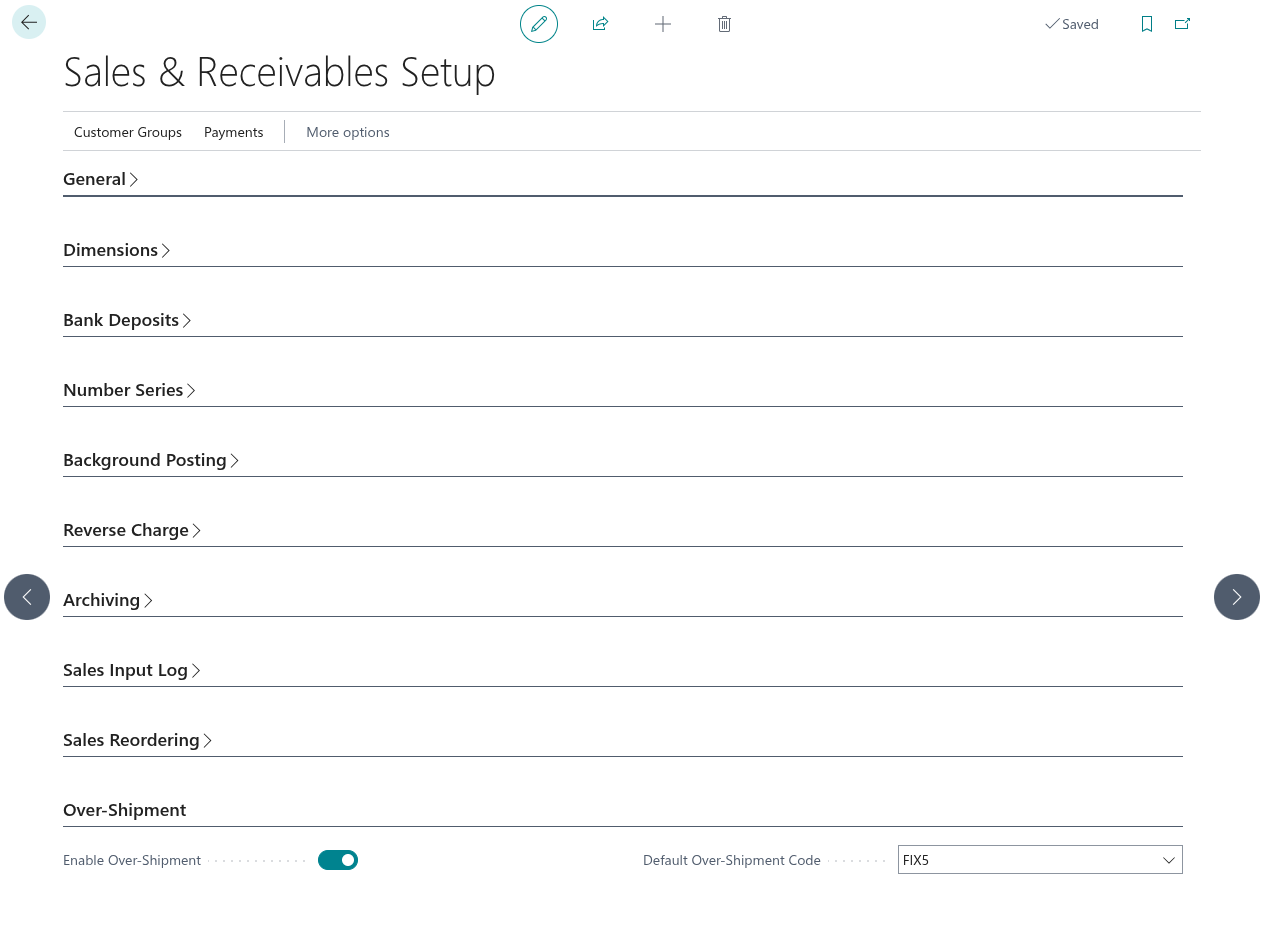
Over-Shipment is controlled from the "Sales & Receivables Setup" screen. In the Over-Shipment group you will find two fields:
- Enable Over-Shipment - Turn this on to activate the Over-Shipment functionality across your system. When disabled, all over-shipment checks and tolerances are inactive and the related fields are hidden from Sales Order lines, picks, and shipments.
- Default Over-Shipment Code - Optionally specify a default Over-Shipment Code. This code is used as a fallback when no code is assigned at the Customer, Item, or Item Category level. This field is only editable when Enable Over-Shipment is turned on.
Creating Over-Shipment Codes
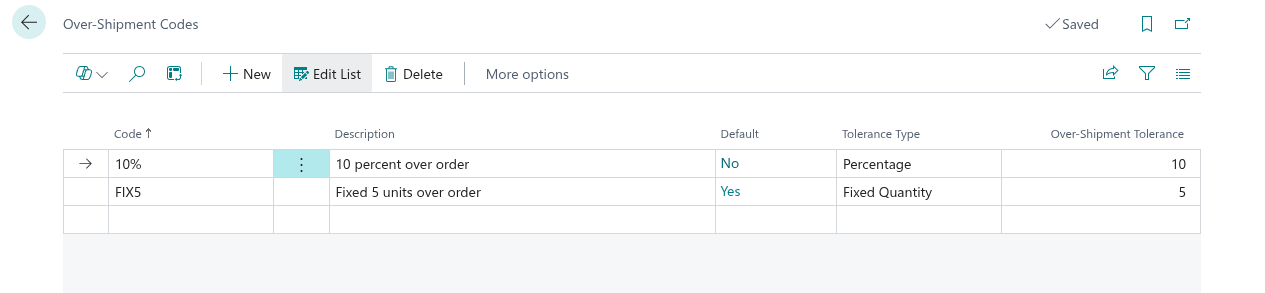
Over-Shipment Codes define the tolerance rules that control how much extra quantity can be shipped. You can search for the "Over-Shipment Codes" screen to manage these.
Each code has the following fields:
| Field | Description |
|---|---|
| Code | A unique identifier for the tolerance rule (e.g. 5PCT, PLUS10). |
| Description | A description of the code for reference. |
| Default | Indicates whether this code is set as the default in the "Sales & Receivables Setup" screen. This is a read-only calculated field. |
| Tolerance Type | Determines how the tolerance is calculated. Choose from: Percentage - the tolerance is a percentage of the ordered quantity; Fixed Quantity - the tolerance is a fixed number of additional units. |
| Over-Shipment Tolerance | The tolerance value. When Tolerance Type is Percentage, this represents a percentage (e.g. 10 means 10%). When Tolerance Type is Fixed Quantity, this represents the number of extra units allowed (e.g. 5 means up to 5 additional units). |
For example, an Over-Shipment Code with Tolerance Type set to Percentage and Over-Shipment Tolerance set to 10 would allow shipping up to 10% more than the ordered quantity. So for an order of 100 units, up to 110 units could be shipped.
Another example: an Over-Shipment Code with Tolerance Type set to Fixed Quantity and Over-Shipment Tolerance set to 5 would allow shipping up to 5 extra units regardless of the ordered quantity. So for an order of 100 units, up to 105 units could be shipped.
Assigning Over-Shipment Codes
Over-Shipment Codes can be assigned at multiple levels. When a Sales Order line is created, Business Central determines which code to apply using the following priority:
- Customer - If the Customer has an Over-Shipment Code assigned, this is used.
- Item - If no Customer code is found, the Item's Over-Shipment Code is checked.
- Item Category - If the Item does not have a code, the Item Category's code is checked.
- Default - If none of the above have a code, the Default Over-Shipment Code from the "Sales & Receivables Setup" screen is used.
The code is automatically populated on the Sales Order line when an Item is entered. It can also be changed manually on the line if needed.
Customer Level
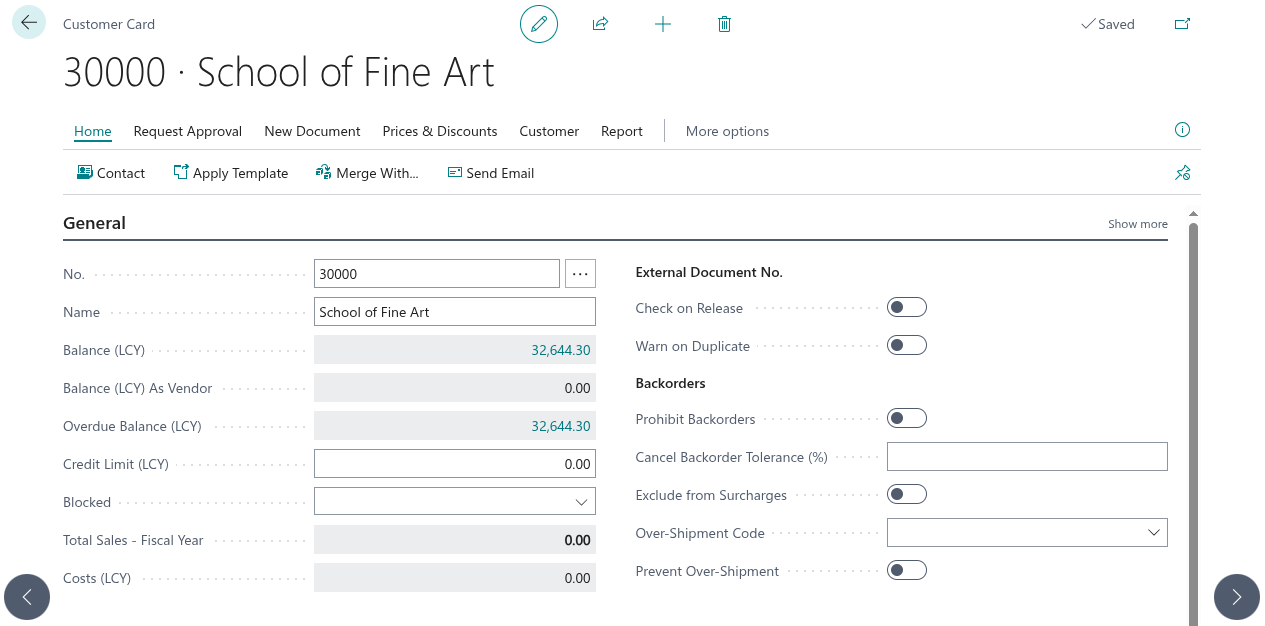
On the "Customer Card" screen, in the Invoicing FastTab, you will find:
- Over-Shipment Code - Assign an Over-Shipment Code to this Customer. When set, all Sales Order lines for this Customer will use this code by default (highest priority).
- Prevent Over-Shipment - When enabled, over-shipment is blocked for this Customer entirely, regardless of any Over-Shipment Code configured at any level. This is useful when a particular Customer does not accept any quantity variance.
Item Level
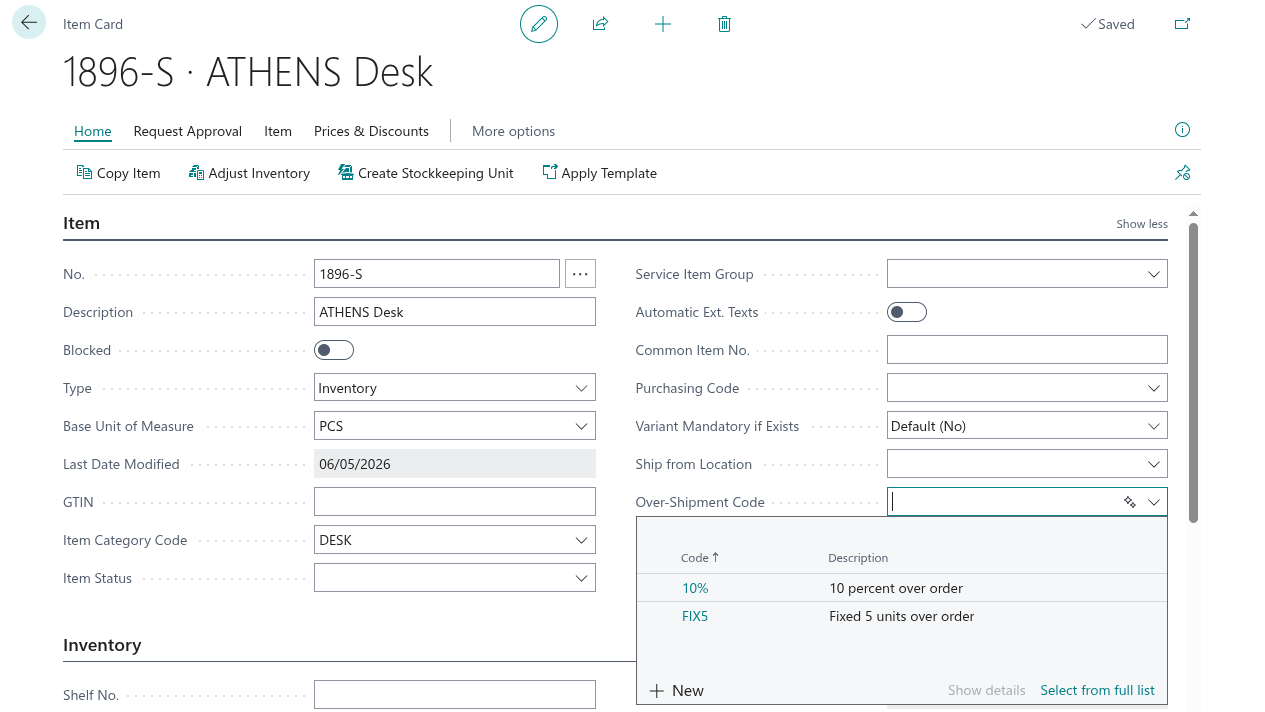
On the "Item Card" screen, in the Item FastTab, you will find:
- Over-Shipment Code - Assign an Over-Shipment Code to this Item. This is used when the Customer does not have their own code.
- Prevent Over-Shipment - When enabled, over-shipment is not allowed for this Item, even if an Over-Shipment Code is configured elsewhere.
Item Category Level
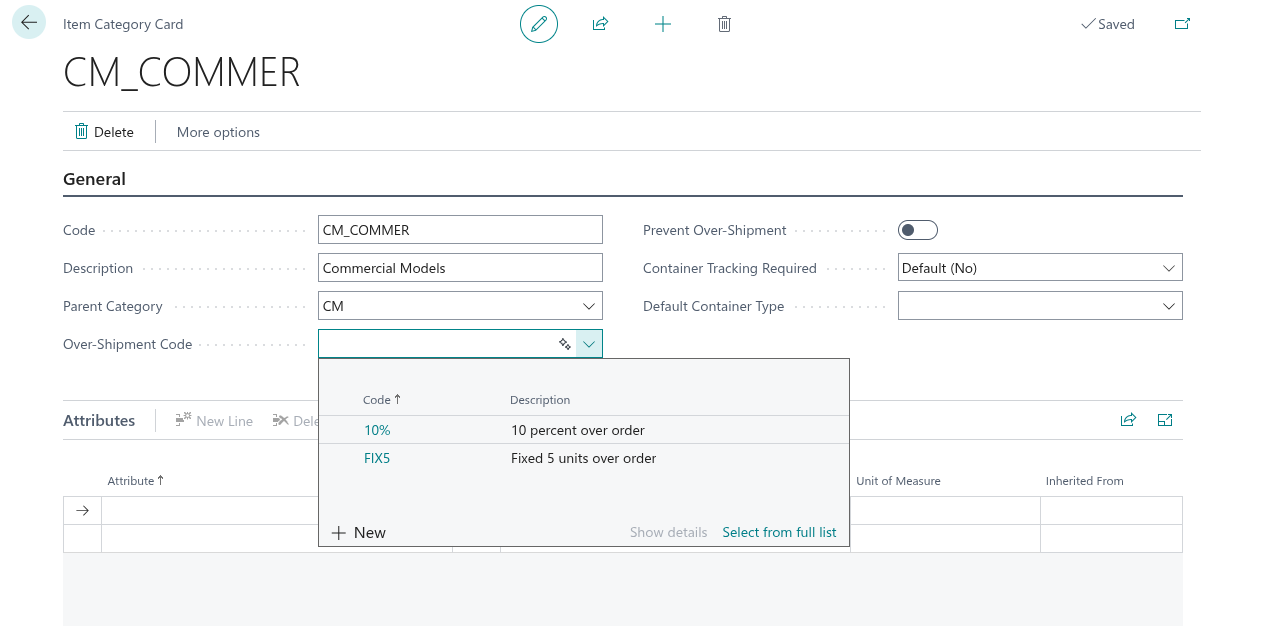
On the "Item Category Card" screen, in the General FastTab, you will find:
- Over-Shipment Code - Assign an Over-Shipment Code to all Items in this category. This is used when neither the Customer nor the Item has a code assigned.
- Prevent Over-Shipment - When enabled, over-shipment is not allowed for any Item in this category, even if an Over-Shipment Code is configured elsewhere.
Prevent Over-Shipment Priority
The Prevent Over-Shipment toggle is evaluated at each level during the priority check. If the toggle is enabled at the Customer level, over-shipment is blocked immediately - the Item and Item Category codes are not consulted. Similarly, if the Customer allows over-shipment but the Item has the Prevent Over-Shipment toggle enabled, over-shipment is blocked for that Item. The evaluation follows the same priority order: Customer, then Item, then Item Category.
Using Over-Shipment on Sales Orders
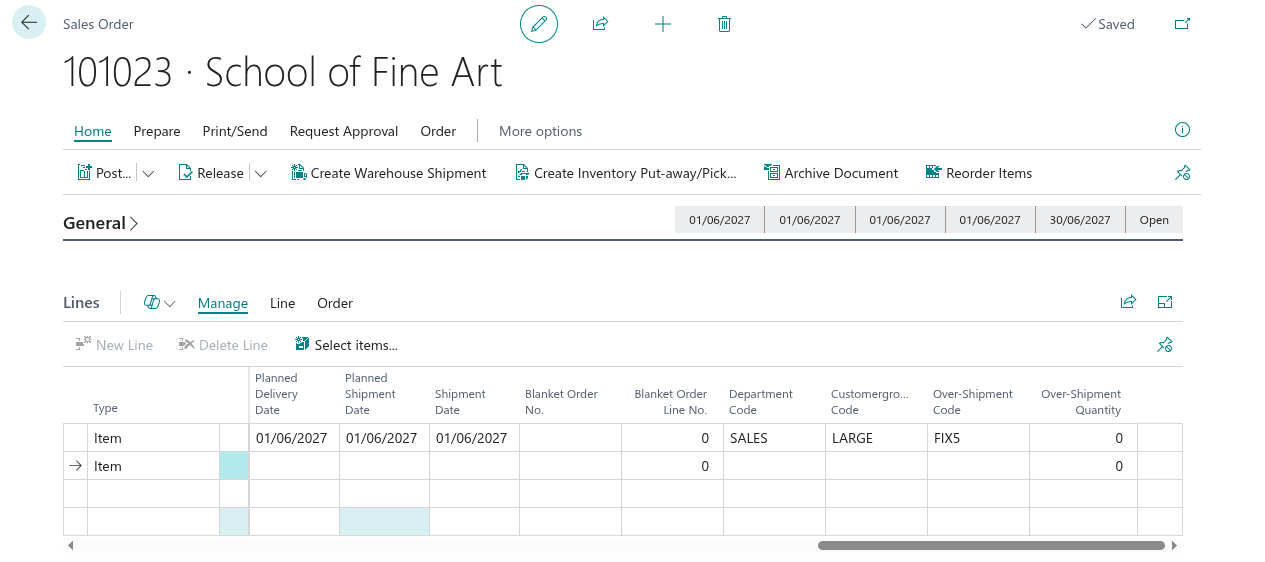
When processing a Sales Order, two fields are visible on the order lines (provided Over-Shipment is enabled):
- Over-Shipment Code - Shows which tolerance code applies to this line. This is automatically populated when the Item is entered but can be changed manually.
- Over-Shipment Quantity - A read-only field showing the quantity that exceeds the original ordered quantity. This is calculated automatically.
Shipping More Than Ordered
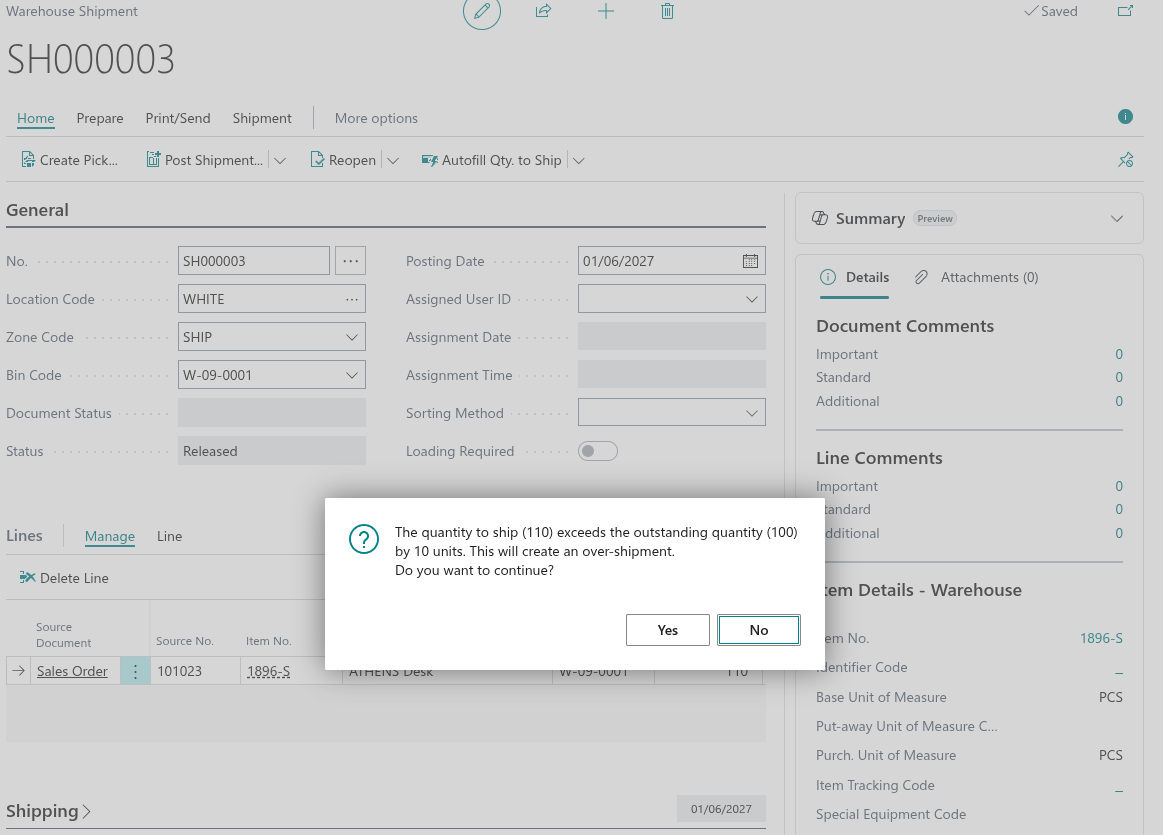
To over-ship on a Sales Order line, set the Qty. to Ship to a value higher than the Outstanding Quantity. When you do this:
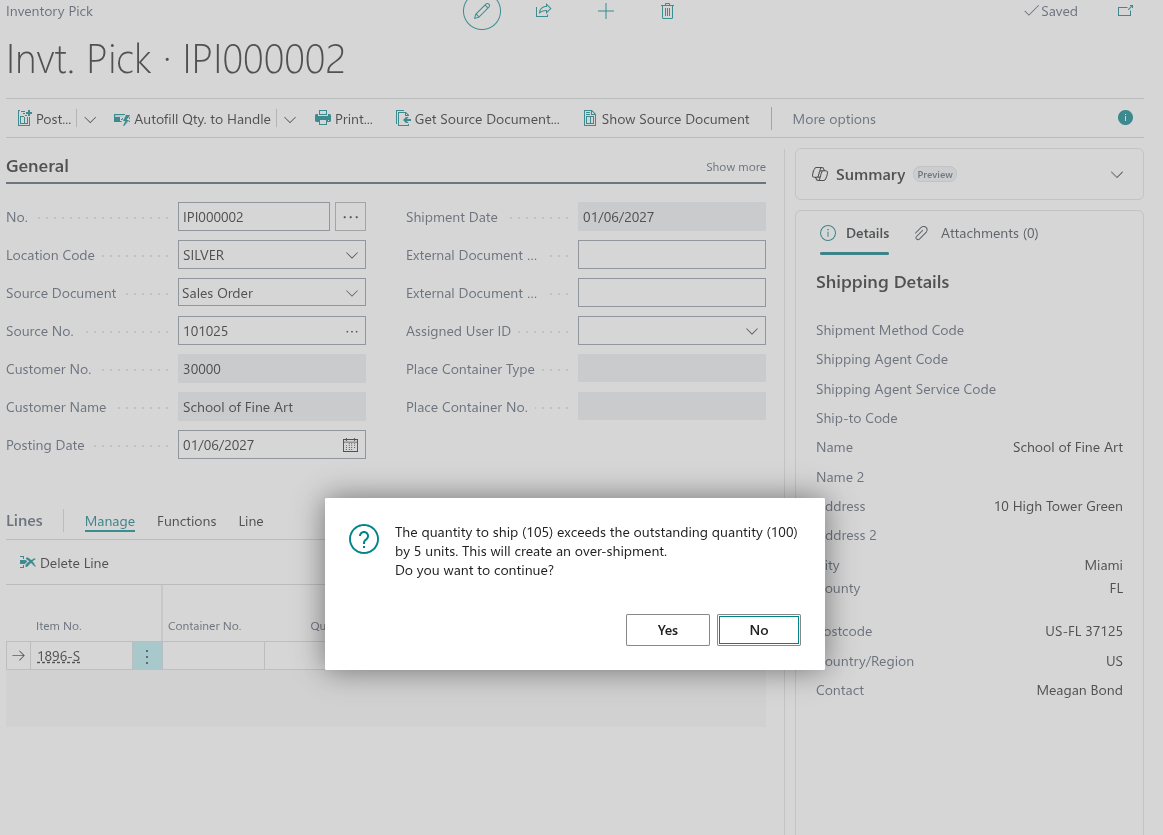
- A confirmation dialog appears informing you that the quantity to ship exceeds the outstanding quantity and will create an over-shipment. You are shown the excess quantity and asked to confirm.
- If you confirm, Business Central validates that the quantity is within the tolerance defined by the Over-Shipment Code on the line.
- If the quantity is within tolerance, the line's Quantity is automatically increased to accommodate the over-shipment, and the Over-Shipment Quantity field is updated to reflect the excess.
- If the quantity exceeds the allowed tolerance, an error is displayed showing the maximum allowed quantity.
If you subsequently reduce the Qty. to Ship back to or below the original outstanding quantity, the over-shipment is reversed - the line Quantity returns to its original value and the Over-Shipment Quantity resets to zero.
Restrictions
Note: Over-Shipment is not permitted in the following scenarios:
- Blanket Order lines - Sales Order lines linked to a Blanket Order cannot be over-shipped.
- Drop Shipment lines - Lines flagged as Drop Shipment cannot be over-shipped.
- Non-Item lines - Over-Shipment only applies to lines of type Item.
If you attempt to over-ship on a line where no Over-Shipment Code is assigned, an error will inform you that over-shipment is not allowed on that line.
Using Over-Shipment with Warehouse Shipments
When a Warehouse Shipment is created from a Sales Order, the Over-Shipment Code is carried across to the Warehouse Shipment line automatically.
On the "Warehouse Shipment" screen, you can set the Qty. to Ship above the outstanding quantity on the shipment line. When you do, Business Central validates the over-shipment against the tolerance and automatically adjusts both the Warehouse Shipment line and the underlying Sales Order line quantities. The Over-Shipment Quantity is tracked on both.
Using Over-Shipment with Warehouse Picks
When a Warehouse Pick is created from a Warehouse Shipment, the Over-Shipment Code is carried across to the pick lines.
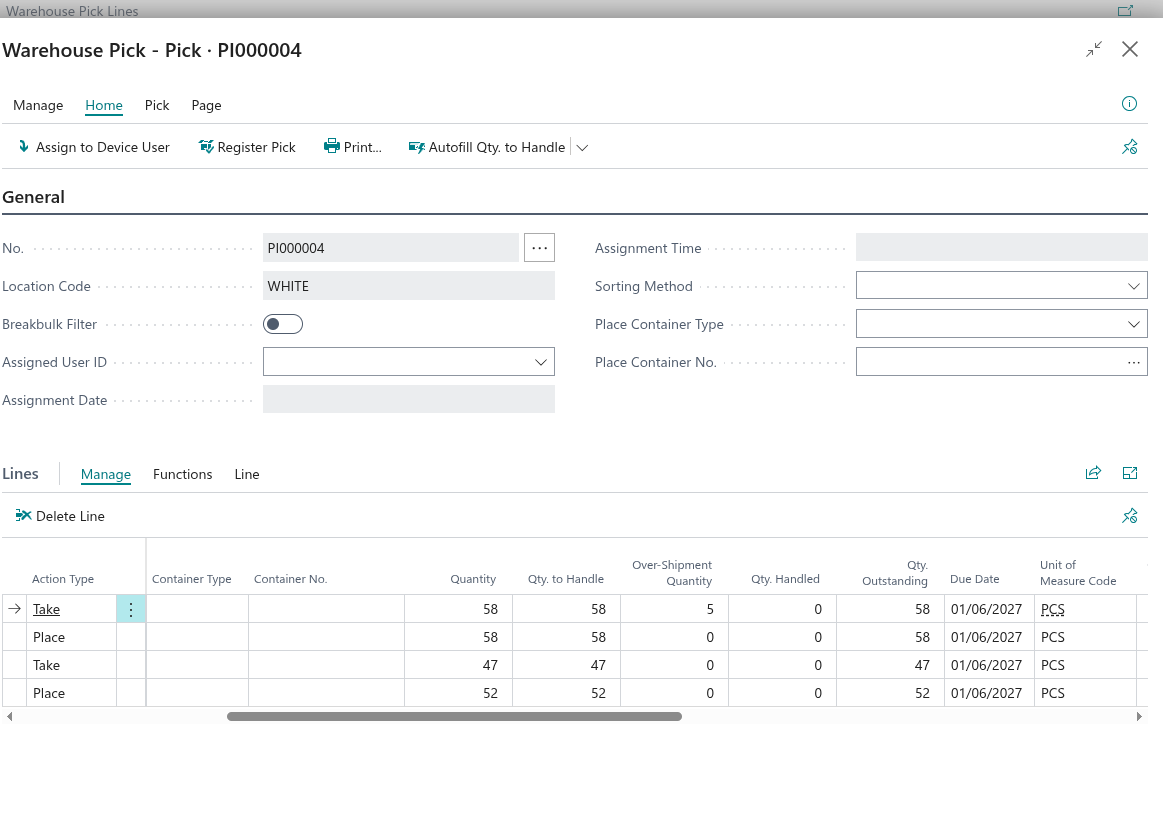
On the "Warehouse Pick" screen, the Over-Shipment Quantity field is visible on each line. To initiate an over-shipment from a pick:
- On a Take line, enter a value in the Over-Shipment Quantity field. This represents the quantity above the original order that you want to pick and ship.
- The pick line, the related Warehouse Shipment line, and the Sales Order line quantities all expand automatically to accommodate the over-shipment.
- The corresponding Place line is also updated to keep Take and Place quantities in balance.
The tolerance check is performed against the Sales Order line to ensure the over-shipment stays within the allowed limit.
Using Over-Shipment with Inventory Picks
For locations using Inventory Picks (without full warehouse management), Over-Shipment is also supported.
On the "Inventory Pick" screen, the Over-Shipment Quantity field is displayed as a read-only value. To over-ship via an Inventory Pick, increase the Qty. to Handle above the outstanding quantity. The over-shipment quantity is calculated automatically, and the underlying Sales Order line is adjusted to match.
Posted Documents
Over-Shipment information is preserved on posted documents for auditability:
- Posted Sales Shipment lines - The Over-Shipment Code and Over-Shipment Quantity are recorded on each shipment line.
- Posted Sales Invoice lines - The Over-Shipment Code and Over-Shipment Quantity are carried forward from the related shipment.
- Posted Warehouse Shipment lines - The Over-Shipment Code and Over-Shipment Quantity are recorded on each posted warehouse shipment line.
This ensures you have a clear record of which shipments included an over-shipment and the tolerance code that was applied.