Zebra Android Handheld Devices
On Zebra Android handheld devices, a profile is a configuration bundle created in DataWedge. DataWedge is a Zebra service that manages the device's hardware barcode scanner and delivers scanned data in a standardized format for processing.
Integration between DataWedge and an Android application is handled through Android Intents.
A profile defines:
- When DataWedge is active (which application(s) trigger the profile)
- How data is captured (scanner, camera, RFID, etc.)
- Where the data is delivered (keyboard input, intent output, keystroke output, API, etc.)
- How the data is formatted
Honeywell Android Devices
Honeywell profiles are saved device configurations that control how hardware features—primarily the barcode scanner, but also keyboard wedge, intents, and trigger behaviour—operate on Honeywell handheld devices.
A profile is a set of barcode scanning rules and behaviours that can:
- Be linked to a specific application or used globally
- Define which barcode symbologies are enabled
- Control scanner behaviour (beep, vibration, aimer, illumination)
- Specify the output method (keyboard wedge, intent, clipboard, etc.)
How the Device Determines Which Profile to Use
Zebra Devices
On Zebra Android devices, DataWedge controls scanner behaviour through profiles.
At runtime, DataWedge automatically selects one active profile based on the application currently in the foreground.
When an application becomes active, DataWedge evaluates profiles in the following order:
- A profile explicitly associated with the application's package name.
- A profile associated with a specific activity (if configured).
- A profile associated with multiple applications or wildcard matching.
- The default profile (Profile0).
Only one profile can be active at any given time.
If no custom profile matches the foreground application, DataWedge automatically falls back to Profile0.
Honeywell Devices
On Honeywell Android devices, scanner behaviour is controlled through profiles managed by the Honeywell scanning service.
A profile defines:
- Which application the configuration applies to.
- How barcode data is captured.
- How scanned data is delivered to the application.
- Scanner-specific settings such as enabled symbologies, trigger behaviour, and output methods.
Profiles allow the same device to behave differently for different applications.
If a profile is linked to the foreground app’s package name, it is applied immediately.
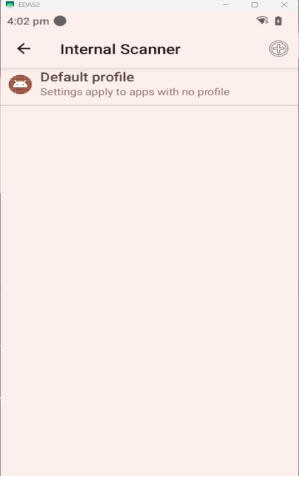
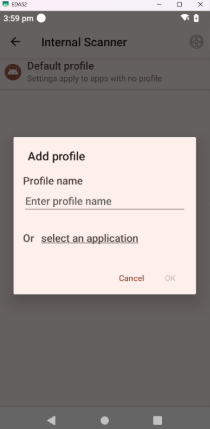
You can create this profile by going into Honeywell Settings → Scanning → Internal Scanning.
Click on the symbol in the top-right corner to add a new profile.
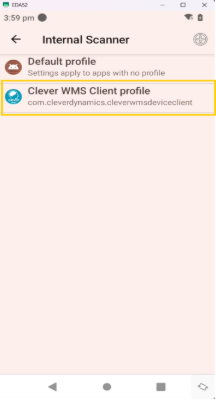
Below image shows a profile associated with Clever WMS:
Default profile, used when no app-specific profile exists: