Purchase return orders in Clever Containers help you return stock to vendors while keeping visibility of the container used for the return. The app adds container tracking actions to the purchase return process so users can review container tracking before posting and review posted tracking after the return shipment has been posted.
What Is Included for Purchase Return Orders
The Containers app adds purchase return functionality in the following areas:
- The Container Tracking Lines action on the “Purchase Return Order” screen.
- The Container Tracking Lines action for lines in the lines FastTab on the “Purchase Return Order” screen.
- The Container item availability view for lines in the lines FastTab on the “Purchase Return Order” screen.
- The Posted Container Tracking Lines action on the “Posted Return Shipment” screen.
Container Tracking Lines
Container tracking can be opened either from the return order header or from an individual return line.
- From the “Purchase Return Order” screen, select Container Tracking Lines to review or maintain tracking for the document.
- From a return line in the lines FastTab, select Container Tracking Lines to work with tracking for the selected line.
- From a return line in the lines FastTab, select Container to review item availability by container.
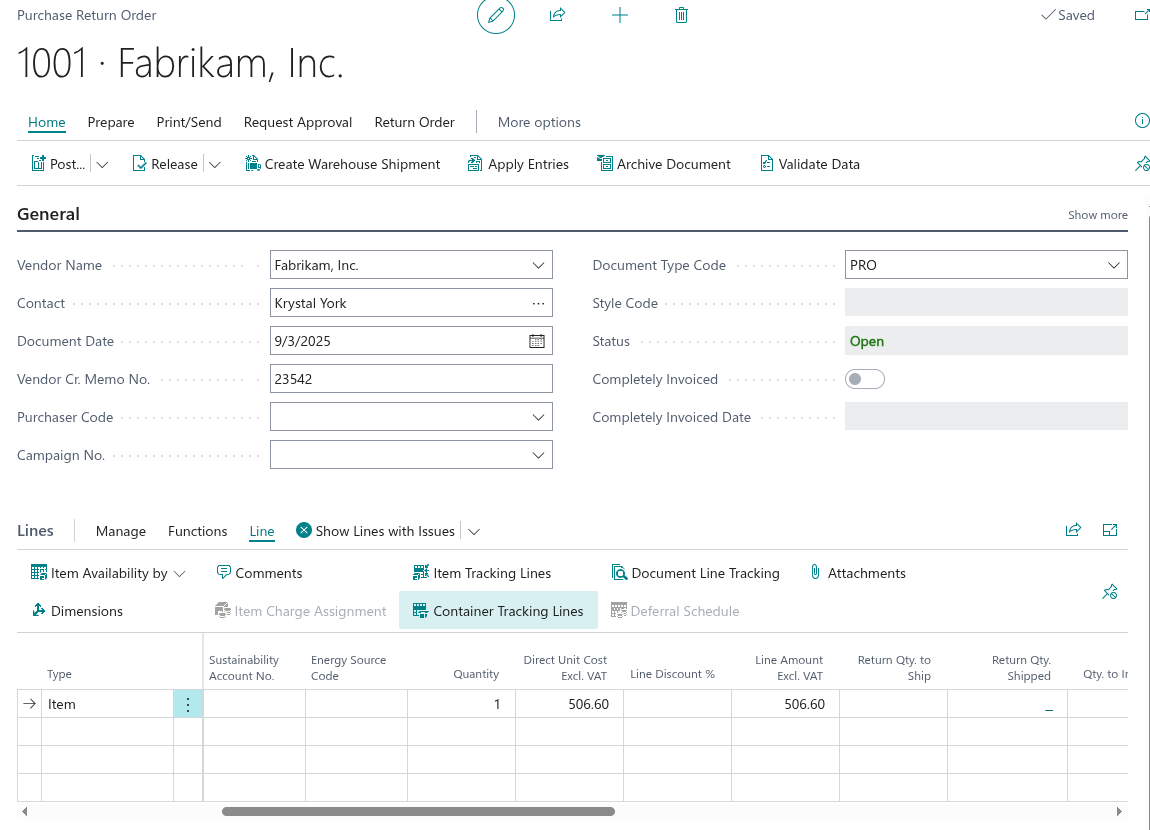
Typical Purchase Return Workflow
A common purchase return process with containers is as follows:
- Create the purchase return order and enter the vendor and location details.
- Enter the items and quantities that are being returned.
- Review or enter the related container tracking by using Container Tracking Lines.
- If warehouse shipment processing is used, assign the shipment Container No. during warehouse activity processing.
- Review the tracking before posting the return shipment.
- Post the return shipment.
- Review posted tracking from the “Posted Return Shipment” screen if needed.
How Container Tracking Is Applied
Where warehouse shipment processing is used, container tracking can be created during warehouse activity processing.
- The shipment Container No. can be assigned on the Place line of the warehouse activity for the purchase return.
- When the warehouse activity is registered, the app creates the related container tracking entries for the purchase return line.
- When the warehouse shipment is posted, those entries are transferred into posted container tracking entries.
Posted Return Shipment
After the return shipment has been posted, container tracking remains available for review.
- Open the “Posted Return Shipment” screen and select Posted Container Tracking Lines to review the posted entries.
- The posted tracking shows the container details that were posted with the return shipment.
Requirements
To use purchase return container features successfully, the related setup must already be in place.
- The item must be set up to require container tracking where needed.
- If warehouse shipment processing is used, users must assign the correct shipment Container No. before the warehouse activity is registered.
- Container tracking should be reviewed before posting so that the return shipment reflects the expected container information.