Overview
Honeywell devices support two scanner configuration modes. The Pre-configured Profile setting allows you to choose whether the application automatically configures the scanner or whether you manage scanner settings using Honeywell's own "Default" configuration profile.
Pre-configured Profile Options
Yes – Pre-configured Profile (Default Setting)
Selecting Yes allows the application to automatically configure the scanner using settings that have been optimized for the application.
Benefits
-
Fast and simple setup
-
No manual scanner configuration required
-
Scanner is ready to use immediately
-
Consistent scanning behaviour across devices
Considerations
When using the pre-configured profile, advanced scanner settings are controlled by the application and cannot be customised separately. This includes settings such as:
-
Barcode symbologies
-
Check digit options
-
Scanner-specific decoding parameters
This option is recommended for most users.
No – Custom Scanner Profile
Selecting No allows the scanner to use Honeywell's standard profile configuration.
Benefits
-
Full control over advanced scanner settings
-
Ability to customise barcode symbologies
-
Ability to configure check digits and other scanner parameters
-
Suitable for specialised scanning requirements
Considerations
-
Scanner configuration must be completed manually
-
The application will not automatically apply scanner settings
-
Incorrect scanner configuration may affect barcode scanning performance
Use this option to configure additional Honeywell scanner settings that are not supported by the automatic settings.
User Notifications
When changing the setting, a confirmation message is displayed to explain the impact of the selected option.
When Selecting "Yes"
You will be informed that the application will automatically configure the scanner and that advanced scanner settings cannot be customised separately.
When Selecting "No"
You will be informed that manual scanner configuration is required and that advanced scanner settings can be customised using Honeywell configuration tools.
Steps to Configure the Scanner Profile
- Open the application.
- Navigate to Settings.
- Select the Device tab.
- Set Pre-configured Profile to either: Yes – Automatic scanner configuration (recommended), or No – Manual scanner configuration.
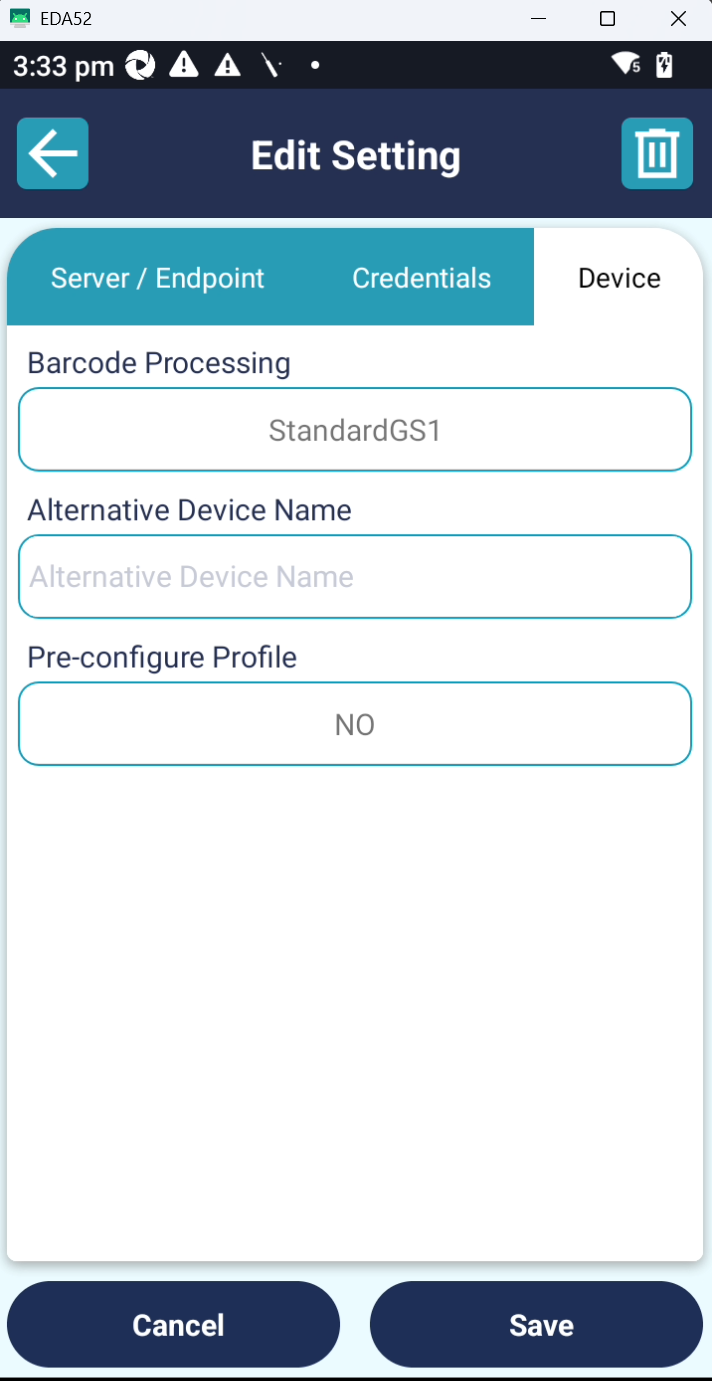
- Tap Save to apply the setting.
- Close the application completely.
- Reopen the application.
- Verify the scanner status on the Scanner Health screen.
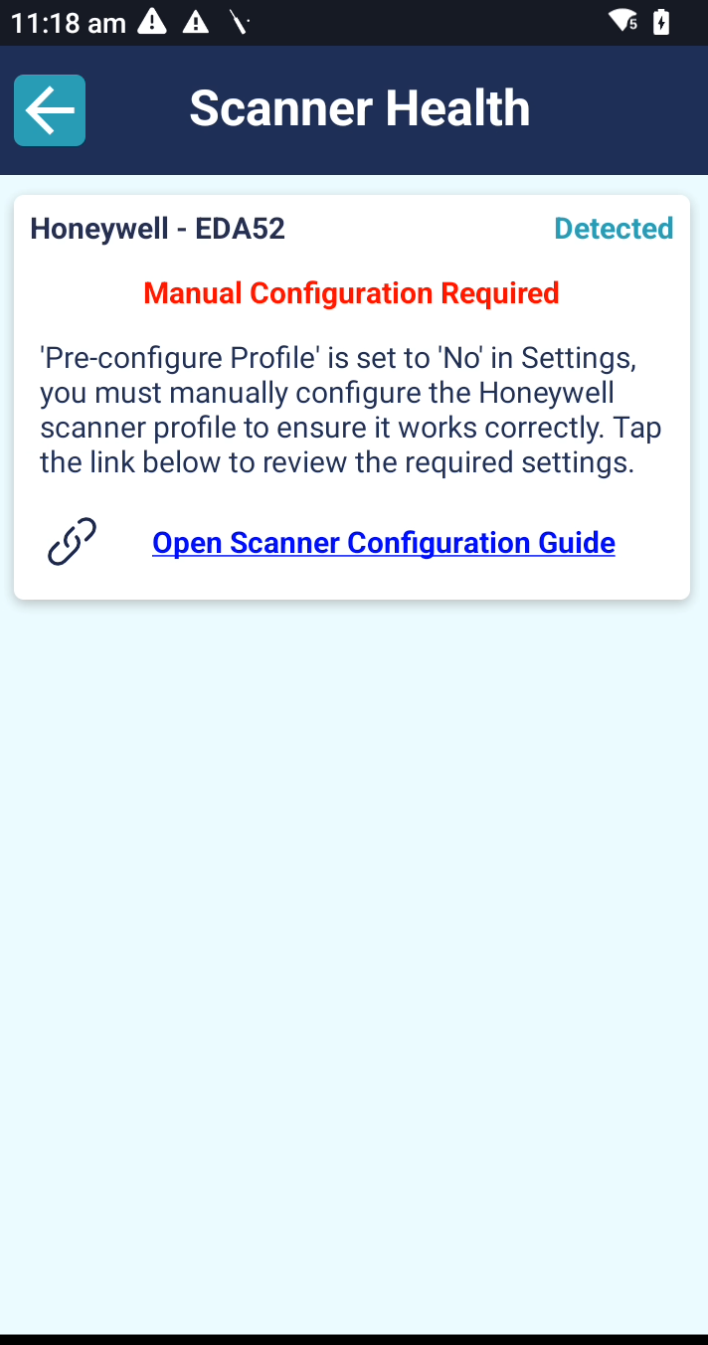
** When Pre-configured Profile is set to No, the Scanner Health screen provides access to the manual scanner configuration instructions required to configure the Honeywell scanner profile.
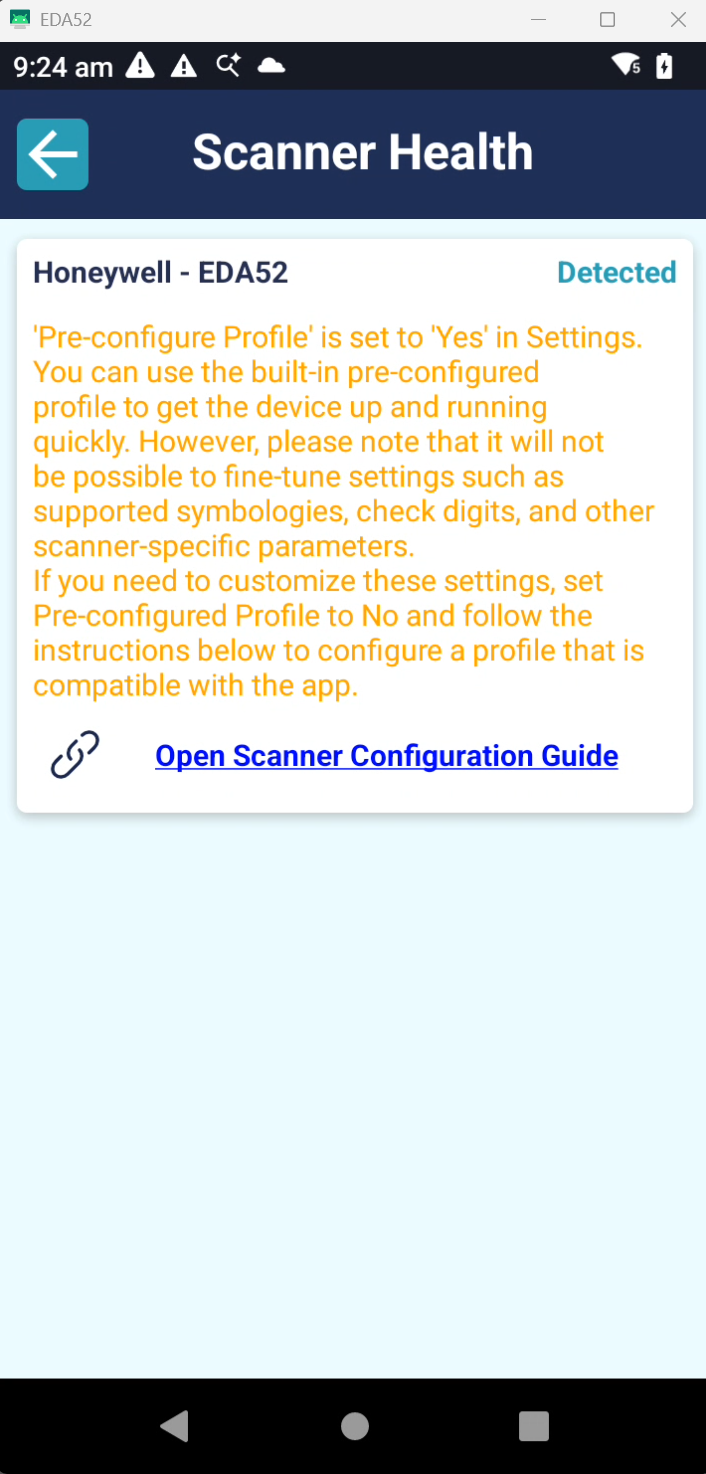
** When Pre-configured Profile is set to Yes, the scanner is automatically configured by the application and is ready for use once the application has been restarted.
After verifying the scanner status, scan a barcode to confirm that the configuration is working correctly.
Important
After changing and saving the scanner profile configuration, the application must be closed and reopened before scanning. This ensures that the selected scanner profile is applied correctly.
If the application is not restarted, the previous scanner configuration may remain active until the next application launch.
Recommendation
For most deployments, Pre-configured Profile = Yes is recommended as it provides the quickest and simplest setup experience.
Choose Pre-configured Profile = No only if you need to customise advanced Honeywell scanner settings to meet specific operational requirements.