A Configure to Order (CTO) Workflow defines a step-by-step item configuration process. Each workflow contains a sequence of steps that guide the user through selecting options, items, resources, parameters, and customisation details. The result is a fully configured item with the correct components, pricing, and production routing applied to the sales line.
Workflows are managed from the "Configure to Order Workflows" screen, accessible from the "Configure to Order Setup" screen.
Workflow Overview
A workflow consists of:
- General settings - configuration type, method, status, and initial step.
- Steps - an ordered sequence of configuration steps (see the Workflow Step Types guide for details on each step type).
- Base components - items, resources, or routing operations that are always included regardless of the user's selections.
- Pricing and quantity settings - controls over how prices are displayed and whether the user can adjust quantities or override the price.
- Document settings - controls over how the configuration appears on printed customer specification documents.
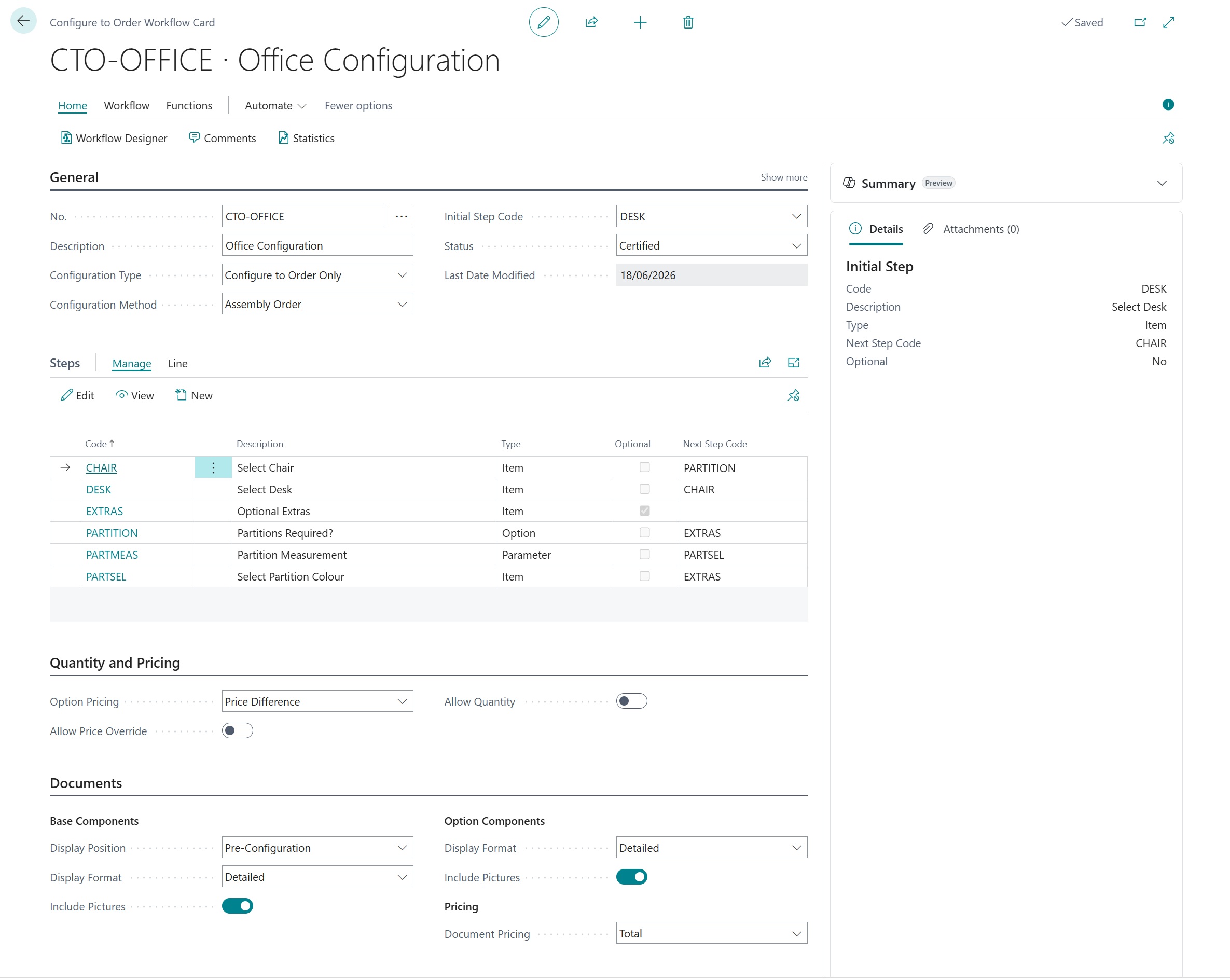
Workflow Card - General
| Field | Description |
| No. | The unique workflow number, auto-assigned from the number series defined in the "Configure to Order Setup" screen. |
| Description | The main description of the workflow. This is used for identification in lookups and lists. |
| Description 2 | An additional description line for further detail. |
| Configuration Type | Determines which features are available in the workflow:
|
| Configuration Method | Determines how the configured item is fulfilled:
|
| Production Order Status | When using the Production Order method, specifies the status of the production order that is created: Planned, Firm Planned, or Released. Only visible for Production Order workflows. |
| Combine Routing Operations | When enabled, duplicate routing operations (same work/machine centre selected across multiple steps) are combined into a single operation on the production order. Only applicable to Production Order workflows. |
| Catalogue Placeholder Item No. | The placeholder item number used when catalogue (nonstock) items are added during configuration on a sales quote. This placeholder is substituted when the quote is converted to an order. |
| Initial Step Code | The first step that is displayed when the Sales Configurator opens. This is the entry point of the workflow and must be set before the workflow can be used. |
| Base Items Exist | Indicates whether base component items have been defined for this workflow. Base items are always included in the configuration regardless of the user's step selections. |
| Base Resources Exist | Indicates whether base component resources have been defined. Only applicable to Assembly Order workflows. |
| Base Operations Exist | Indicates whether base routing operations have been defined. Only applicable to Production Order workflows. |
| Status | The current status of the workflow:
|
| Last Date Modified | The date the workflow was last changed. |
Steps
The Steps subpage on the workflow card shows all steps defined for the workflow. Each step has a type that determines what it presents to the user. Steps are linked together via the Next Step Code field, forming a sequence (or branching tree) through the configuration.
For a detailed description of each step type and how to set them up, refer to the Configure to Order Workflow Step Types.
Note: Use the Workflow Designer action to see a visual diagram of how your steps are connected. This makes it easy to understand the flow and identify any steps that are not linked.
Quantity and Pricing
| Field | Description |
| Option Pricing | Controls how option prices are displayed to the user in the Sales Configurator:
|
| Allow Price Override | When enabled, the user can manually adjust the configured unit price on the final confirmation screen before clicking Finish. When disabled, the calculated price is applied automatically. |
| Allow Quantity | When enabled, a Finished Quantity field appears on the Sales Configurator, allowing the user to specify how many units of the configured item to produce. When disabled, the quantity defaults from the sales line. |
| Include Base Item in Assembly | When enabled (customisation mode), the sales line item is included as a component in the assembly order. This is useful when the base item is a physical product that needs to be assembled alongside customisation components. |
| Include Base Item Price | When enabled, the base item's standard price is included in the configured unit price calculation. Only applicable to Production Order workflows. |
Base Components
Base components are items, resources, or routing operations that are always included in the configured item, regardless of what the user selects during configuration. They represent the foundation of the configured product.
Access base components from the workflow card actions:
| Action | Description | When Available |
| Base Items | Opens the list of base component items. These items are always included in the BOM or assembly order. | All workflows. |
| Base Resources | Opens the list of base component resources. These resources are always included in the assembly order. | Assembly Order workflows only. |
| Base Production Operations | Opens the base routing operations. These routing lines are always included in the production order routing. | Production Order workflows only. |
For each base component, you can set the item/resource number, variant, unit of measure, quantity per, routing link code, scrap percentage, and whether to exclude it from the unit price calculation.
Documents
These settings control how the configuration appears on printed customer specification documents and sales documents:
| Field | Description |
| Base Comp. Display Format | How base components are shown on documents:
|
| Include Base Comp. Pictures | When enabled, pictures of base component items are included on the specification document. |
| Base Comp. Display Position | Where base components appear on the specification document:
|
| Option Comp. Display Format | How option components (selected items from configuration steps) are shown on documents:
|
| Include Option Comp. Pictures | When enabled, pictures of option component items are included on the specification document. |
| Document Pricing | How pricing is shown on specification documents:
|
| Prod. Costs Display Format | How production costs (routing operations) are shown on documents. Uses the same options as Option Comp. Display Format. Only applicable to Production Order workflows. |
Workflow Card Actions
| Action | Description |
| Workflow Designer | Opens a visual diagram editor that displays the workflow steps and their connections. Use this to design and review the flow of your configuration steps. |
| Exchange Configured Components | Runs a batch process to replace an obsolete component item with a new one across all steps and options in the workflow. |
| Where Used (Items) | Shows which items have this workflow assigned to them. |
| Where Used (SKUs) | Shows which stockkeeping units have this workflow assigned to them. |
| Calculation Placeholders | Opens the list of calculation variables (placeholders) that can be used in quantity formulas and step calculations. |
| Statistics | Shows order statistics for this workflow, including counts of assembly orders and production orders created from configurations. |
| Comments | Opens the manufacturing comment sheet for the workflow. |
| Document Text | Opens the document text setup for adding disclaimers, terms, or other text to customer specification documents. |
Assigning a Workflow to an Item
Workflows are assigned to items on the "Item Card" screen in the replenishment section. The field that appears depends on the item's replenishment system:
| Item Setup | Field | Requirements |
| Assembly | CTO Assembly Workflow |
|
| Production | CTO Production Workflow |
|
Workflows can also be assigned at the "Stockkeeping Unit" level, allowing different locations or variants to use different workflows.
Note: Only workflows with a Status of Certified should be assigned to items for use in sales documents.
How Configuration Is Triggered
When a user adds an item with a CTO workflow to a sales line (on a Sales Quote or Sales Order), the system automatically detects that the item is configurable. Based on the Sales Quote Action or Sales Order Action setting in the "Configure to Order Setup" screen, the "Sales Configurator" screen is opened for the user to configure the item.
The configuration process:
- The user adds the configurable item to a sales document line.
- The Sales Configurator opens, displaying the workflow's initial step.
- The user progresses through each step, making selections.
- On the final screen, the user reviews the configured price and clicks Finish.
- The system creates the assembly order or production order with the selected components and routing, and applies the configured price to the sales line.
Note: Once a sales line has been configured, the item number, type, and certain fields on the line are locked to prevent changes that would invalidate the configuration. To change the item, delete the line and re-add it.
Translations
Workflow elements can be translated for multi-language environments. The following items support translations:
- Step descriptions - the heading shown to the user for each step.
- Step option descriptions - the text shown for each option in option-type steps.
- Parameter names - the labels shown for parameter inputs.
- Step headings - the headings used on printed specification documents.
The Sales Configurator automatically displays translations based on the user's language. Item descriptions and unit of measure descriptions also use standard Business Central item translations.