When using the Copy Item functionality in Business Central, you can choose to include Item-level Landed Cost Rules as part of the copy. This allows you to quickly create a new Item with the same Landed Cost configuration as an existing Item, without having to set up the rates manually.
Overview
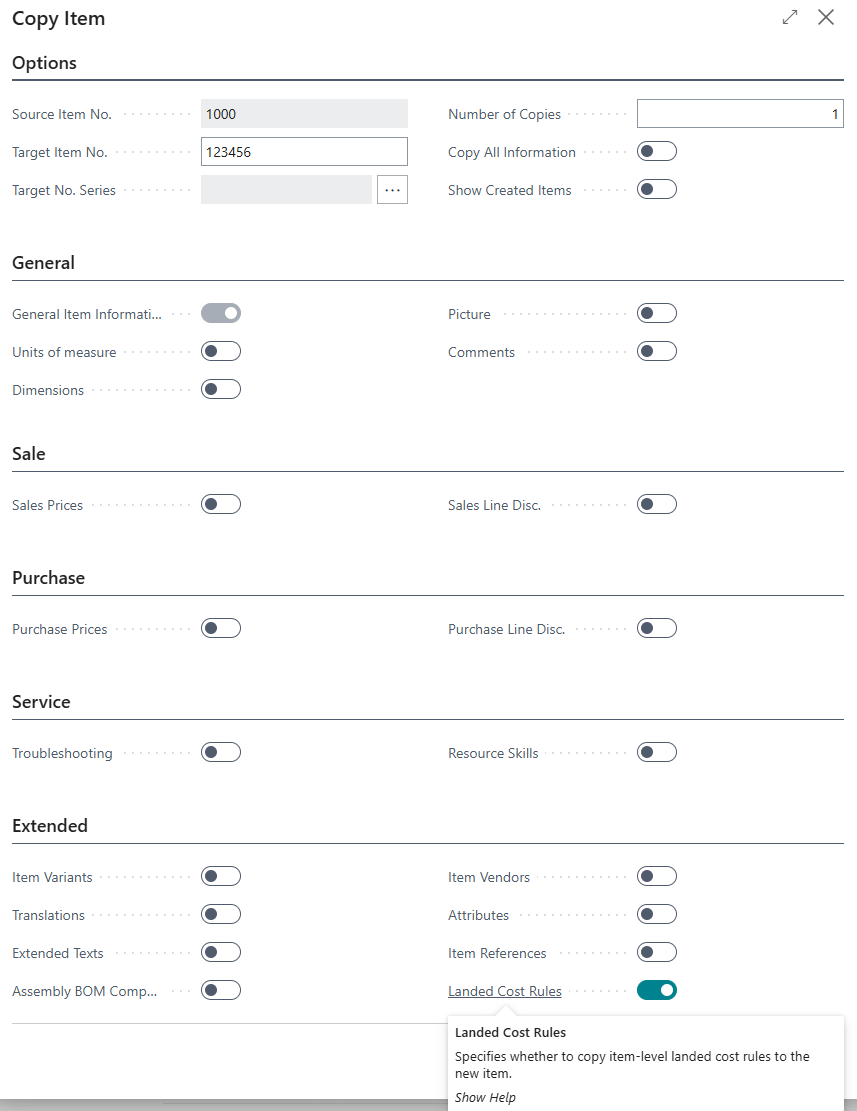
The standard Business Central Copy Item function creates a new Item based on an existing one, copying the fields and related data that you specify. Clever Landed Costs adds a Landed Cost Rules option to the Extended section of the "Copy Item" screen, which controls whether the Landed Cost Rules assigned at Item level are copied across to the new Item.
The Landed Cost Rules option is switched on by default. If you change Copy All Information, the Landed Cost Rules option is set to match the Units of Measure option.
Using Copy Item with Landed Costs
To copy an Item including its Landed Cost Rules:
-
Open the "Item Card" for the Item you wish to copy.
-
From the Actions menu, select Copy Item (or use the Tell Me search to find the Copy Item function).
-
On the "Copy Item" screen, expand the Extended section.
-
Check that the Landed Cost Rules option is set to Yes.
-
Complete the remaining fields as required, including the Target Item No. for the new Item.
-
Click OK to create the new Item. The Landed Cost Rules from the source Item will be copied to the new Item.
What is Copied
When the Landed Cost Rules option is enabled, every Item-level Landed Cost Rule (opened with the Landed Cost Rules action on the "Item Card", see Item Landed Cost Assignment) is copied to the new Item. This includes the Landed Cost Type Code, Location Code, Override Level and Override No., Starting Date, Landed Cost Vendor, Default Cost and the related rate information set up against the source Item.
Note: only Item-level Landed Cost Rules are copied. Rules set up at other assignment levels, such as Item Category, Tariff Number or All Items, are not specific to the Item and do not need to be copied.
Note: if the Landed Cost Rules option is switched off, no Landed Cost data will be copied and the new Item will have no Item-level Landed Cost Rules. You can set these up manually after the Item has been created if required.