Container Adjustments Overview
Stock adjustments allow you to record and post inventory changes directly to the general ledger, bypassing warehouse receipt and shipment processes. In Clever WMS Containers, both the Item Journal and Warehouse Item Journal support full container tracking, allowing you to record which containers inventory adjustments are associated with. The choice of journal depends on your location's warehouse setup.
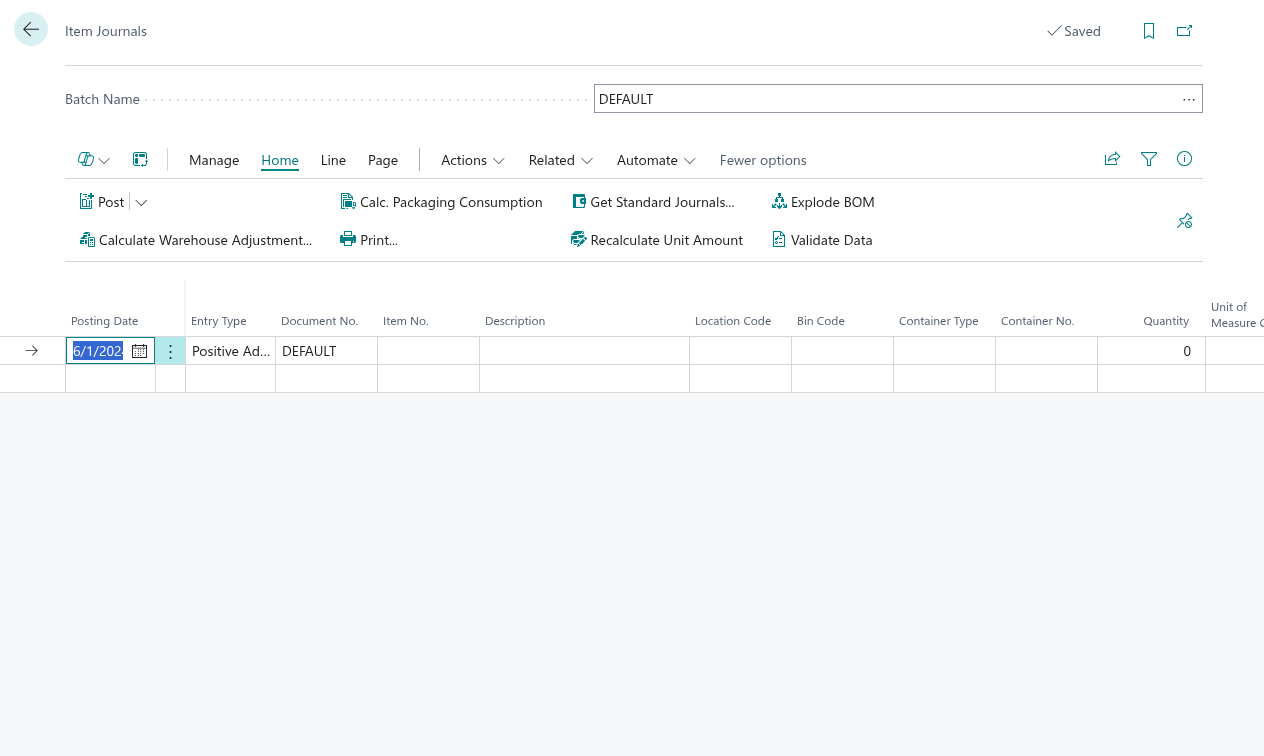
Item Journal for Standard Locations
The Item Journal is used for inventory adjustments at standard locations (locations without directed put-away and pick). It supports container tracking when the item and location are configured for container management.
- The journal includes Container Type and Container No. fields when container tracking is required.
- Container fields are automatically calculated when you enter the item, location, and bin code.
- If exactly one container holds the specific item/variant/lot/serial combination in the bin, the container is auto-populated.
- If multiple containers match, the container field remains empty and you must manually select the correct container.
- Container information is carried into the item ledger entries when the journal is posted.
Warehouse Item Journal for Directed Pick Locations
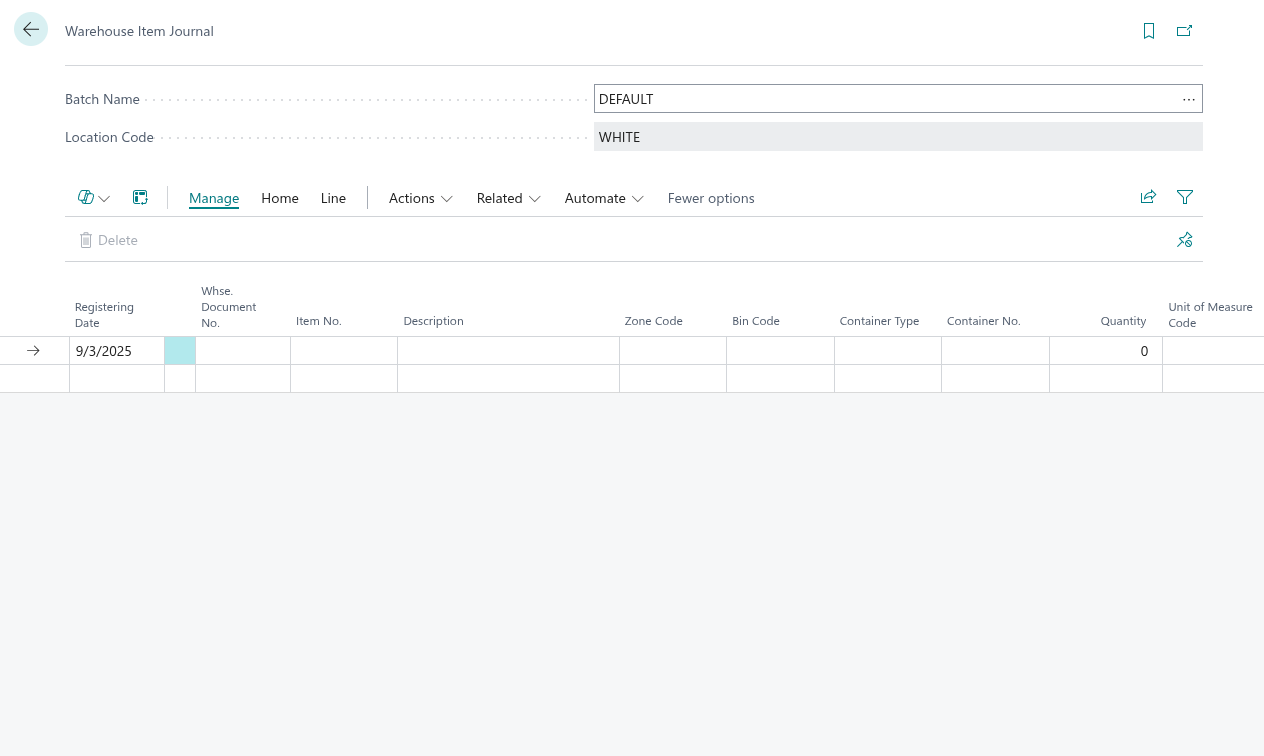
The Warehouse Item Journal is used for adjustments at warehouse-managed locations (locations with directed put-away and pick). It respects warehouse bin and zone assignments while tracking container movements.
- The journal includes Container Type and Container No. fields when container tracking is required.
- Container fields are automatically calculated when you enter the item and bin code.
- If exactly one container holds the specific item/variant/lot/serial combination in the bin, the container is auto-populated.
- If multiple containers match, the container field remains empty and you must manually select the correct container.
- The bin assignment must comply with warehouse zone and class rules.
- Container information is carried into the item ledger entries when the journal is posted.
When to Use Each Journal
- Item Journal: Use for standard locations without directed put-away and pick. Provides flexibility for location and bin selection.
- Warehouse Item Journal: Use for warehouse-managed locations where directed put-away and pick is enabled. Enforces warehouse management rules.
Container Auto-Calculation in Adjustments
Both journals automatically calculate container information when the journal line is complete:
- Enter the Item No., Location Code, and Bin Code. Optionally enter Variant Code, Lot No., or Serial No.
- The container is automatically calculated based on warehouse entries in that location and bin.
- If only one container matches all criteria, Container No. and Container Type are auto-populated.
- If no match or multiple matches are found, the container field remains empty for manual entry.
Get Container Content in Item Journal
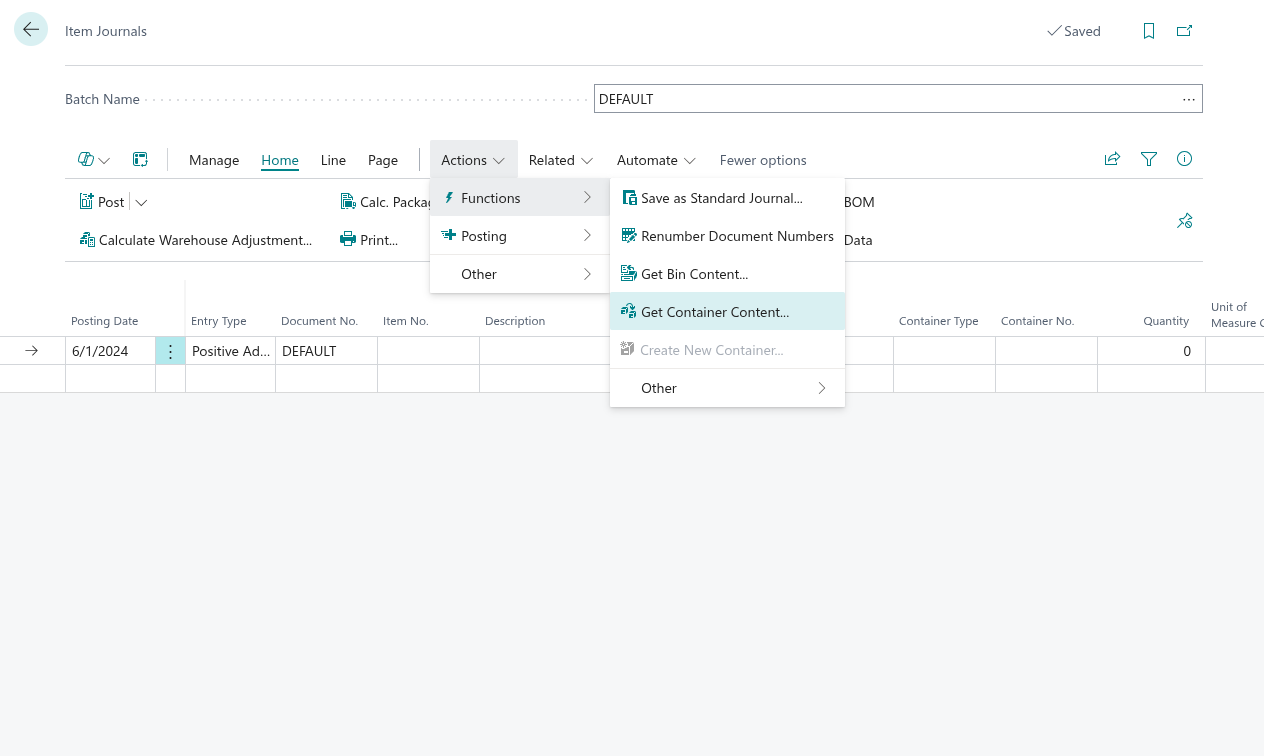
The Item Journal includes the Get Container Content action for bulk population of journal lines from a container's contents.
- Use this action to create adjustment lines for all items currently in a specified container.
- The action generates one line per distinct item/variant/lot/serial combination in the container.
- After populating lines, you can modify the adjustment quantity or destination before posting.
- This is useful for consolidating or splitting container contents into adjustments.
Note: The Get Container Content action is only available in the Item Journal, not in the Warehouse Item Journal.
Create New Container in Adjustments
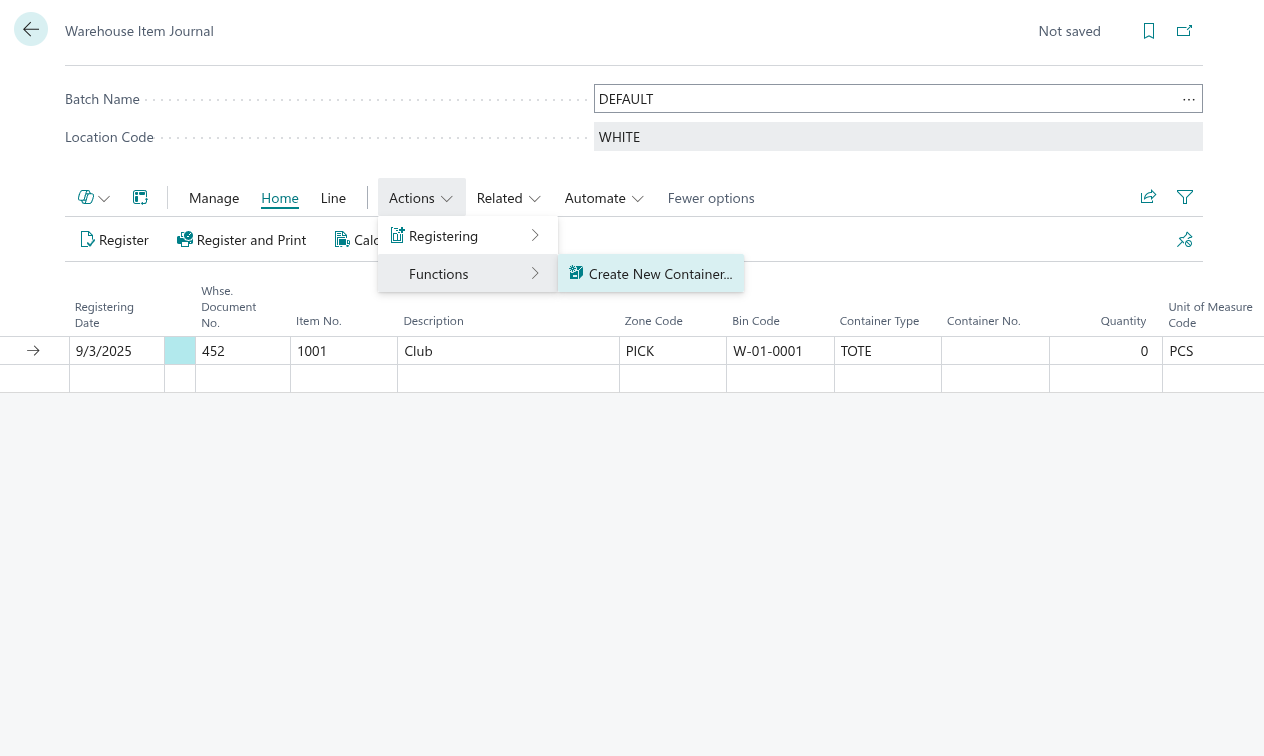
Both Item Journal and Warehouse Item Journal support the Create New Container action for creating containers directly from adjustment lines.
- Use this action when you need to create a new container for the adjustment without leaving the journal.
- The action creates a new container and automatically updates the journal line with the new container number.
- The container is created with the type specified in the Container Type field.
- After creation, the container is immediately available for the adjustment.
Recording Adjusted Quantities
The adjustment workflow is:
- Enter the Item No., Location Code, and Bin Code. The journal calculates or you manually select the Container No.
- Enter the Quantity to increase or decrease (positive for increases, negative for decreases).
- Optionally set the new location or bin if the adjustment involves a transfer (Item Journal only).
- Set the Posting Date and any other required fields.
- Post the journal when all adjustments are complete.
Validation and Constraints
Both journals enforce consistency rules:
- Containers must be active in the location specified.
- Items must support container tracking for container fields to be enabled.
- Lot and serial number assignments must match what is recorded in the container.
- Quantities must be non-negative.
- In Warehouse Item Journal, the bin must comply with warehouse zone and class rules.
Posting Adjustments
When an adjustment journal is posted:
- Item ledger entries are created for each adjustment line, including container information.
- Container content records are updated to reflect adjusted quantities.
- In Warehouse Item Journal, warehouse entries are also created to maintain bin-level tracking.
- The posted journal is retained for audit purposes.
- Container history is updated with the adjustment transaction.
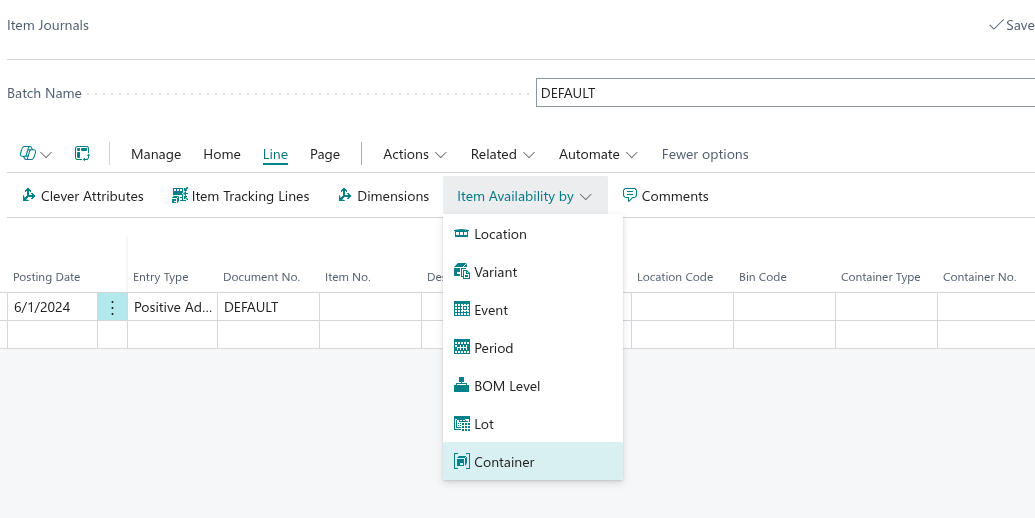
Item Availability by Container (Item Journal Only)
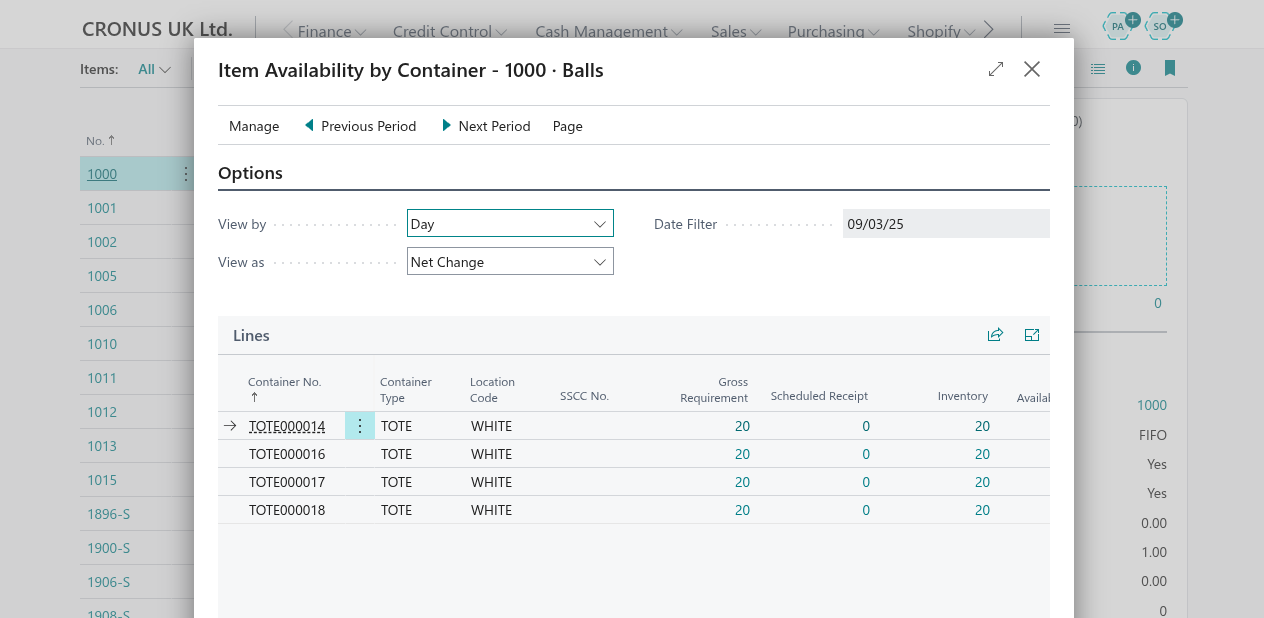
The Item Journal includes the Item Availability by Container action to view container-level inventory details.
- Use this action to verify current and projected container inventory before posting adjustments.
- The view shows actual inventory and adjustments per container.
- Useful for validating that adjustments target the correct containers.
Note: The Item Availability by Container action is only available in the Item Journal, not in the Warehouse Item Journal.