When a scanner is claimed on a scanning-enabled page, the profile settings are validated and automatically corrected if they are incorrect. If the device is a Zebra scanner, the user will be prompted with a dialog asking for consent to correct the settings:
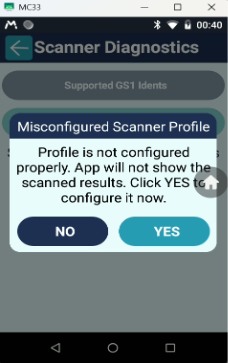
This dialog is displayed only once. If the user selects “No”, the message will not appear again. In that case, the scanner can only be configured manually through the scanner settings or by clicking the Configure button on the Scanner Health screen.
Note: The Configure button will not be visible if the scanner is already correctly configured.
There is an important difference in how the Android app configures Honeywell and Zebra devices:
- Honeywell devices:
When the app corrects incorrect Honeywell settings, the changes are temporary and apply only within the app. The updated settings are not saved to the Honeywell profile and are not persisted after the app is closed. For this reason, the dialog and Configure button do not apply to Honeywell devices. Configuration occurs silently without user interaction. - Zebra devices:
Changes made to Zebra settings are permanent. Once updated, the corrected settings remain in place even after the app is closed. Because these changes are persistent, the app requests user consent before updating Zebra settings.
Scanner configuration issues can also be corrected through the Scanner Health screen. This screen displays detailed information about any configuration problems and highlights issues in red to make them clearly visible.
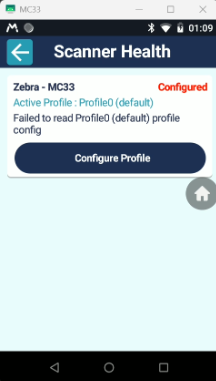
A button will be available for the user to click, which allows the scanner settings to be corrected and applied.
Once the user clicks on the “Configure Profile” button, the configurations will be applied, and the status will be changed to “Configured” in green color.
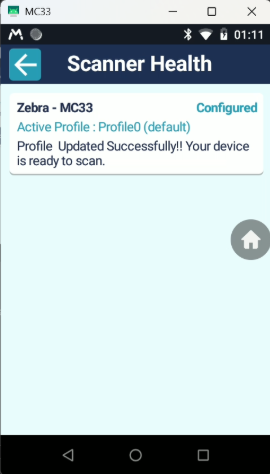
Once the configuration is corrected and successfully applied, the scanner becomes fully operational and ready to scan barcodes.