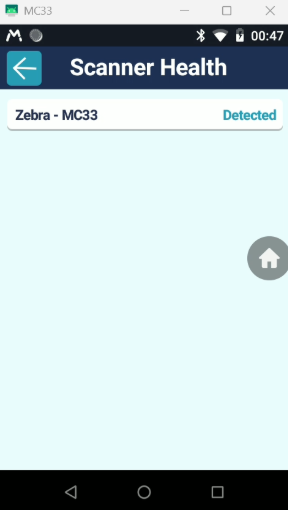
The scanner follows a well-defined lifecycle managed by the application. To verify the scanner’s status, open the sidebar and access the Scanner Health screen, which displays its current state. This is useful in identifying why barcodes will not scan and will help determine if a failed barcode scan is related to the scanner configuration or printed barcode along with its data. Scanner diagnostics should be used to verify barcode format and data once Scanner Health has been used to determine if the Scanner is configured and active.
Scanner Detection
At runtime, the application automatically detects the device type and selects the appropriate scanner for integration without user interaction.
Scanner Start (Claim / Initialize)
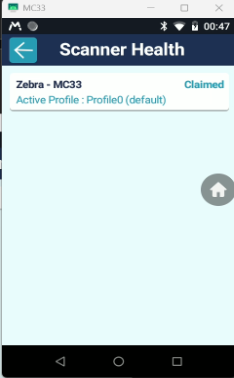
When the user navigates to a page where barcode scanning is applicable, the scanner is claimed for exclusive use by the application. At this point:
- The scanner becomes active
- Barcode data delivery to the application is configured
The scanner remains active only when the user stays on that page.
Scanner Health Screen Status : Claimed for the first time . Then it will show active.
Scanner Resume (Enable)
If scanning was previously paused, it is re-enabled automatically when the scanning context becomes active again.
Scanner Health Screen Status : Active.
Scanner Stop (Pause)
Scanning is temporarily disabled while the scanner remains claimed by the application.
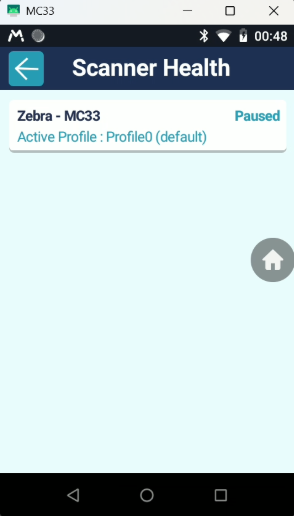
When the user navigates away from a scanning-enabled page, the scanner is paused automatically. In the paused state:
- The scanner hardware remains claimed by the application
- Scanning is disabled
- No barcode data is received even if the trigger is pressed
This ensures the scanner does not interfere with other pages or workflows where scanning is not required.
Scanner Release
Scanner resources are fully released when scanning is no longer required and application goes in background or closed, allowing other applications to use the scanner.