Once one or more indicators have been enabled in the "Sales & Receivables Setup", an Order Status factbox appears on both the "Sales Order" and "Sales Order List" screens.
Each enabled stage is shown as a coloured indicator, and the colour tells you how far that stage has progressed.
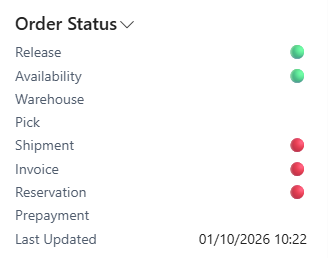
Reading the indicators
| Green | Complete - the stage has been fully completed for every relevant line on the Order. |
| Amber | Partial - the stage has been completed for some, but not all, of the Order. |
| Red | Not Started - nothing has happened yet for this stage. |
| Grey | Not Applicable - the stage does not apply to this Order. For example, the Pick indicator is grey when none of the lines require a pick. |
How each indicator is calculated
| Release |
Specifies the release status of the Sales Order.
|
| Availability |
Specifies whether the Items on the Sales Order are available to fulfil the outstanding quantity. Complete when every outstanding Item line is available, Partial when only some lines are available, and Not Started when none are. If the Order contains no Item lines the indicator is Not Applicable. |
| Warehouse |
Specifies whether Warehouse Shipments have been created for the Sales Order. Complete when all of the outstanding quantity is on a Warehouse Shipment, Partial when only some of it is, and Not Started when none of it is. If the Order does not require warehouse handling the indicator is Not Applicable. |
| Pick |
Specifies whether picks have been created and registered for the Sales Order. Complete when all picks have been registered, Partial when some have, and Not Started when none have. If the Order does not require picking the indicator is Not Applicable. |
| Shipment |
Specifies whether the Sales Order has been shipped. Complete when the full quantity has been shipped, Partial when only part of it has, and Not Started when nothing has been shipped. If the Order has no shippable lines the indicator is Not Applicable. |
| Invoice |
Specifies whether the Sales Order has been invoiced. Complete when the full quantity has been invoiced, Partial when only part of it has, and Not Started when nothing has been invoiced. If the Order has no invoiceable lines the indicator is Not Applicable. |
| Reservation |
Specifies whether the Items on the Sales Order have been reserved. Complete when all of the outstanding quantity is reserved, Partial when only some of it is, and Not Started when none of it is. If there is no outstanding Item quantity the indicator is Not Applicable. |
| Prepayment |
Specifies whether the prepayment for the Sales Order has been invoiced. Complete when the whole prepayment amount has been invoiced, Partial when only part of it has, and Not Started when none of it has. If the Order does not require a prepayment the indicator is Not Applicable. |
| Last Updated | Specifies when the statuses were last updated. |
Keeping the indicators up to date
The statuses are recalculated automatically as the Order progresses, and the Last Updated field at the bottom of the factbox tells you when this last happened.
If you have made changes elsewhere in Business Central, for example registering a pick from a warehouse document, you can force an immediate recalculation by choosing the Refresh action on the Order Status factbox.
Using the indicators from the "Sales Order List" screen
The same Order Status factbox is available on the "Sales Order List" screen. As you move down the list the factbox updates to reflect the currently selected Order, which makes it a quick way to scan a day's Orders for anything that has not progressed as expected.