The "Back Order Dashboard" screen gives you visibility of everything that is still outstanding across your Sales and Purchase Orders, in one place. It shows you both the quantity and the value of what has not yet been shipped or received, and it separates the orders that will be fulfilled from those that have been (or will be) treated as lost because the Customer or Vendor prohibits back orders.
The dashboard is read-only and is built each time it is opened, so it always reflects the current position of your open orders.
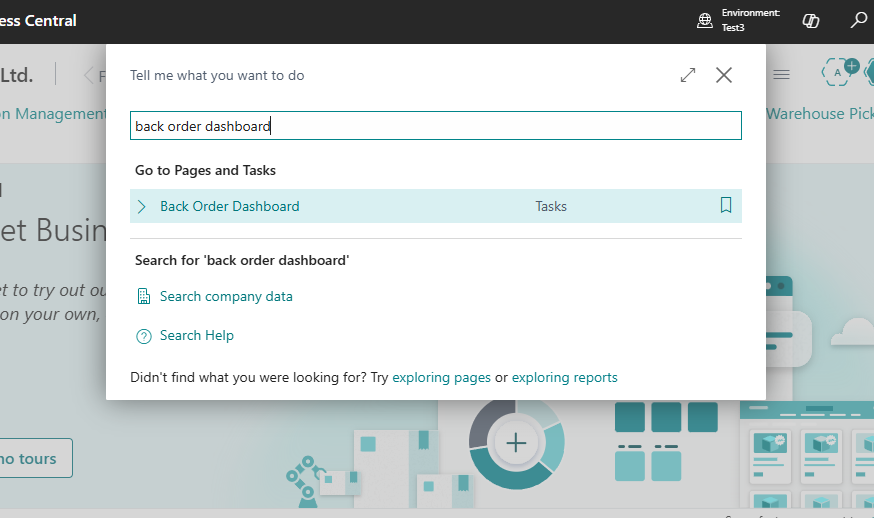
To open the "Back Order Dashboard" screen, choose the search icon, enter "Back Order Dashboard", and then choose the related link.
Columns
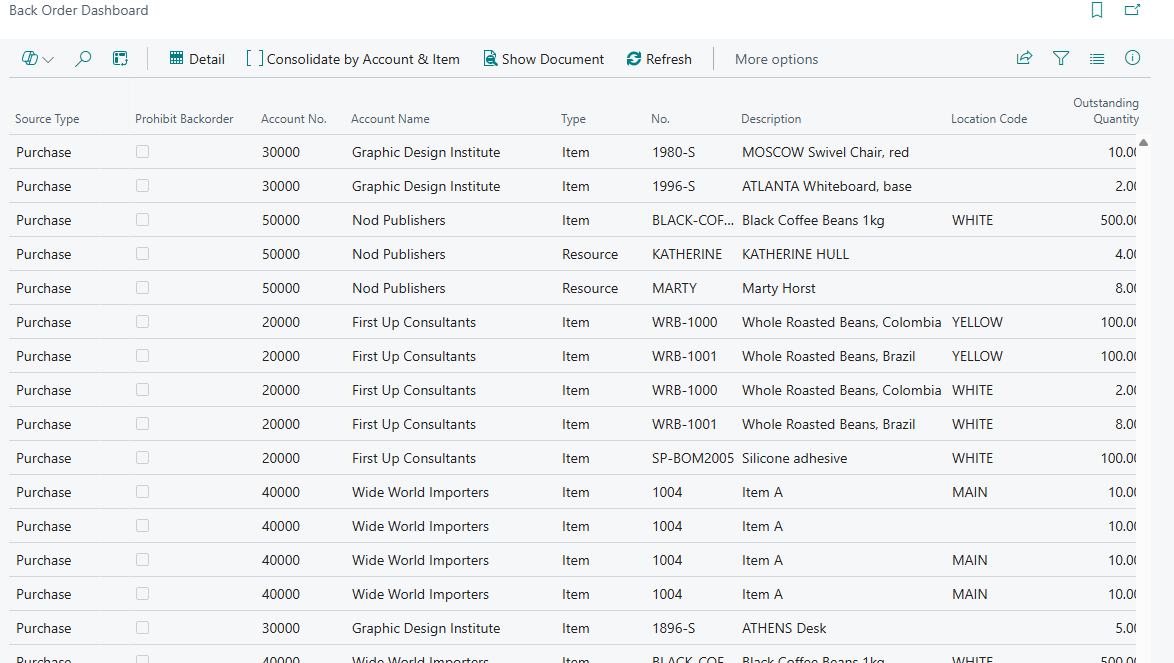
The following information is shown for each outstanding line.
| Source Type | Specifies whether the outstanding back order relates to a sales or a purchase document. |
| Prohibit Backorder |
Specifies whether the Customer or Vendor prohibits back orders. When this is enabled the outstanding quantity represents a lost sale or purchase rather than a back order that will be fulfilled. |
| Account No. | Specifies the Customer or Vendor that the outstanding back order relates to. |
| Account Name | Specifies the name of the Customer or Vendor that the outstanding back order relates to. |
| Type | Specifies the type of the outstanding line. |
| No. | Specifies the number of the Item, or other entity, that is outstanding. |
| Description | Specifies the description of the outstanding line. |
| Variant Code | Specifies the variant of the Item that is outstanding. This column is hidden by default and can be added using personalisation. |
| Location Code | Specifies the Location that the outstanding back order relates to. |
| Outstanding Quantity | Specifies the total outstanding quantity that has not yet been shipped or received. |
| Unit of Measure Code | Specifies the unit of measure of the outstanding quantity. |
| Outstanding Amount (LCY) | Specifies the value of the outstanding quantity, in the local currency. |
| Order Count |
Specifies how many Orders contribute to this outstanding quantity. Use this to identify opportunities to consolidate Orders. This column is only shown when the Consolidate by Account & Item view is selected. |
| Expected Date | Specifies the earliest expected shipment or receipt date for the outstanding quantity. |
| Document No. |
Specifies the number of the Order that the outstanding quantity relates to. Drill down on this field to open the Order. This column is only shown when the Detail view is selected. |
Detail and consolidated views
The View action group lets you switch between two ways of looking at the same data.
| Detail | Shows every outstanding Order line individually. This is the default view when the dashboard is opened. |
| Consolidate by Account & Item |
Groups the outstanding quantities by Customer or Vendor and Item, so that you can identify Orders that could be consolidated to save costs such as carriage or surcharges. Lines are grouped by Source Type, Account No., No., Variant Code, Location Code and Unit of Measure Code. The Outstanding Quantity and Outstanding Amount (LCY) are totalled across the group, the Expected Date shows the earliest date in the group, and the Order Count tells you how many Orders are involved. |
Example: Customer 10000 allows back orders and has two part-shipped Sales Orders, each with 5 units of Item 1000 still outstanding. In the Detail view you would see two lines of 5. In the Consolidate by Account & Item view you would see a single line of 10 with an Order Count of 2, which tells you that the two Orders could be shipped together.
Filtering allowed and lost back orders
The Show action group filters the dashboard on the Prohibit Backorder value.
| All | Shows both back orders that will be fulfilled and those that are lost. |
| Back Orders Allowed | Shows only outstanding quantities for Customers or Vendors that allow back orders. These are the quantities you still expect to ship or receive. |
| Back Orders Prohibited (Lost) | Shows only outstanding quantities for Customers or Vendors that prohibit back orders. These quantities represent lost sales or purchases. |
Reviewing the Back Orders Prohibited (Lost) view is a good way of judging whether the Prohibit Backorders setting on a Customer or Vendor is costing you more than it saves.
Other actions
| Show Document | Opens the Order that the selected outstanding quantity relates to. Depending on the Source Type this opens either the Sales Order or the Purchase Order. You can also drill down on the Document No. column to do the same thing. |
| Refresh | Reloads the outstanding back order data and recalculates the Back Orders factbox. |
Note: the dashboard supports Business Central analysis mode, so you can use the Analyze option to pivot the outstanding quantities and values by Customer, Vendor, Item or Location.
Back Orders factbox
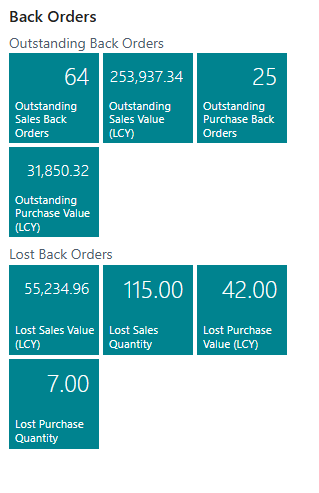
The Back Orders factbox on the right of the dashboard summarises the current position as a set of cues. Choose any cue to drill into the underlying records.
Outstanding Back Orders
| Outstanding Sales Orders | The number of outstanding Sales Order lines that are yet to be shipped. |
| Outstanding Sales Value | The value, in local currency, of outstanding sales that are yet to be shipped. |
| Outstanding Purch. Orders | The number of outstanding Purchase Order lines that are yet to be received. |
| Outstanding Purch. Value | The value, in local currency, of outstanding purchases that are yet to be received. |
Lost Back Orders
These cues are calculated from the Cancelled Backorder Log and drill down into it.
| Lost Sales Value | The value, in local currency, of sales lost because back orders were cancelled. |
| Lost Sales Qty | The quantity of sales lost because back orders were cancelled. |
| Lost Purch. Value | The value, in local currency, of purchases lost because back orders were cancelled. |
| Lost Purch. Qty | The quantity of purchases lost because back orders were cancelled. |
What drives the data
No additional setup is required to use the dashboard, but the following existing settings determine how the outstanding quantities are classified.
| Prohibit Backorders on the "Customer Card" and "Vendor Card" screens | Sets the default for new documents and determines whether outstanding quantities are reported as back orders or as lost sales/purchases. |
| Prohibit Backorder on the Sales Order and Purchase Order | The document level value, defaulted from the Customer or Vendor, that the dashboard reports against. |
See Automatic Back Order Cancellation - Setup for more information on these fields.