There is no global switch for OTIF. Instead, data capture is enabled individually on the Customers, Vendors and Locations you want to measure, which keeps the overhead to a minimum and lets you roll the feature out gradually.
Enabling OTIF capture
| Record OTIF on the "Customer Card" screen | Specifies whether On Time In Full (OTIF) delivery performance data is captured for sales documents to this Customer. |
| Record OTIF on the "Vendor Card" screen | Specifies whether On Time In Full (OTIF) delivery performance data is captured for purchase documents from this Vendor. |
| Record OTIF on the "Location Card" screen | Specifies whether On Time In Full (OTIF) delivery performance data is captured for Transfer Orders involving this Location. |
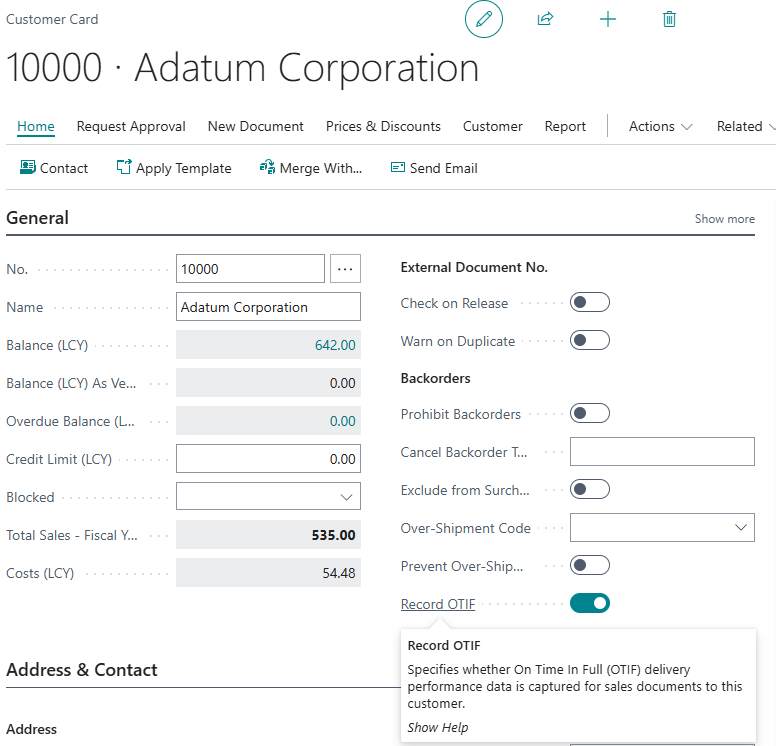
Note: the OTIF FastTab on the Sales Order, Purchase Order and Transfer Order is only visible when Record OTIF has been enabled on the relevant Customer, Vendor or Location.
Note: OTIF data is captured when an Order is first released. Orders that were already released before Record OTIF was enabled will not have a baseline date and are therefore excluded from OTIF reporting.
OTIF Reason Codes
Reason Codes are used to explain why a delivery fell short of being on time and in full. So that your OTIF lookups are not cluttered with Reason Codes used elsewhere in Business Central, only Reason Codes that have been flagged for OTIF can be selected.
Open the "Reason Codes" screen by choosing the Search icon, entering "Reason Codes", and then choosing the related link.
| OTIF | Specifies whether this Reason Code can be selected as an OTIF reason on Orders and on posted Shipments, Receipts and Transfers. |
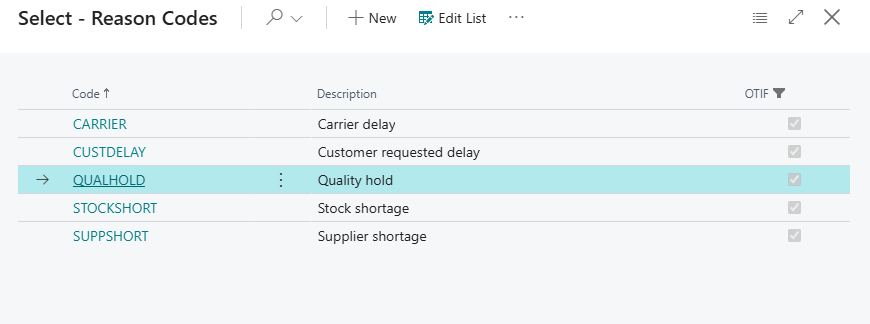
Typical OTIF Reason Codes include reasons such as Stock shortage, Carrier delay, Customer requested delay, Quality hold or Supplier shortage. Because you can report on them later, it is worth agreeing a small, consistent set before you go live.
Input Log
The Original Quantity shown on Sales and Purchase Order lines is taken from the first entry recorded in the Input Log for that line. For the In Full measure to be meaningful, input logging must be enabled for Orders.
See Sales & Purchase Input Log - Setup and ensure that Log Orders is enabled in both the "Sales & Receivables Setup" and the "Purchases & Payables Setup".