The Sales Order Status Indicators are controlled from the "Sales & Receivables Setup" screen, which can be accessed by choosing the 🔍 icon, entering "Sales & Receivables Setup", and then choosing the related link.
On the "Sales & Receivables Setup" screen you will find a Sales Order Status Indicators FastTab containing a switch for each of the available stages.
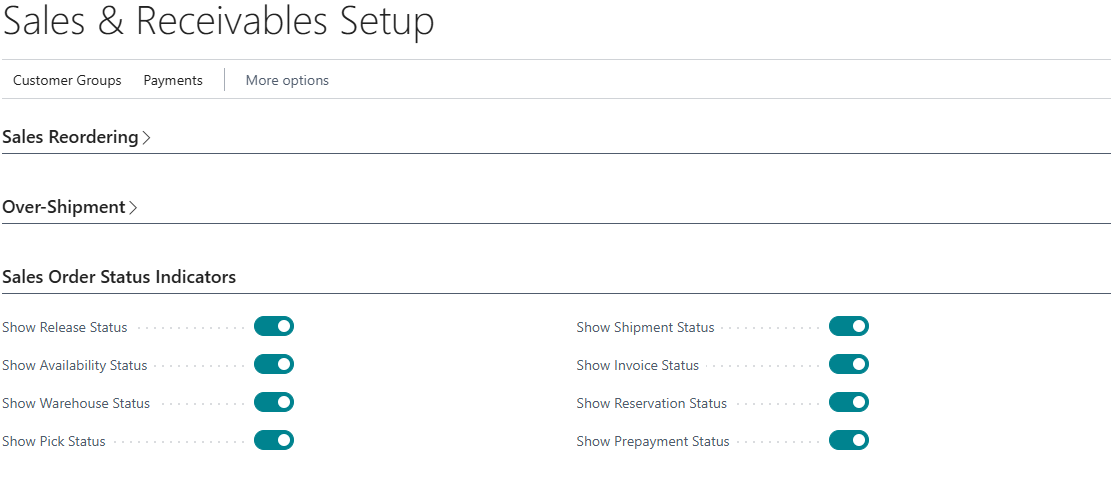
| Show Release Status | Specifies whether the release status indicator is calculated and shown. |
| Show Availability Status |
Specifies whether the availability status indicator is calculated and shown. Note: calculating availability requires Business Central to check inventory for every line. On Orders with a large number of lines this can affect performance, so only enable this option if your users need it. |
| Show Warehouse Status | Specifies whether the warehouse status indicator is calculated and shown. |
| Show Pick Status | Specifies whether the pick status indicator is calculated and shown. |
| Show Shipment Status | Specifies whether the shipment status indicator is calculated and shown. |
| Show Invoice Status | Specifies whether the invoice status indicator is calculated and shown. |
| Show Reservation Status | Specifies whether the reservation status indicator is calculated and shown. |
| Show Prepayment Status | Specifies whether the prepayment status indicator is calculated and shown. |
Note: if none of these options are enabled, the Order Status factbox is not shown at all on the "Sales Order" or "Sales Order List" screen, and no status calculation takes place.
Only the stages you enable are calculated. Turning off a stage you do not use avoids unnecessary processing, so it is worth switching on only the indicators your team will act on.