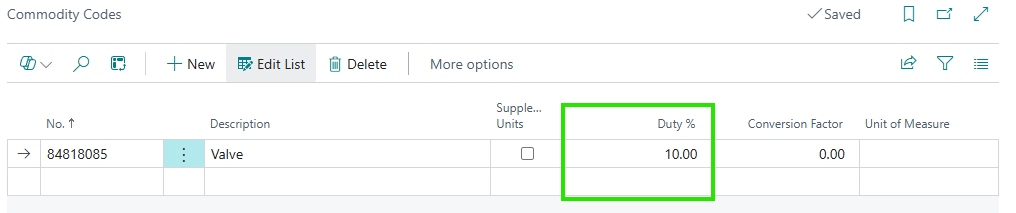
Clever Landed Costs adds a number of fields to the "Item Card", "Stockkeeping Unit Card" and "Tariff Numbers" screens. These fields hold the costs that Landed Costs are calculated from, and let you see the expected Landed Cost of an Item without creating a Purchase Order.
Item Card
The following fields are added to the Cost & Posting FastTab of the "Item Card", after the Costing Method field.
| Base Cost | The cost of the Item before Landed Costs. It is used to calculate Duty and Percent costs for Item-level Landed Cost Rules and, for Items using the Standard costing method, on Purchase Orders. Changing the Base Cost recalculates the Default Cost of the Item's Duty and Percent rules. |
| Landed Cost Rules | The number of Item-level Landed Cost Rules for the Item. Select the value to open the "Landed Cost Rates" screen. See Item Landed Cost Assignment. |
The Overhead Rate on the "Item Card" is maintained automatically from the Item's Landed Cost Rules and cannot be changed manually while rules exist.
A Landed Cost FastTab is also added to the "Item Card", with the following fields. These are used to work out an expected Landed Cost for the Item, and by the Standard Cost Worksheet.
| Default Vendor No. | The default Vendor used for Landed Cost calculations on the Standard Cost Worksheet. The Vendor's purchase price and Country/Region Code are used to find the price and any Vendor or Country of Origin rules. |
| Default Location Code | The default Location used for Landed Cost calculations on the Standard Cost Worksheet. It is used to find Location-specific rules and the Stockkeeping Unit for the Location. In-transit Locations cannot be selected. |
| Landed Cost (Base) (LCY) | The total Landed Cost per base unit of the Item, calculated at the work date using the Default Vendor and Default Location. It is updated when you change either of those fields. Select the value to open the "Landed Cost Breakdown" screen. |
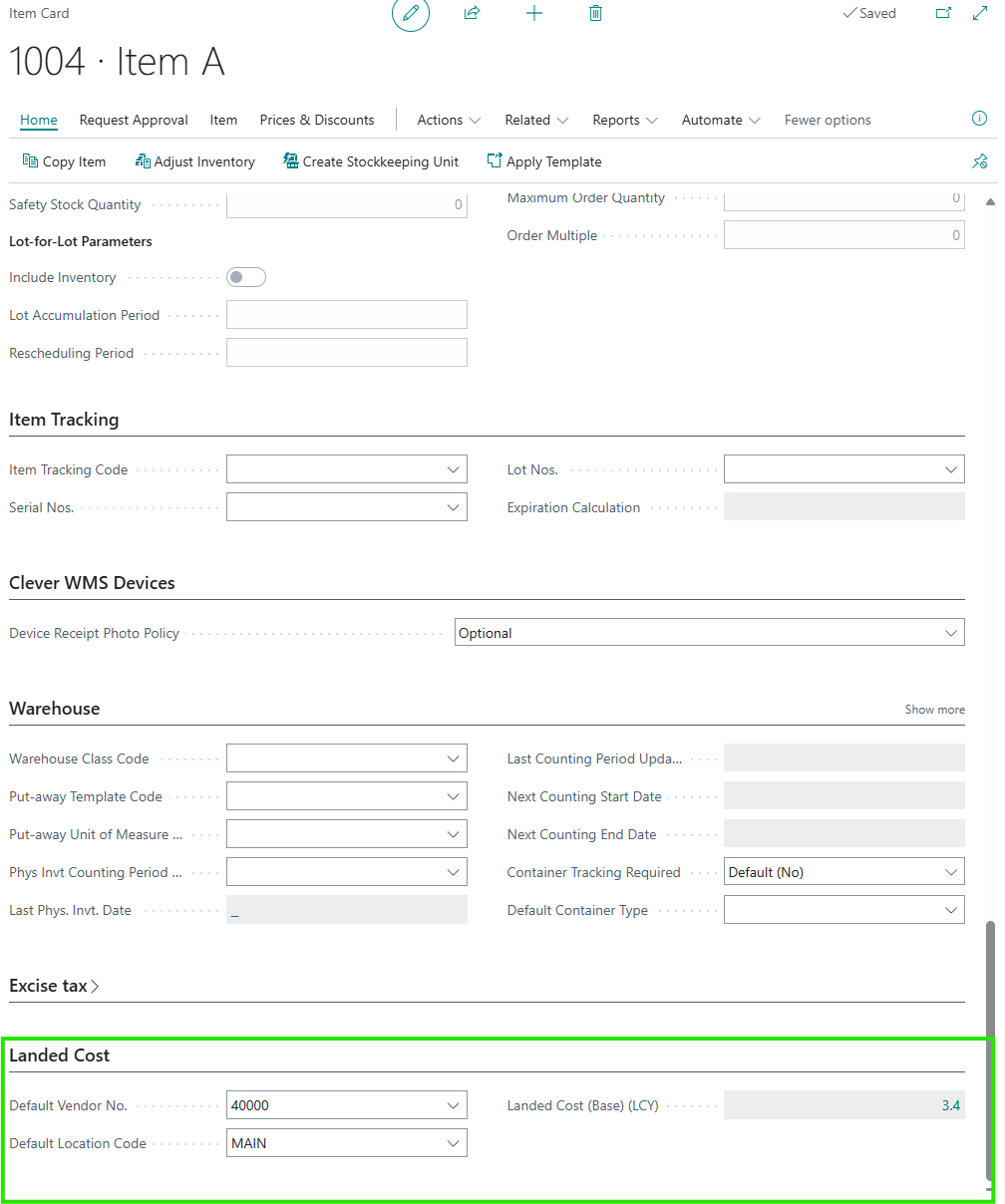
If a Stockkeeping Unit exists for the Item at the Default Location Code, any Default Vendor No. or Default Location Code set on that Stockkeeping Unit is used instead of the values on the Item. The Country of Origin used for the calculation is the Country/Region Code of the Vendor or, if that is blank, the Country/Region of Origin Code of the Item.
Note: the Landed Cost is calculated from the purchase price of the Item. If no purchase price can be found for the Vendor and the Item has no Last Direct Cost, the Landed Cost (Base) (LCY) is shown as zero.
Landed Cost Breakdown
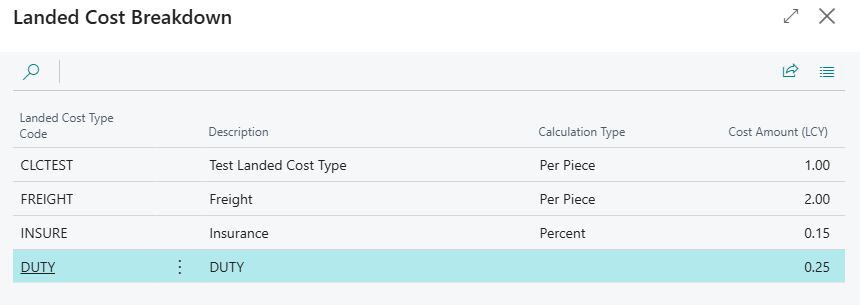
The "Landed Cost Breakdown" screen shows each Landed Cost that makes up the total, with the following fields. It is read-only.
| Landed Cost Type Code | The Landed Cost Type. |
| Description | The description of the Landed Cost Type. |
| Calculation Type | The Calculation Type used for this Landed Cost. |
| Cost Amount (LCY) | The calculated cost amount in local currency. |
The Item also has an Exclude from Fixed Cost field, which stops the Item from receiving a share of document-level Fixed Costs. It is not shown on the "Item Card" by default and can be added with Personalise. See Fixed Cost Assignment.
Stockkeeping Unit Card
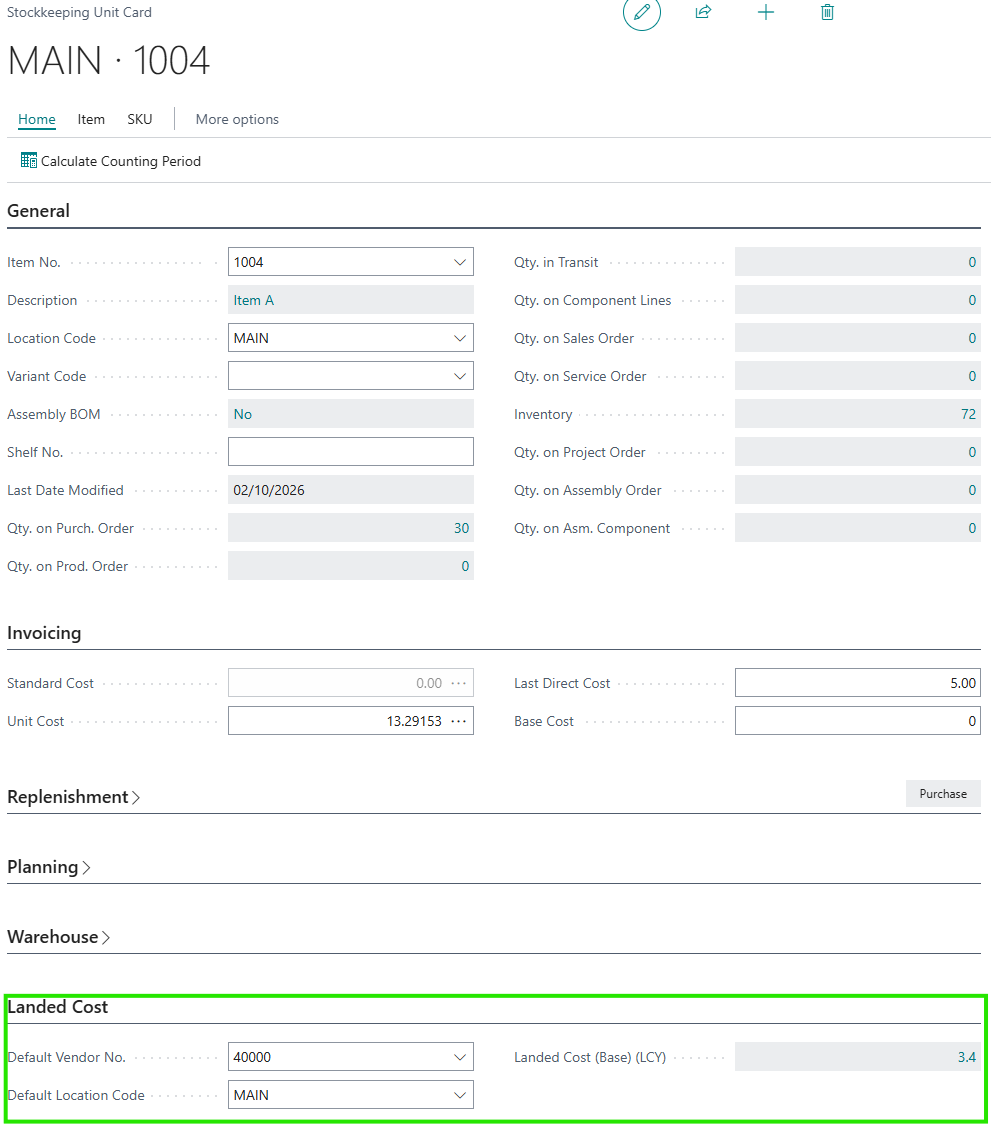
Where Stockkeeping Units (SKUs) are in use, the following fields are added to the "Stockkeeping Unit Card".
| Overhead Rate | Shown after the Flushing Method field. It is calculated automatically from the Item-level Landed Cost Rules with the same Location Code as the SKU, and cannot be edited. |
| Base Cost | Shown on the Invoicing FastTab. The Base Cost for the Item at this Location. Where it is set, it is used in priority to the Base Cost on the Item. When a SKU is created from the Item, the Item's Base Cost is copied to it. |
| Default Vendor No. | On the Landed Cost FastTab. The default Vendor used for Landed Cost calculations on the Standard Cost Worksheet. Overrides the Item-level value. |
| Default Location Code | On the Landed Cost FastTab. The default Location used for Landed Cost calculations on the Standard Cost Worksheet. Overrides the Item-level value. |
| Landed Cost (Base) (LCY) | On the Landed Cost FastTab. The total Landed Cost for this SKU, calculated using the Default Vendor and Default Location. Select the value to open the "Landed Cost Breakdown" screen. |
Tariff Numbers
A Duty % column is added to the "Tariff Numbers" screen, after the Supplementary Units column. The Duty % is copied to new Landed Cost Rules with the Duty Calculation Type, for the Tariff Number itself and for Items that have this Tariff No. The Duty % can be higher than 100.
When you change the Duty % and Duty rules already exist for the Tariff Number, or for Items with this Tariff No., you are asked whether you want to update the Duty % on these entries. Answer yes to update them.
You can open the Landed Cost Rules for a Tariff Number by selecting Landed Cost Rules from the Related menu.