The standard Business Central "Standard Cost Worksheet" can work out the Landed Costs for each Item and include them when you calculate a new Standard Cost. This means the New Standard Cost is built from the bottom up, as the expected purchase price (the new Base Cost) plus the expected Landed Costs, using the same Landed Cost Rules that are used on Purchase Orders.
The calculation uses the Default Vendor No. and Default Location Code set on the Item or Stockkeeping Unit. See Item, SKU and Tariff Setup.
How a line is calculated
When an Item line is added to the "Standard Cost Worksheet", for example with the standard Suggest Item Standard Cost action, the Landed Cost fields are calculated automatically as follows.
-
The Vendor and Location are taken from the Default Vendor No. and Default Location Code on the Item. If a Stockkeeping Unit exists for the Item at that Location, any values set on the Stockkeeping Unit are used instead. If there is still no Vendor, the Vendor No. from the Replenishment FastTab of the Item is used.
-
The Country of Origin is the Country/Region Code of the Vendor or, if that is blank, the Country/Region of Origin Code of the Item.
-
The Purchase Price is found from the Vendor's purchase prices for the Item's purchase unit of measure, at the Purchase Date of the line (or the work date if it is blank). If no price is found, or there is no Vendor, the Item's Last Direct Cost is used.
-
The Landed Cost Rules are found in the same order as on a Purchase Order (Item, Tariff Number, Item Category, All Items; Vendor, Country of Origin, no override; the Location, then no Location), using the latest Starting Date on or before the date being calculated.
-
Each cost is calculated from the price: Percent as the price * Cost %, Weight (KG) as the Cost per Calculation Unit * the Item's Gross Weight (or Net Weight), Volume (M3) as the Cost per Calculation Unit * the Item's Unit Volume, Per Piece as the Default Cost, and Duty as (the price + the costs that are set to Include in Duty) * Duty %.
-
The New Base Cost is set to the Purchase Price, unless you have changed it manually, and the New Standard Cost is set to the New Landed Cost (Base) (LCY) plus the New Base Cost.
Note: if no Purchase Price can be found (no price list price and no Last Direct Cost), the Landed Costs for the line are zero. Fixed Costs are not included in the worksheet calculation.
Standard Cost Worksheet fields
The following fields are added to the "Standard Cost Worksheet" after the New Standard Cost column.
| Purchase Date | The date used to find the purchase price and the Landed Cost Rules for the new Landed Cost calculation. If it is left blank the work date is used. Changing it recalculates the line. |
| Purchase Price | The expected purchase price for the Item, found using the Purchase Date and the Default Vendor. It cannot be edited. |
| Base Cost | The current Base Cost of the Item, or of the Stockkeeping Unit at the Default Location where one is set, at the time the line was calculated. It cannot be edited. |
| New Base Cost | The new Base Cost for the Item. It defaults to the Purchase Price and can be changed manually. When you change it, the line is marked as manually adjusted, the New Landed Cost (Base) (LCY) is recalculated using the New Base Cost as the price, and the New Standard Cost is updated. A manually adjusted value is kept when the line is recalculated. |
| Landed Cost (Base) (LCY) | The current total Landed Cost for the Item, calculated at the work date using the purchase price at the work date. Use it to compare with the new value. Select the value to open the "Landed Cost Breakdown" screen. |
| New Landed Cost (Base) (LCY) | The Landed Cost calculated from the Purchase Price (or the manually adjusted New Base Cost) at the Purchase Date. It is updated automatically when the Purchase Date or price changes. New Standard Cost = New Landed Cost (Base) (LCY) + New Base Cost. Select the value to open the "Landed Cost Breakdown" screen. |
| Base Cost Manually Adjusted | Shows whether the New Base Cost has been manually adjusted. This column is hidden by default and can be added with Personalise. |
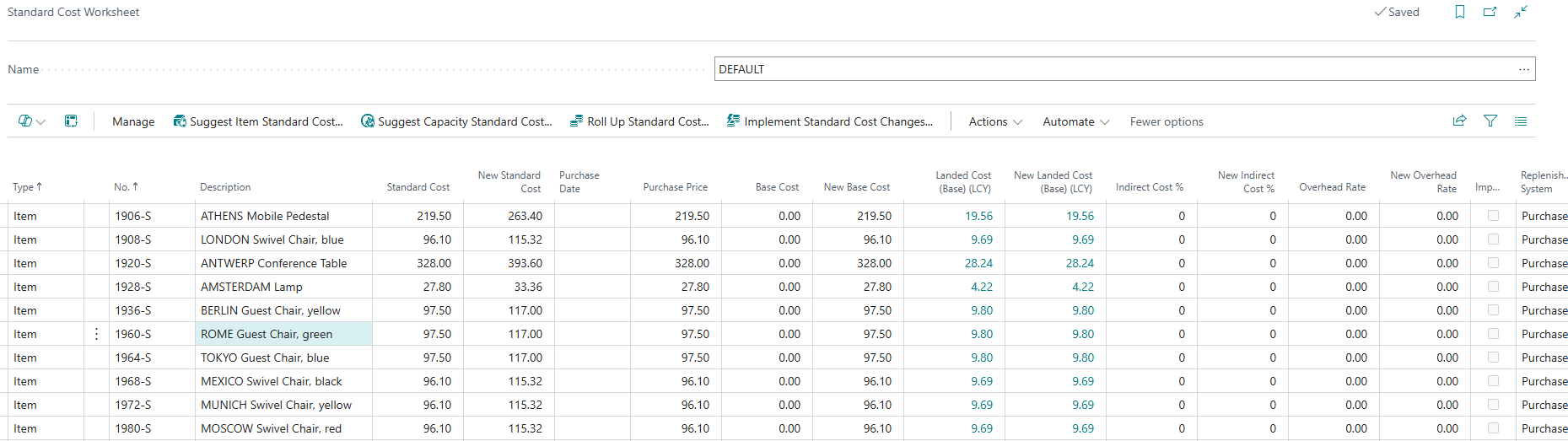
If you enter a New Standard Cost manually on a line that has no Landed Costs, the New Base Cost is set to the same value. Once a line has Landed Costs, the New Standard Cost is always worked out from the New Base Cost and the New Landed Cost (Base) (LCY).
Landed Costs actions
The following actions are available from the Landed Costs group on the Actions menu of the "Standard Cost Worksheet". Each action applies to all Item lines in the current worksheet.
| Calculate Landed Costs | Calculates the purchase price and Landed Costs for all lines, using each line's Purchase Date. Use this after changing prices or Landed Cost Rules. |
| Set Purchase Date | Opens the "Set Purchase Date" dialog, where you enter a Purchase Date to apply to all worksheet lines. The Landed Costs are then recalculated using the purchase prices valid for this date, and a message shows how many lines were updated. |
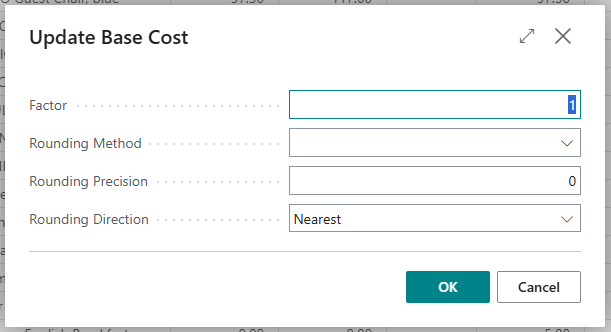
| Update Base Cost | Opens the "Update Base Cost" dialog, which updates the New Base Cost for all lines using a factor and optional rounding, then recalculates the Landed Costs. The lines are marked as manually adjusted, and a message shows how many lines were updated. |
The "Update Base Cost" dialog has the following fields.
| Factor | The factor to multiply the current New Base Cost by, for example 1.05 for a 5% increase or 0.95 for a 5% decrease. It defaults to 1. If it is set to 0, nothing is updated. |
| Rounding Method | The Rounding Method to apply to the updated Base Cost. Selecting a method sets the Rounding Precision and Rounding Direction for you. |
| Rounding Precision | The precision to round the updated Base Cost to, for example 0.01 for pence or 1 for whole units. Leave as 0 for no rounding. |
| Rounding Direction | Whether to round to the Nearest value, Up or Down. |
Implementing the changes
When you run the standard Implement Standard Cost Changes action, the New Standard Cost is applied as normal. In addition, the New Base Cost of each line is written to the Base Cost of the Item, and to the Base Cost of the Stockkeeping Units that are updated, so that future Landed Cost calculations use the new value. Lines with a New Base Cost of zero do not change the Base Cost.
Note: the worksheet uses all matching Landed Cost Rules, regardless of the Cost Treatment of the Landed Cost Type, and does not apply the Incoterm Allocation matrix.