If any of your Quality Checks are performed by a third party, you could use the Quality Subcontractors functionality to cater for this. This requires creating the third party in Business Central, creating a Quality Order and then transferring the goods directly from the Quality Order. You can then receive the goods back through the Quality Order, enter the results and post as normal.
To start, in the "Quality Setup" page, go to 'Setup' in the ribbon and choose Quality Subcontractors. When this page is open, you need to link the Subcontractor you want to use which should be an existing Vendor No. Here you can also define the Order Address Code. This will require you to go to the Vendor card - Related - Vendor and Order Addresses. Once you create one here you can then choose it for the Subcontractor.
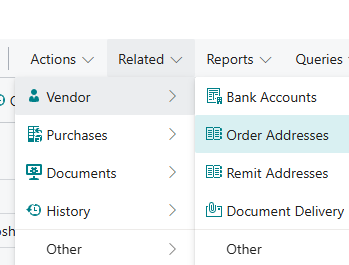
Ensure you have a Location Code created for the Subcontractor too, and choose this for the Subcontractor. This is needed because you will use Transfer Orders to send the goods there and receive them back so we need to track this through the process. Confirm the In-Transit Code (Location) you want to use and if you're using Shipping Agents, you can populate the Shipping Agent Code and Shipping Agent Service you wish to use. These are not mandatory.
Now the Subcontractor is created, go to "Quality Checks" and tick any checks that will be handled exclusively by them. You will also need to choose the Subcontractor from the drop-down.

When you now add this check onto "Quality Tests", you'll notice the Quality Check Code is marked as 'Yes' for Subcontractors.
You will create Quality Orders in exactly the same way as you do now, whether that's automatically or manually. In the lines section of the "Quality Order", you'll see any Check codes that are marked as for the Subcontractor.
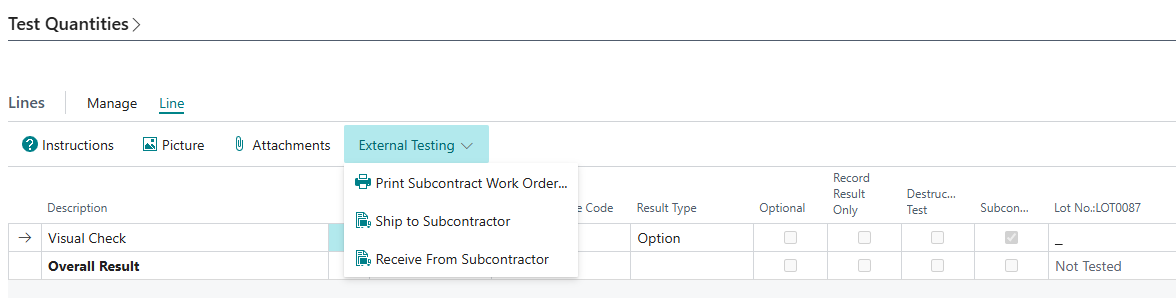
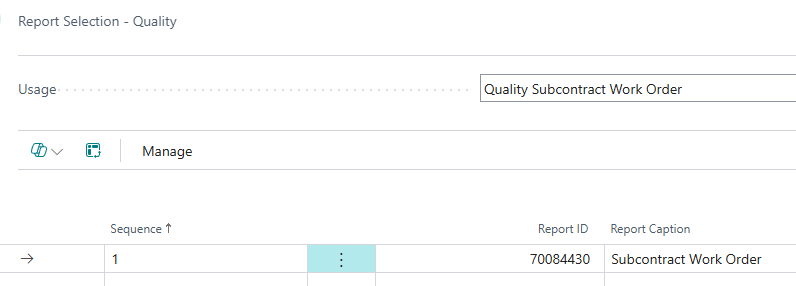
In the ribbon for the Quality Lines, you'll see an option for External Testing. Here, you can either generate a work order (document) to be printed for the Subcontractor or ship/receive the goods. To use the report, you'll need to link the Report ID in "Quality Setup", go to 'Setup' in the ribbon and choose Report Selections. Change the Usage to 'Quality Subcontract Work Order' and ensure the Report ID '70084430' is linked.
Once you're ready to send the goods to the subcontractor for them to do the testing, choose Ship to Subcontractor in the External Testing action. This will immediately open a "Transfer Order" with the address and Item lines already populated for the Quality Check Codes that are marked as 'Subcontractor'. Where Lots/Serials/Package No's are used, these will also transfer to the documents automatically.
Note: The Shipment and Receipt must be processed in this "Transfer Order" to acknowledge goods have been sent and received to the Subcontractor.
You'll notice the Qty at Subcontractors will be displayed within the Test Quantities FastTab.

Once this has been done and the goods are ready to be sent back to your Location, go back to the External Testing action and this time, choose Receive from Subcontractor. Again, both the Shipment and Receipt must be processed from the same Transfer Order. When these have been posted, the Quality Order can be updated with the results from the Subcontractor and posted as normal.