On a "Landed Cost Container" you can record the Ports which relate to the movement of the Container, from the Port at which the carrier takes responsibility for the goods through to their final destination. Before you can do this, you must first set up the Ports through which you trade as a business within the "Ports" screen, as shown below.
You can open this screen using the Search functionality in Business Central, or by selecting Ports from the Setup menu of the "Landed Cost Setup" screen.
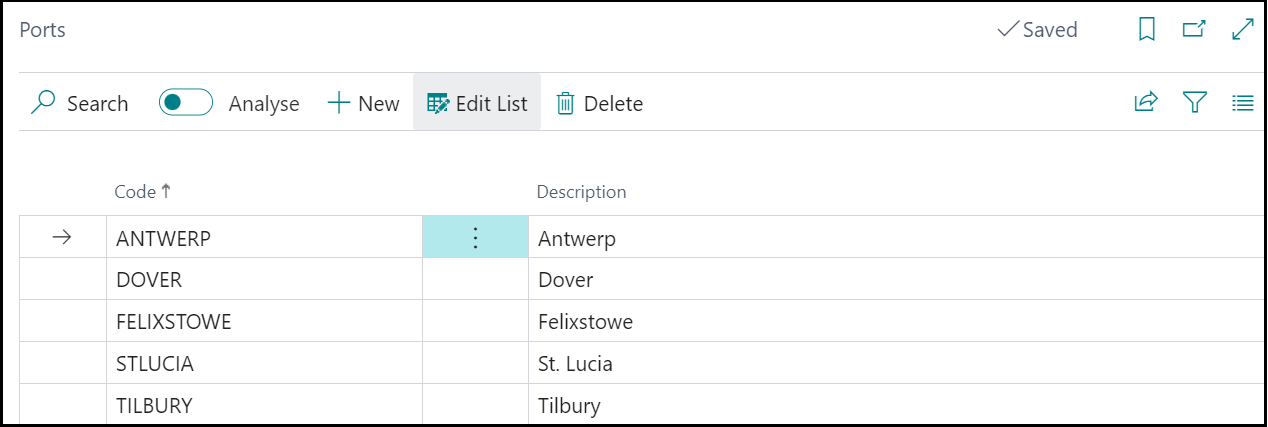
The information to set up against a Port is as follows.
| Code | A unique code that identifies the Port. This must be populated. |
| Description | A description that identifies the Port to the Users, such as the name of the Port. |
Note: a Port cannot be deleted while it is used on a Landed Cost Container. If you try to delete it, a message tells you which Container is using the Port. Remove the Port from the Container's Delivery FastTab first.
Using Ports on a Container
Once your Ports are set up, they can be selected in the following fields on the Delivery FastTab of the "Landed Cost Container Detail" screen. These fields are shown when you select Show more on the FastTab. See Landed Cost Containers.
| Port of Receipt | The port or location at which the carrier takes responsibility for the goods. This may differ from the Port of Loading where inland collection is involved. |
| Port of Loading | The port at which the goods are loaded onto the vessel or transport for departure. |
| Port of Discharge | The port at which the goods are unloaded from the vessel upon arrival. |
| Port of Delivery | The final destination port or location at which the goods are delivered to the consignee. |
These fields are for informational and reference purposes, allowing you to record the full routing of the Container for use in matching against shipping documentation such as Bills of Lading and Arrival Notices.
Note: the Port fields can only be changed whilst the Container Status is Open. Once the Container has been Closed, they can be changed only if Allow Container Edit after Close is enabled on the "Landed Cost Setup" screen, as described in Closed Container.