Within Clever Quality, you can perform Destructive Checks. This is used when a Check Code is on a Quality Order and during the testing process, the item is destroyed. You therefore need to write off the qty tested when you post the Quality Order.
To start this process, first you need to Enable Scrap in the Scrap FastTab of the "Quality Setup" page as the destructive tests uses this feature to write off the item so mark this field as 'Yes'. Then, you need to create a Scrap Item No. This is effectively the Item where the qtys of anything destroyed will be sent to (and visible in the Item Ledger Entries). You may also want to populate a Scrap Reason Code so that you can report on reasons why goods were destroyed or scrapped as part of your business processes.
When you scrap goods, you need to confirm in the Location card which Bin to use to store Scrap items. Therefore against the Location, within the Bins FastTab, populate the Scrap Bin Code field. This means goods can immediately be scrapped from the Quality Order and it knows where to move them.
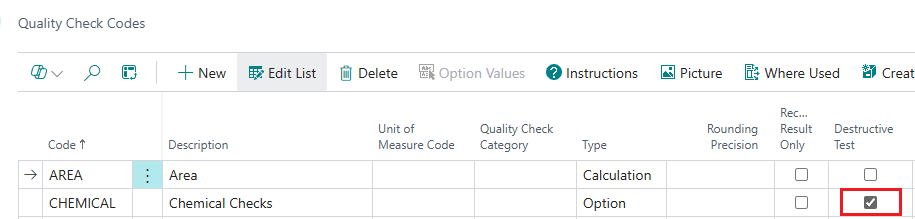
Next, you need to open the "Quality Check Codes" page and mark any checks that will destroy the samples as Destructive Test in the boolean. You will also notice this transfers over to the "Quality Test" as well.
You'll also see that the Check Code is marked as Destructive Test on the "Quality Order". Once the results are entered, you need to now go to the Failure Responses in the ribbon and Register Scrap (choose whether you are destroying the failed Qty or the full qty). Then you post the Quality Order.
If you now check the Item Ledger Entries, you'll notice a negative entry for the original item as well as a positive entry for the Scrap item where the Qty has moved to.
