Now Clever WMS Containers can be used alongside Clever Quality, allowing both Item and Physical container checks of a Container to be performed without the need for Lot/Serial/Package tracking.
Container based Quality Orders can be created in a couple of ways. Firstly, using the Automation Rules as highlighted here to create both Item and Container based Quality Orders automatically, either when goods are placed into a container or when a Container is returned back using the Container Return Journal.
The "Containers" page in Business Central is another place these can be created from. Opening the list page, you can see the Container Quality Status against each Container. This will show the worst status applicable for this Physical Container. For example, there may have been multiple Quality Checks performed against it over a period of time. As soon as any of those Checks is a 'Fail', the Status here will show as 'Fail' to show that at least 1 of the Quality Orders for the container has failed.
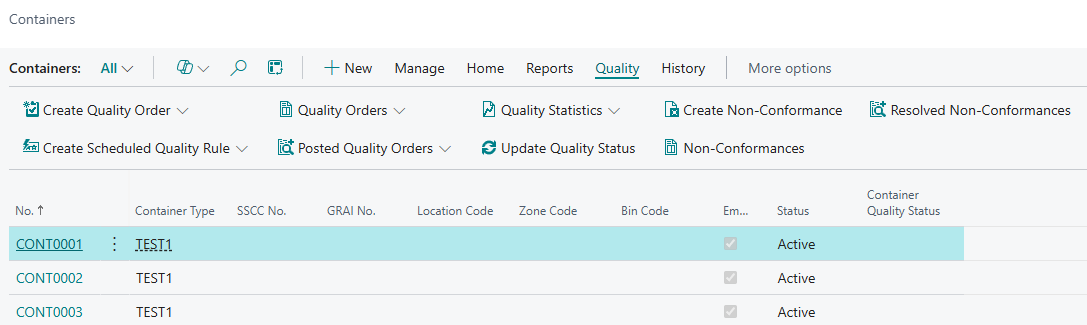
In the ribbon of the Containers List page, you can create new Quality Orders here, by selecting Quality - Create Quality Order. This gives you 2 options, 'Contents' and 'Container'. Clicking 'Contents' will make a Quality Order for the contents of the container. Selecting 'Container' will create a Quality Order for the physical container. You can also view any Open or Posted Quality Orders from the ribbon here.
When you open the Container card, you will be able to see the list of contents within the Container as well as the Quantity (Base) for that item and it's own Quality Status. This status relates to the Item specifically, not the Physical Container.
In the ribbon of the Containers list and Card, you are able to create Non Conformances as well as view any open/resolved ones. More information on using Containers with Non-Conformances can be found here.