From v1.1.0 Clever PrintNode Integration supports Printer Selections for Dynamics 365 Business Central.
Note: the features described on this page are only available from Business Central 15.3
Defining Printer Selections
Navigate to the Clever Printer Selections Screen.
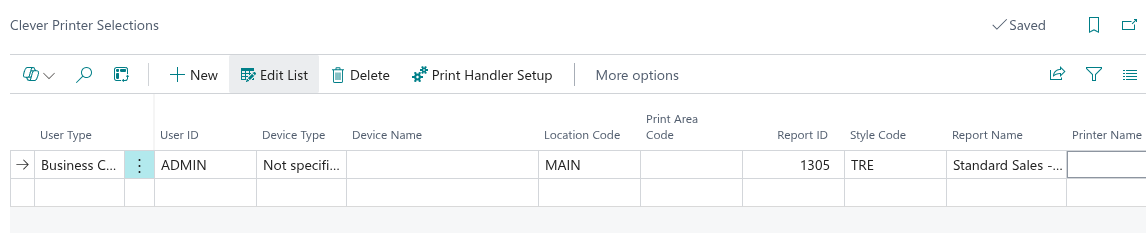
Printers can be defined for a combination of User ID and Report ID. Clever PrintNode Integration also supports printing to specified Printer Trays.
Printing Reports with Printer Selections
When a report is printed, Business Central will check if a Printer Selection record exists for the current user and/or report. If so, and the printer has been set using Clever PrintNode Integration then the a PDF image of the report will be generated and passed to Clever PrintNode Integration.
The app will forward the PDF that has been generated to the printer (and tray) that has been specified in the Printer Selection record. The PrintNode client can then download and process the print job.
Style Code
The Style Code field has been added to the "Clever Printer Selections" screen, allowing users to assign a specific Document Style to a printer selection. Document Styles are configured in Clever Document Delivery and control the visual appearance of documents, such as fonts, colours, logos and layout, when they are generated. By linking a Style Code directly to a printer selection, users can ensure that documents produced for a specific report and printer combination automatically apply the correct styling, without requiring manual selection at the time of printing. This is particularly useful in environments where different printers or report contexts require different branded or formatted outputs.
Technical Detail
Clever PrintNode Integration extends Dynamics 365 Business Central by subscribing to the printing events introduced in Business Central 15 CU3 as described here: https://docs.microsoft.com/en-us/dynamics365/business-central/dev-itpro/developer/devenv-reports-printing