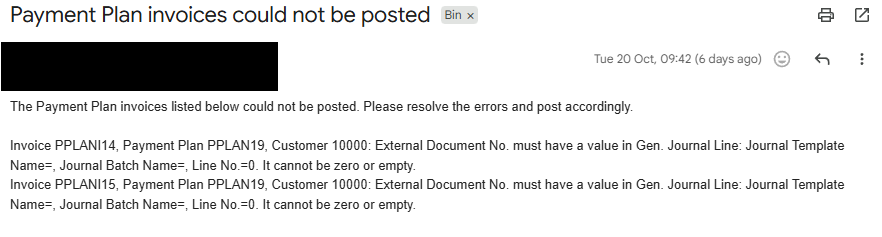
When Payment Plan invoices are created and automatically posted in bulk using the "Create Payment Plan Invoices" routine, it is possible for an individual invoice to fail to post. This can happen for reasons such as a closed accounting period, a blocked G/L account or customer, or a mandatory field that has not been completed. Previously a failure like this was silent, leaving the invoice unposted with nothing to alert anyone.
Invoice Error Notifications close this gap. When the automated routine finishes, anyone you have nominated is emailed a summary of the invoices that could not be posted, including the payment plan, the customer and the posting error for each one, so the problems can be investigated and resolved.
Before you start
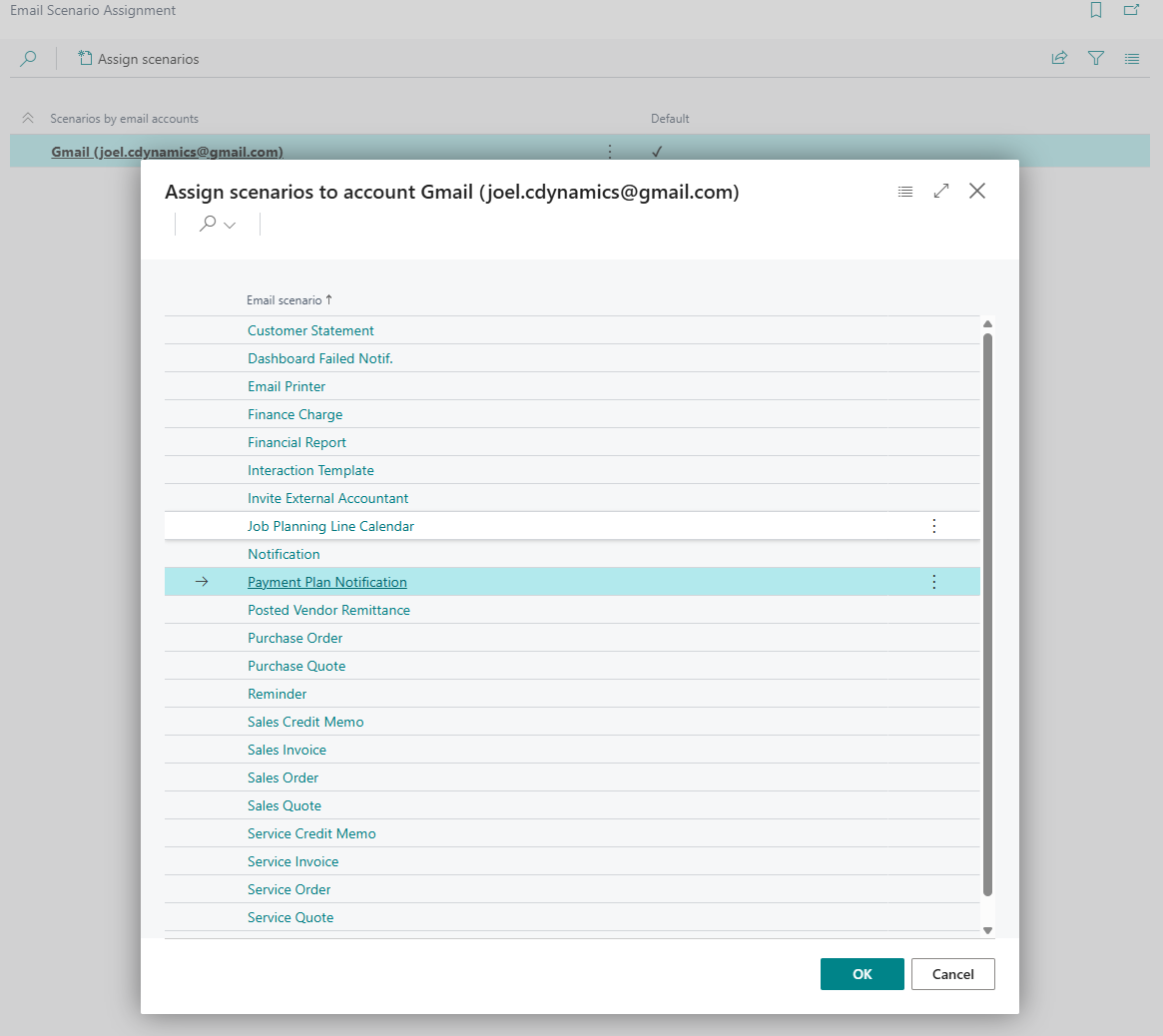
Notifications are sent using a dedicated email scenario, so an email account must be assigned to it before any emails can be sent.
- Open the "Email Account Settings" screen and choose Email Scenario Assignment.
- Locate the Payment Plan Notification scenario and assign the email account you want the notifications to be sent from.
If no email account is assigned to the Payment Plan Notification scenario, the routine still completes normally but no email is sent.
Choosing who is notified
Recipients are entered as a list of email addresses separated by semicolons. You can set them at three levels, and the most specific level that is populated is the one used for a given payment plan.
| Customer | The Payment Plan Notification Recipients field in the Payment Plan section of the "Customer Card". This takes priority over the template and setup levels for that customer's payment plans. |
| Payment Plan Template | The Notification Recipients field on the "Payment Plan Template". This is used when the customer field is blank. |
| Payment Plan Setup | The Notification Recipients field on the "Payment Plan Setup" screen. This is the default and is used when both the customer and template fields are blank. |
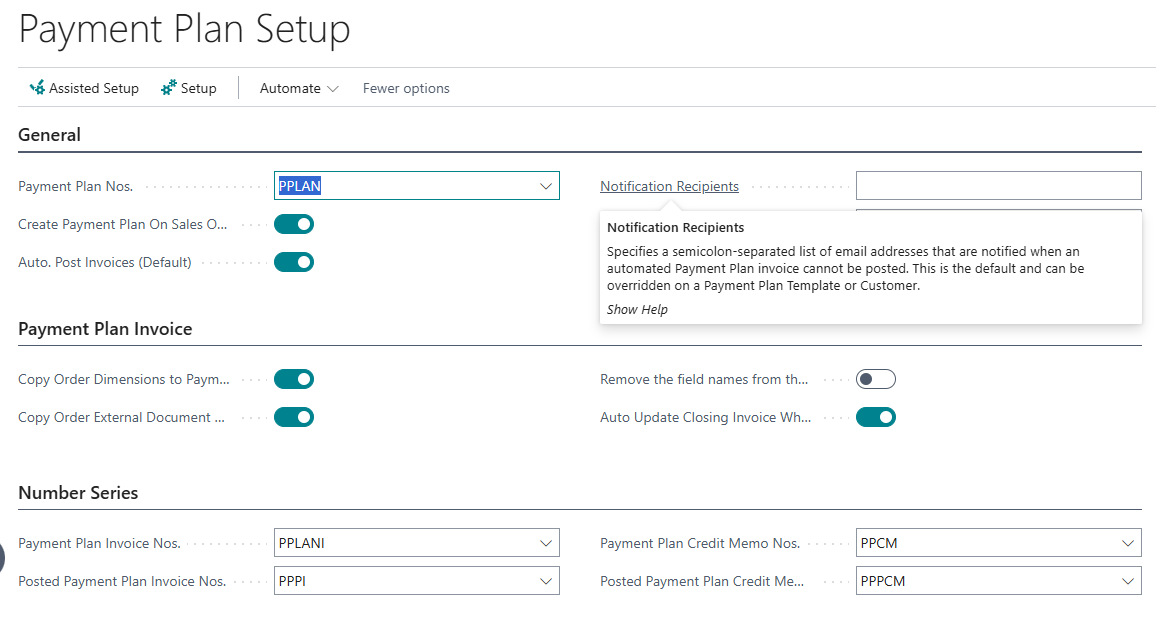
You can enter more than one address in any of these fields by separating them with a semicolon, for example
When notifications are sent
Notifications apply only to automated posting during the "Create Payment Plan Invoices" routine, whether you run it manually or from a job queue. For a posting failure to occur, Auto Post Invoices must be enabled on the "Payment Plan Template", so that the routine both creates and posts the invoice. More information on running the routine can be found in the Scheduling Payment Plan Invoices section.
When the routine starts it begins collecting any posting failures, and when it finishes it sends the emails. Failures that resolve to the same list of recipients are grouped into a single email, so each recipient list receives one email listing only its own failures. Invoices that fail to post are left unposted so you can review and post them once the underlying problem is resolved.
Note: notifications are only raised by the "Create Payment Plan Invoices" routine. Creating invoices manually from the "Payment Plan" (for example using Create Invoice(s)) is not affected, because any posting error is shown to you directly on screen at the time.
The notification email
The email has the subject Payment Plan invoices could not be posted. It opens with a short message asking the recipient to resolve the errors and post the invoices, followed by one line for each invoice that failed. Each line shows the invoice number, the payment plan number, the customer number and the posting error that was reported.