Every time an operator stops an operation, they give a reason. Taken together, those reasons answer a question every supervisor cares about: where are we losing time, and what's causing it?
The “MES Unplanned Stop Time Analysis” screen summarises the unplanned stops, groups them by reason, and charts them, so you can see at a glance what's costing you the most.
What counts as unplanned
Only unplanned stops are analysed: faults, shortages, waiting, and the like. Planned stops (breaks, scheduled maintenance) and the special reserved stop reasons (Prod. Order Complete, Setup Complete, End of Shift) aren't included, because they aren't lost time in the same way. Each stop is counted once, even when several operators were signed in. A stop that's still going is included, using the time so far.
Open the analysis view
You can open it in two ways.
From a centre. On the “Machine Center Card” or “Work Center Card” screen, choose MES Stop Time Analysis. The analysis opens already filtered to that centre
By search. Search for “MES Unplanned Stop Time Analysis” to analyse more widely
Narrow it down
Use the Analysis Filters at the top.
| Filter | What it does |
| Machine Center No. |
Analyse one Machine Centre. Leave blank for all |
| Work Center No. |
Analyse one Work Centre, including its Machine Centres and any Workspaces set up directly on it. Leave blank for all |
| Date From and Date To |
The period to analyse |
The analysis updates as you change a filter. You can also choose Refresh Analysis.
Read the results
Summary Information gives you three numbers for the period.
Total Unplanned Stops, how many
Total Stop Time, how long in total
Average Stop Time, the average per stop
Below that, Stop Analysis by Reason Code lists each reason with its count and time, and a Stop Time Chart shows the same visually.
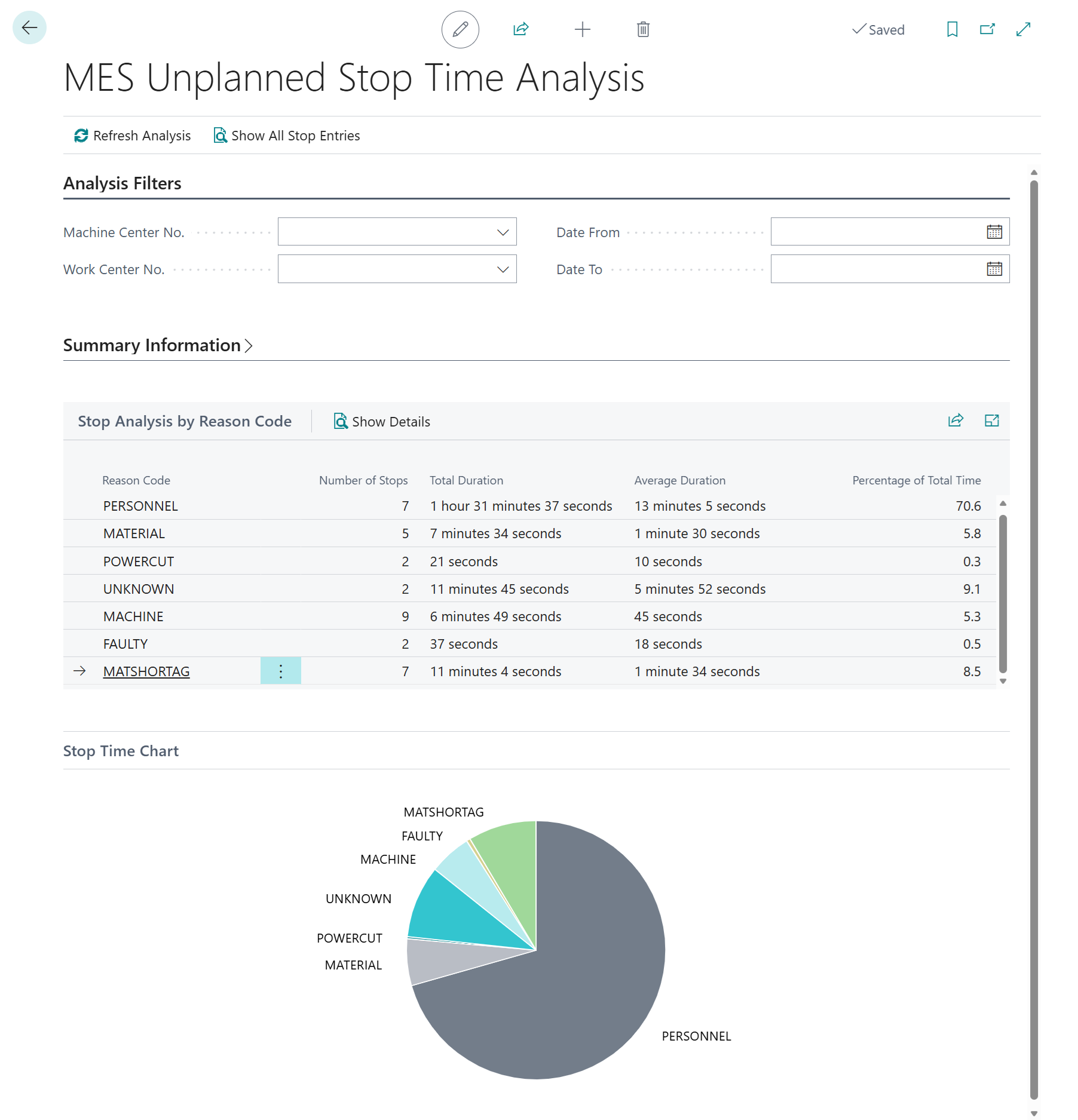
To see the detail behind the numbers, choose Show All Stop Entries, which opens the “MES Workspace Log” screen filtered to those stops. Each entry shows the Workspace, the Terminal, the operator, the production order and operation, and the reason.
Using it well
Look for the biggest bar first. Fixing the top one or two reasons usually brings the most benefit
Compare periods. Run it for this week and last week after you've made a change
Check the reasons themselves. A very large Other suggests your list of stop reasons needs to be clearer. Stop codes can be changed in Business Central from "MES Setup" screen, from the Stop Codes menu option.
Share it with operators. People are more careful about picking the right reason when they can see how it's used