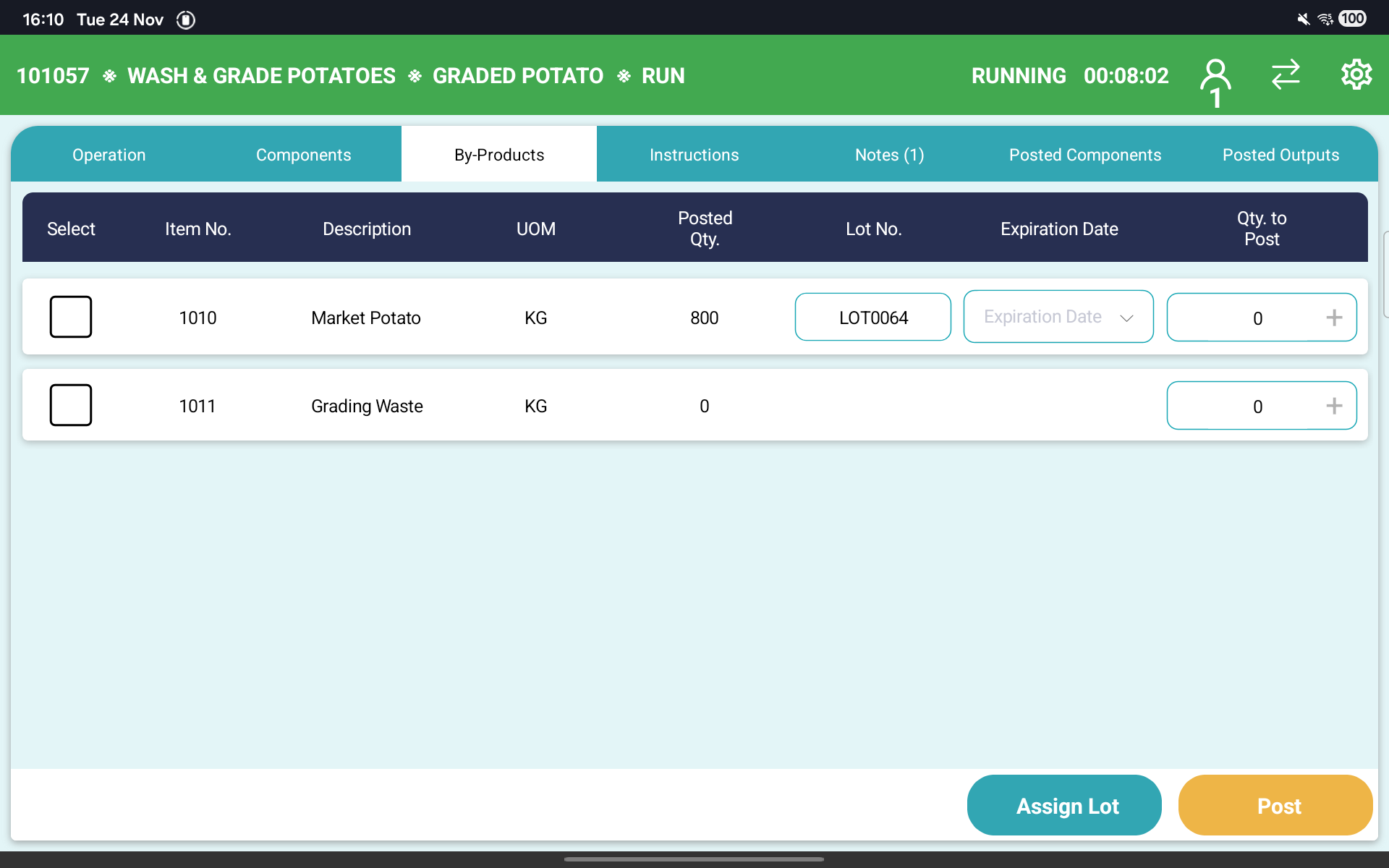
You can post several by-products at once. For each one, enter the quantity, and fill in any variant, tracking or expiry details it needs.
Post by-products
Open the By-Products tab
Find each by-product you've made, and enter its quantity
If you're asked for a variant, tracking details or dates, fill them in Track lots, serials and containers
Post
If nothing is available, you'll see No by-products found for this production order line. If you try to post without choosing one, you'll see Please select a By-Product. If the by-product has variants and you haven't chosen one, you'll see Please select a Variant.
Weighing by-products
If your factory weighs by-products, select the relevant By-Product Item and press Get Weight to bring in the scale's reading as the quantity.
When you have captured all relevant weights, you can then select and press the Post button.
Two types of by-product
Clever MES supports two types of by-product. Your administrator chooses which one is used with Use Mfg. Plus By-Products in the “MES Setup” screen. This option can only be turned on when Clever Manufacturing Plus is installed. Operators post both types the same way on the tablet, but they're set up differently and are posted and costed differently in Business Central.
| Clever MES by-products | Clever Manufacturing Plus by-products | |
| Used when |
Use Mfg. Plus By-Products is off, or Manufacturing Plus isn't installed |
Use Mfg. Plus By-Products is on and Manufacturing Plus is installed |
| Where the list comes from |
The “MES By-Products” screen, opened from the “MES Setup” screen. Each line has a By-Product Item No. and an optional Finished Item Filter |
The by-products set up for the production order line in Manufacturing Plus |
| Which by-products the tablet shows |
Every by-product item whose Finished Item Filter matches the item being made. A by-product with a blank filter is shown for every item |
Only the by-products planned for this production order line |
| How it's posted |
As negative consumption against the production order |
As output against the production order, through Manufacturing Plus |
| Effect on cost |
Reduces the production order's actual material cost by the by-product's value |
Costed like the main item. When the production order is finished, the by-product takes a share of the production order's costs based on its output quantity |
| Where it's put |
The location's By-Product Output Bin, or the production order line's bin if that's blank |
The Bin Code on the production order by-product line. By default, this is the same output bin as the main item |
Clever MES by-products
Clever MES by-products are posted as negative consumption. To Business Central, it's as if a component has been returned to stock from the production order, rather than a second item being produced.
When you post a Clever MES by-product.
The first time it's posted for a production order line, Clever MES adds it to the order's components as a production order component with MES By-Product ticked and a Flushing Method of Manual. You can see it on the production order's components in Business Central. The Components tab on the tablet never shows it
A consumption entry is posted for the by-product with a negative quantity. The by-product item's inventory goes up by the quantity posted
Any lot number, serial numbers, container, expiration date and warranty date you entered are posted with it
If Clever Labelling is installed, consumption labels are produced for the entries just posted
Because it's posted as consumption, the by-product is valued at the item's own unit cost, not at a share of the production order's cost. That value comes off the production order's actual material cost, so the main item's cost isn't overstated. It isn't shown as output on the production order. Look for it in the production order's consumption entries, where it appears with a positive (inbound) quantity.
The by-product is put away to the location's By-Product Output Bin, set on the “Location Card” screen. If that's blank, it goes to the production order line's bin. The bin can't be a Receive, Ship or Pick bin, or you'll see By-Product Output Bin X must not be of type Receive, Ship or Pick. The By-Product Output Bin field can only be edited on the “Location Card” screen when Allow By-Products is on and Use Mfg. Plus By-Products is off.
Clever Manufacturing Plus by-products
Manufacturing Plus by-products are posted as output, so they create output item ledger entries, just like the main item. When the By-Products tab opens, Clever MES asks Manufacturing Plus to create production journal lines for the production order line, and lists the by-product lines from that journal.
When you post a Manufacturing Plus by-product.
The quantity you entered is posted as output on the Manufacturing Plus by-product journal line, in the unit of measure shown on the tablet
Any lot number, serial numbers, container, expiration date and warranty date you entered are posted with it, and are saved back to the Manufacturing Plus by-product line
If the by-product uses the item's serial number series, the next numbers are taken from the item's Serial Nos. series
The by-product goes to the location and Bin Code on the production order by-product line, which you can see from the By-Products action on the production order lines. The location's By-Product Output Bin isn't used. By default, Manufacturing Plus fills in that bin the same way Business Central fills in the main item's output bin. It uses the first of these that has a value.
The From-Production Bin Code on the last operation of the routing. If the by-product has a Routing Link Code, it uses the operation with that routing link code instead
The From-Production Bin Code on the “Location Card” screen
The item's default bin, if the location uses bins but not directed put-away and pick
So the by-product normally goes to the same output bin as the main item. It only goes somewhere else if the by-product has a routing link code that points to a different operation, or someone has changed the Bin Code on the production order by-product line.
The By-Product will be costed alongside the main production item you are producing, taking a share of the production order cost based on the quantity that is output.