Some operations need specific tools, such as dies, moulds, jigs or cutters. If your factory tracks them, the Tools tab shows the tools an operation needs and lets operators check them in and out, so you always know where a tool is and how much it has been used.
Note: Tooling is tracked using Clever Manufacturing Plus. The tab only appears when tooling has been switched on in the “MES Setup” screen and the operation has tools. Configure what operators see
The Tools tab
The tab lists the Production Order Routing Tools for the operation. Each tool is shown on its own row with these columns.
| Column | What it shows |
| Select |
A checkbox, which you tick to choose the tool before checking it out or in |
| Tool No. |
The tool's number |
| Description |
The tool's description |
| Category Code |
The tool's category |
| Usage Qty. Per Setup |
How much the tool is used each time the operation is set up |
| Usage Qty. Per Output |
How much the tool is used for each unit of output |
| Status |
The tool's current status in Manufacturing Plus, for example whether it's checked out or in |
If the operation has no tools, the Tools tab will not be shown on the Device.
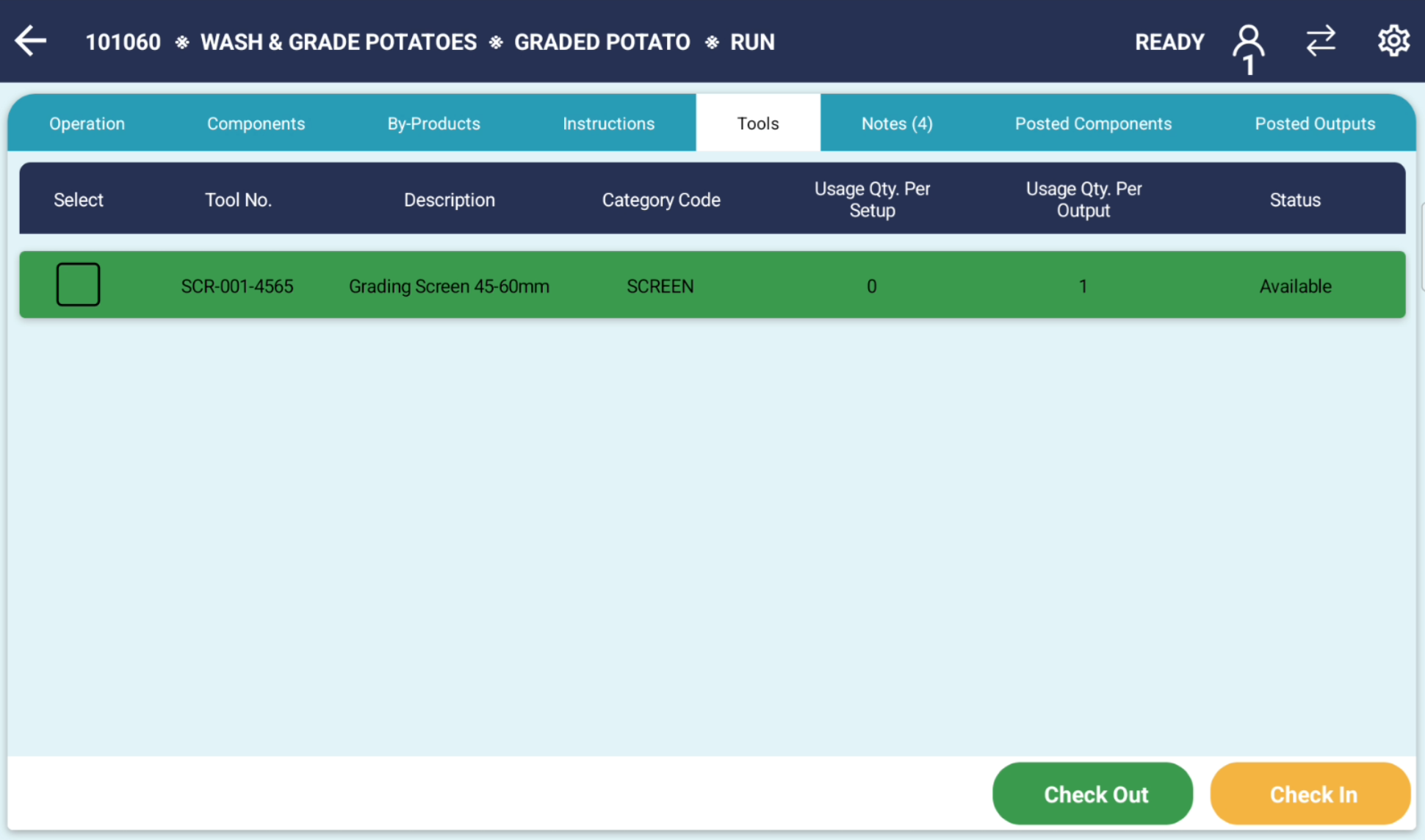
Check a tool out and in
Open the Tools tab
Tick the Select checkbox for each tool you're taking or returning
Tap Check Out when you take it, or Check In when you return it
If you tap either without selecting a tool, you'll see Please select a tool.
The screen refreshes straight away, and the Status column shows each tool's new status.