On the Operation tab, while the operation is Running, tap Output. The Output screen opens
Enter the quantity you've completed in Enter Qty. to Post, using the keypad
Fill in any attribute, tracking or date fields shown on the left of the screen. These are explained below
Tap Post
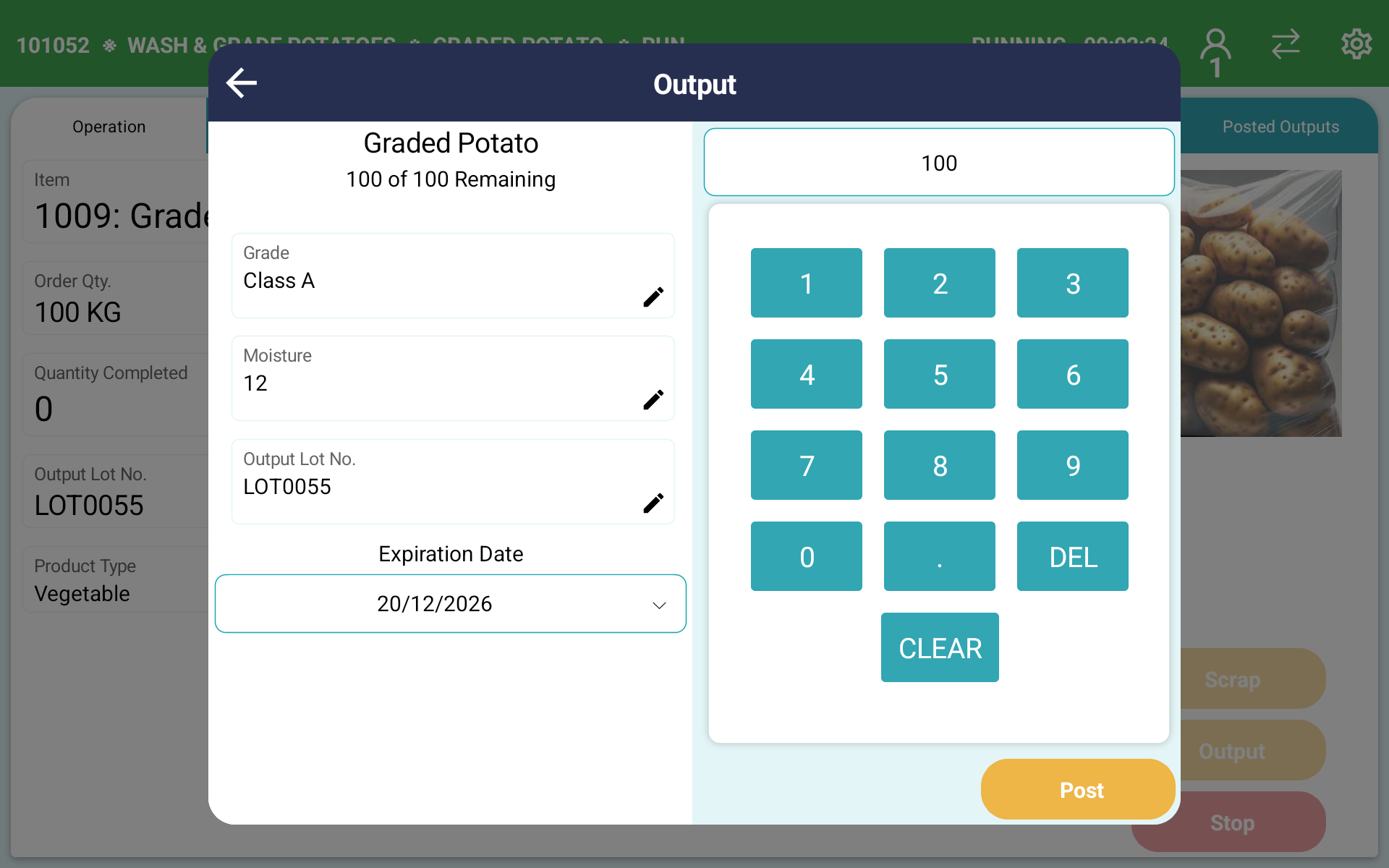
The Output screen has two halves.
On the left, the item's description (with its variant code, if it has one) and how much of the order is left, shown as X of Y Remaining. Below that are any attribute, tracking and date fields this output needs
On the right, the Enter Qty. to Post box, a keypad and the Post button. If the routing line has an Output Multiple, the quantity starts at that value. If you've just weighed the output, it starts at the weighed quantity instead
Tap the back arrow to leave without posting. The quantity, dates and attribute values you've entered are kept while you open and close the pop-ups on this screen.
If you try to post without a quantity, you're told Please enter a Output quantity.
What you may be asked for
What appears on the left of the Output screen depends on the item being made, its Item Tracking Code, the attributes on the routing operation, and the output tracking options in the “MES Setup” screen. Lot, serial, container and date fields only appear on the last operation of the routing, because that's the only operation that puts stock into inventory.
| Field | When it appears |
|
One field per attribute, named after the attribute (for example Colour) |
The routing operation has at least one Clever Attribute with Attribute Posting set to Mandatory per Entry or Mandatory Same Value |
| Output Serial No. |
Serial Track Output is on in the “MES Setup” screen, and the item's Item Tracking Code requires a serial number when output is posted |
| Output Lot No. |
Lot Track Output is on in the “MES Setup” screen, and the item's Item Tracking Code requires a lot number when output is posted |
| Output Container No. |
Container Track Output is on in the “MES Setup” screen, and Clever WMS Containers requires container tracking for the item at the routing line's location and From-Production Bin Code |
| Expiration Date |
A serial or lot number is being asked for, and the Item Tracking Code has Use Expiration Dates or Man. Expir. Date Entry Reqd. turned on |
| Warranty Date |
A serial or lot number is being asked for, and the Item Tracking Code has Man. Warranty Date Entry Reqd. turned on |
| Last Weighed |
Weigh Output is on in the “MES Setup” screen and the output has been weighed. It shows when the last reading was taken |
Each field shows its current value. Tap a field to change it. Lot, serial and container numbers are saved on the production order line, so they carry over to the next output until someone changes them.
If a tracking option is turned off in the “MES Setup” screen, the tablet doesn't ask for that value, even if the item is tracked.
Track lots, serials and containers
Lot numbers
Tap Output Lot No. to open the Specify Lot pop-up. You can.
type a lot number and tap Save
tap a lot in the list. The list only appears if lot numbers have already been assigned to the production order line in Business Central, and shows each lot with its quantity
tap Assign Lot to take the next number from the item's Lot Nos. series. This button only appears if the item has a Lot Nos. series
If you tap Save without a lot number, you're told Please specify tracking details. If you try to post without a lot number, you're told Output Lot No. must be set.
If the lot already exists in Business Central with a different expiration or warranty date, you're told Invalid Date: Expiration Date. Existing Expiration Date of [date] (or the same for Warranty Date). A lot can only have one expiration date and one warranty date.
Serial numbers
Each unit you post gets its own serial number, so posting a quantity of 5 creates 5 serial numbers in sequence. This means the quantity has to be a whole number. If it isn't, you're told Output quantity X is not valid for item Y because it is serial number tracked. Enter a whole number quantity.
Tap Output Serial No. to open the Specify Serial No. pop-up. You can.
type the first serial number to use and tap Save. The serial numbers that follow count up from it, for example SN0001, SN0002, SN0003
tap a serial number in the list. The list only appears if serial numbers have already been assigned to the production order line in Business Central
tap Use Item Serial No. Series to number the output from the item's Serial Nos. series. This button only appears if the item has a Serial Nos. series
When the item's number series is being used, the field shows AUTO. If Preview Output SN Series No. is on in the “MES Setup” screen, it shows the next number in the series instead.
If you tap Save without a serial number, you're told Please specify tracking details. If you post without a starting serial number and the item's series isn't being used, you're told Next Output Serial No. must be set.
Containers
Container tracking needs Clever WMS Containers. Tap Output Container No. to open the Specify Container pop-up. You can.
type or scan a container number and tap Save
tap Assign Container to create a new container of the production order line's Container Type. This button only appears if that container type has a Container Nos. series
When you switch to a different container, the previous container's label is completed, and a label can be printed for a newly created container.
Note: printing of labels within the production process is dependant on using the Clever Labelling application.
If you tap Save without a container number, you're told Please specify Output Container No.
Expiration and warranty dates
These are date pickers on the Output screen.
Expiration Date starts at today's work date plus the item's Expiration Calculation
Warranty Date starts at today's work date plus the Item Tracking Code's Warranty Date Formula
Change them if the defaults aren't right. Both must have a date before you can post.
When the item doesn't ask for these dates, Clever MES uses the date already held for that lot in Business Central, or calculates it from the same settings.
Attributes
If the routing operation uses Clever Attributes, each attribute you need to record appears as a field named after it. Tap the field to set its value. How you enter it depends on the attribute's type.
Option: choose a value from a list of tiles
Integer or Decimal: type the number on the keypad and tap OK
Date: pick the date and tap OK
Text: type the value and tap OK
Every attribute field on the screen must have a value before you can post. If one is empty, you're told Please specify Attribute Value.
Output during setup
By default, the Output button isn't shown while the operation is still in setup. Your administrator can allow it by setting the Post Output During Setup Time option in the “MES Setup” screen.
Order multiples
If the item is made in fixed multiples, the Order Multiple can be defined on the relevant Routing Line and the quantity you enter has to match when performing Output. Your administrator can let you override this by setting Allow Order Multiple Override in the “MES Setup” screen.
What's posted
Output goes into Business Central against the production order operation, through an output journal line that's posted straight away.
On earlier operations, it records the output quantity and progress only. No stock is created and no tracking is recorded
On the last operation of the routing, it posts output into inventory, creating an output item ledger entry in the production order line's bin
If the item is lot tracked, the output is posted with the Output Lot No., plus its expiration and warranty dates
If the item is serial tracked, each unit is posted with its own serial number, plus the same lot number and dates if the item is also lot tracked. The next serial number is then moved on, either on the production order line or in the item's Serial Nos. series
Attribute values are recorded against the operation. On the last operation they're also recorded against each lot or serial number posted, so they stay with the stock
If a container is being used, the output goes into that container. The container's label is completed after each output
If the location requires put-aways, a warehouse put-away is created for the output
If Clever Labelling is installed, output labels are produced for the entries just posted
The routing line's Last Output Date-Time is updated each time
If Post Operator Dimensions is on in the “MES Setup” screen, the signed-in operators' dimensions are added to the posting
If Post Routing Starting Time is on in the “MES Setup” screen, the first posting for the operation uses the operation's actual start time
If the output was weighed, the weigh scale reading is marked as used
Quantities move on to the next operation as Qty. to Start, which is how the next work centre knows work is ready
Weighing output
If your factory uses a weigh scale for output, tap Get Weight to bring the scale's reading into the quantity instead of typing it.
Scrap
If an operator makes something that can't be used, record it as scrap so the order's numbers are honest.
On the Operation tab, tap Scrap. The button only appears if your administrator has turned on Allow Scrap in the “MES Setup” screen
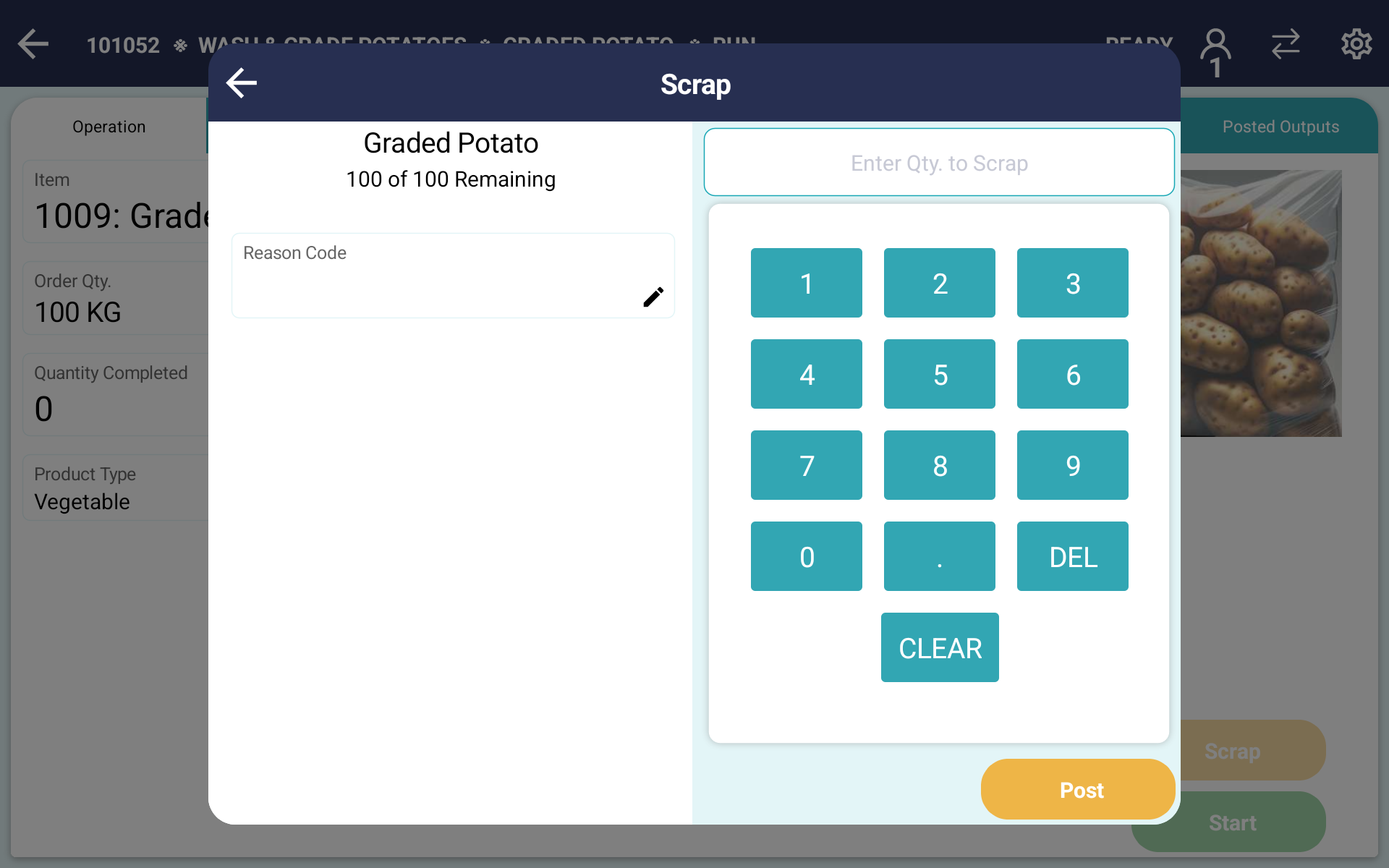
Enter the scrap quantity in Enter Qty. to Scrap, using the keypad. If you don't, you'll be prompted: Please enter a Scrap Quantity
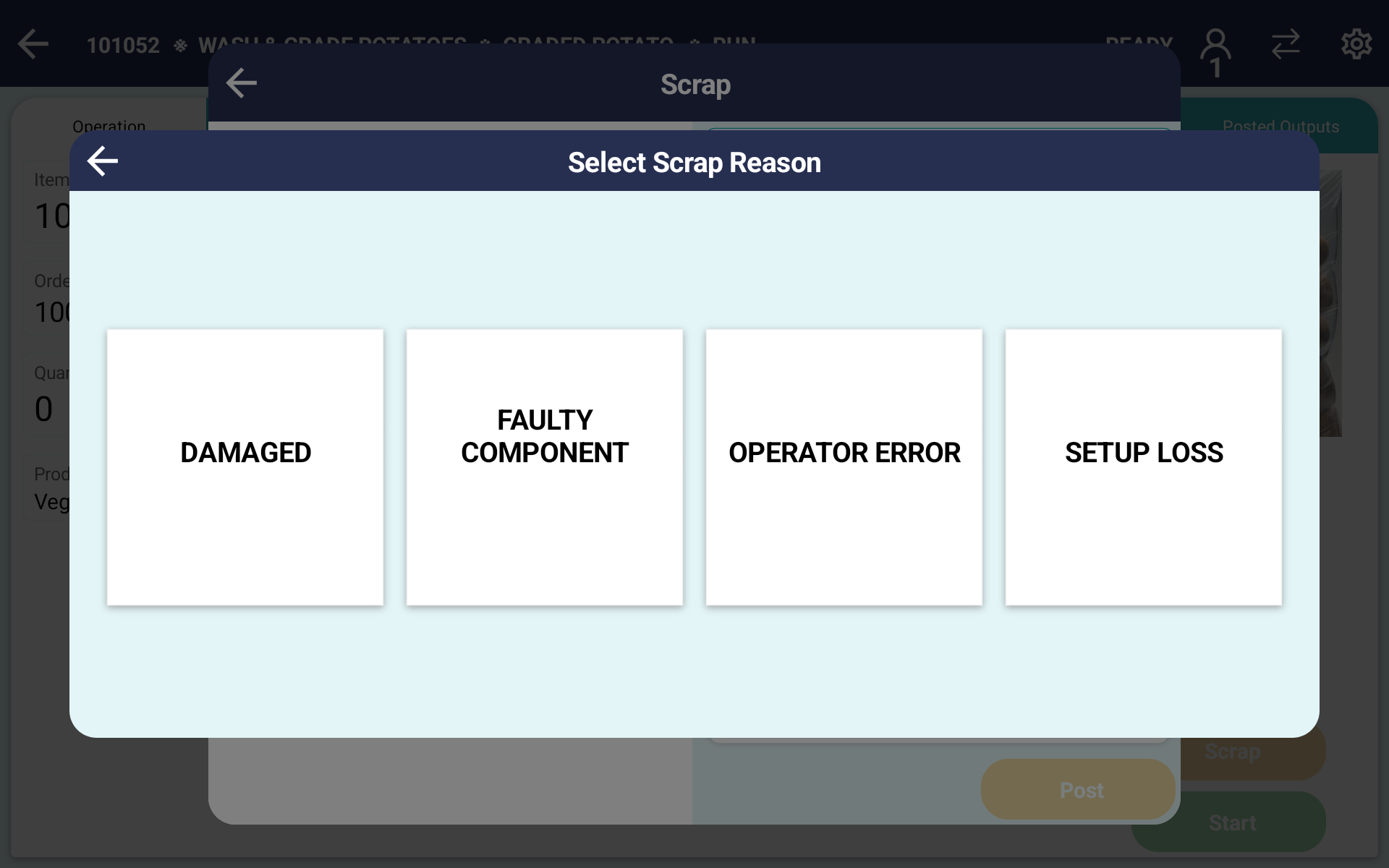
Tap Reason Code and choose a scrap reason from the Select Scrap Reason list. If you don't, you'll be prompted: Please select a Scrap Reason Code
Tap Post
The Scrap screen shows the item's description (with its variant code, if it has one) and how much of the order is left, shown as X of Y Remaining.
Scrap reasons are the “Scrap Codes” set up in Business Central, and the default configuration creates a starting set. If no scrap codes exist, you'll see an error when you open the reason list, otherwise you'll be shown the available reasons and you must select one in order to be able to post.
What's posted
Scrap is posted to Business Central as a standard output journal line for the production order operation. The line has a Scrap Quantity but no output quantity and no time, and it's posted straight away.
Posting it creates a standard Capacity Ledger Entry with the Scrap Quantity and Scrap Code filled in. No setup time, run time or output quantity is posted with it.
Scrap doesn't change inventory.
No item ledger entry is created, so stock levels aren't affected
No lot, serial or container numbers are asked for or posted
No labels or warehouse put-aways are created
The routing line's Last Output Date-Time isn't updated
A few “MES Setup” options still apply.
If Post Operator Dimensions is on, the signed-in operators' dimensions are added to the entry
If Post Routing Starting Time is on and this is the first entry for the operation, it uses the operation's actual start time
Post Operator Time/Cost doesn't apply. No operator time is posted with scrap
You can review scrap in Business Central on the “Capacity Ledger Entries” screen for the production order, using the Scrap Quantity and Scrap Code columns, and in the production order's statistics.
Good habits
Post output regularly, such as after each pallet or batch, rather than once at the end
Record scrap as it happens, with the right reason. It's the best source of information for improving yield