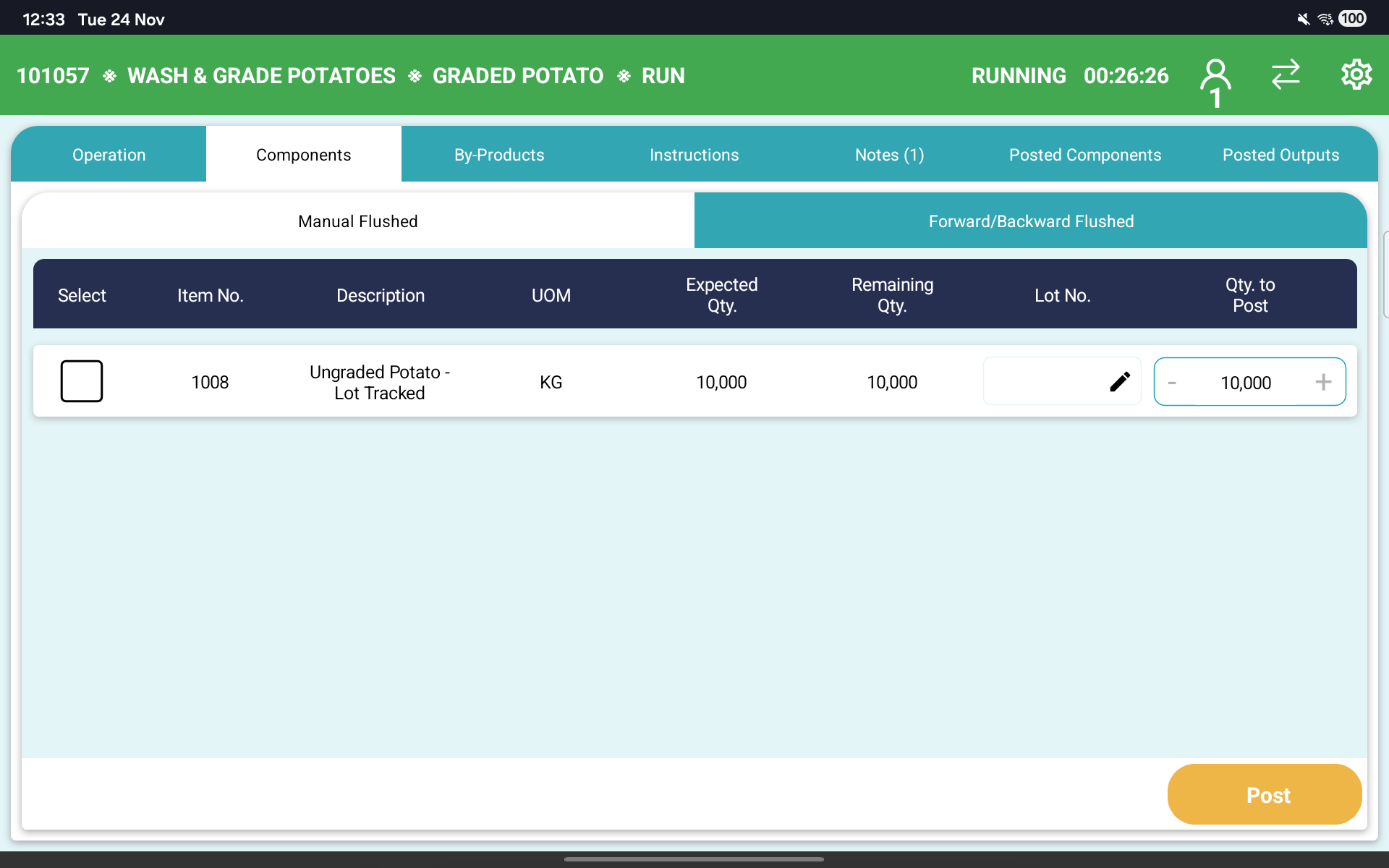
Each line shows.
a checkbox, which you tick to include the component when you post
the component, with its description
Expected Qty., how much the production order expects to be used
Remaining Qty., how much is still to be posted
Qty. to Post, the quantity you're about to post
Which components you see
The Components tab shows components for the production order you're working on.
Which of that line's components you see also depends on Routing Link Codes. In Business Central, a routing link code ties a component to the operation where it's used. It's set on both the production order component and the routing line.
| The operation you're on | What the Components tab shows |
|
Has no routing link code |
Every component on the production order line, whichever operation it's linked to |
|
Has a routing link code, and at least one manual component has the same code |
Only the components with that routing link code. Components linked to other operations, or with no link, are left out |
|
Has a routing link code, but no manual component has the same code |
Every component on the production order line, as if the operation had no routing link code |
For example, a routing has a Mixing operation (link code MIX) and a Packing operation (link code PACK). The flour and sugar are linked to MIX, and the boxes and labels to PACK. An operator on the Packing operation sees only the boxes and labels. Without routing link codes, they'd see all four components on both operations.
Routing link codes also decide when Business Central flushes a forward or backward flushed component. It's flushed with the operation it's linked to, not with the production order as a whole.
If operators see components that don't belong to their operation, or can't find one they need, check the routing link codes on the routing lines and the production order components.
Manual and flushed components
In Business Central, every production order component has a Flushing Method. This decides whether someone has to post its consumption, or whether Business Central posts it automatically.
If this operation only has components you post yourself, the Components tab shows a single list. If it also has components that Business Central consumes automatically, the Components tab is split into two tabs.
| Tab | What it shows | What you do |
| Manual Flushed |
Components with a Flushing Method of Manual or Pick + Manual. This tab opens first |
Enter the quantities and tracking, tick the checkbox on each line you want to post and tap Post |
| Forward/Backward Flushed |
Components with a Flushing Method of Forward, Backward, Pick + Forward or Pick + Backward |
Nothing. This tab is for information only. The lines have no checkboxes, and there's no Post button |
You never enter anything for forward or backward flushed components. Business Central consumes them automatically.
Forward flushed components are consumed at the start, when the production order is released, or when the operation they're linked to starts
Backward flushed components are consumed at the end, when output is posted for the operation they're linked to, or when the production order is finished
Why show flushed components?
Even though operators don't post them, seeing flushed components on the tablet is useful.
Operators see everything the job needs. The Manual Flushed tab only shows part of the picture. The Forward/Backward Flushed tab shows the rest of the materials that go into the item, so operators can check they have them at the machine before they start
It avoids double posting. Operators can see these components are handled automatically, so they don't try to post them by hand
It helps spot problems early. If a flushed component is short or the wrong one is at the machine, the operator can raise it before the job runs, rather than finding out later when Business Central posts the consumption
If your operators don't need this, your administrator can hide the Forward/Backward Flushed tab by turning on Hide Back/Forward Flush Comps. in the “MES Setup” screen. The Components tab then shows a single list of manual components only. Configure what operators see
Post a component
Check the Qty. to Post for each component you've used. Change it if you've used more or less than expected
For tracked components, fill in the lot, serial or container Track lots, serials and containers
Tick the checkbox on each component line you want to post. You can tick several lines and post them together
Tap Post. Only the ticked lines are posted
If you don't tick any lines, you'll see There is nothing to post.
Weighing a component
If your factory weighs components on a scale, select the relevant component item and press Weigh Component to bring in the scale's reading as the quantity. The Last Weighed column shows the last reading. If the scale isn't reading, you'll see No weight detected by scale X.
What gets posted
Posting records consumption against the production order components, with their tracking, so inventory goes down and the order's actual cost goes up.
If you've made a mistake
You can reverse consumption from the Posted Components tab if your administrator has switched it on. Review and reverse posted entries