-
Where you are working
-
Who you are
-
Which job you're going to be working on
Choose a Work Centre. Tiles show the Work Centres you can use. If only one is available to you, MES skips this screen and takes you straight to the next
Choose a Machine Centre. You'll see the Machine Centres inside that Work Centre. If your Work Centre can be worked at directly, there's also a tile with the Work Centre's own name, which you choose when the work is done at the area as a whole, rather than at a particular machine
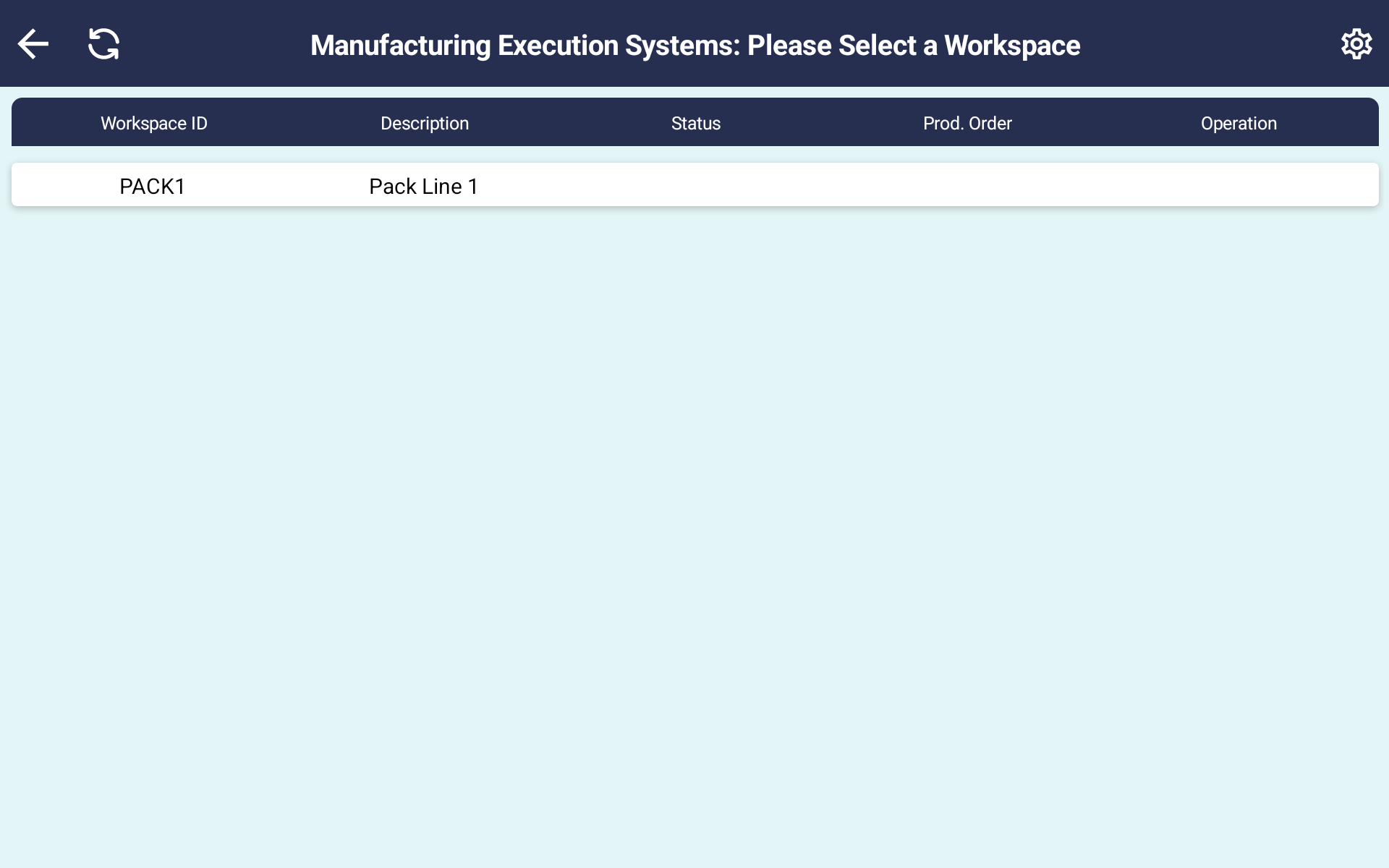
The name of the centre you choose is displayed on the Status bar, which is shown at the top of the device screens that follow, so you can always check you're in the right place. If you picked the wrong one, tap the back arrow at the top left.
Who are you?
How you identify yourself depends on how your factory is set up.
Choose your name. You'll see a tile for each operator. Tap yours
Enter your access code. Type your code and tap Submit. If your tablet supports scanning, you can scan your badge instead of typing, so you don't need to type your code each time
Operators who have been restricted to particular centres only appear at those centres. Operators who haven't been restricted appear everywhere, and blocked operators don't appear at all.
Note: it is not mandatory to setup Clever MES to record Operators - this depends on the Data Selection setup within the “MES Setup” screen.
What are you working on?
Next, MES shows the jobs available to you.
Search or scan. Use the search box at the top to find a production order by typing its number or scanning its barcode (coming soon)
Or pick from the list. Each row shows the production order number, the item, its description and the order quantity. Alongside them you'll see the operation, how many are ready to start, and the starting and ending dates. Tap a row to choose it
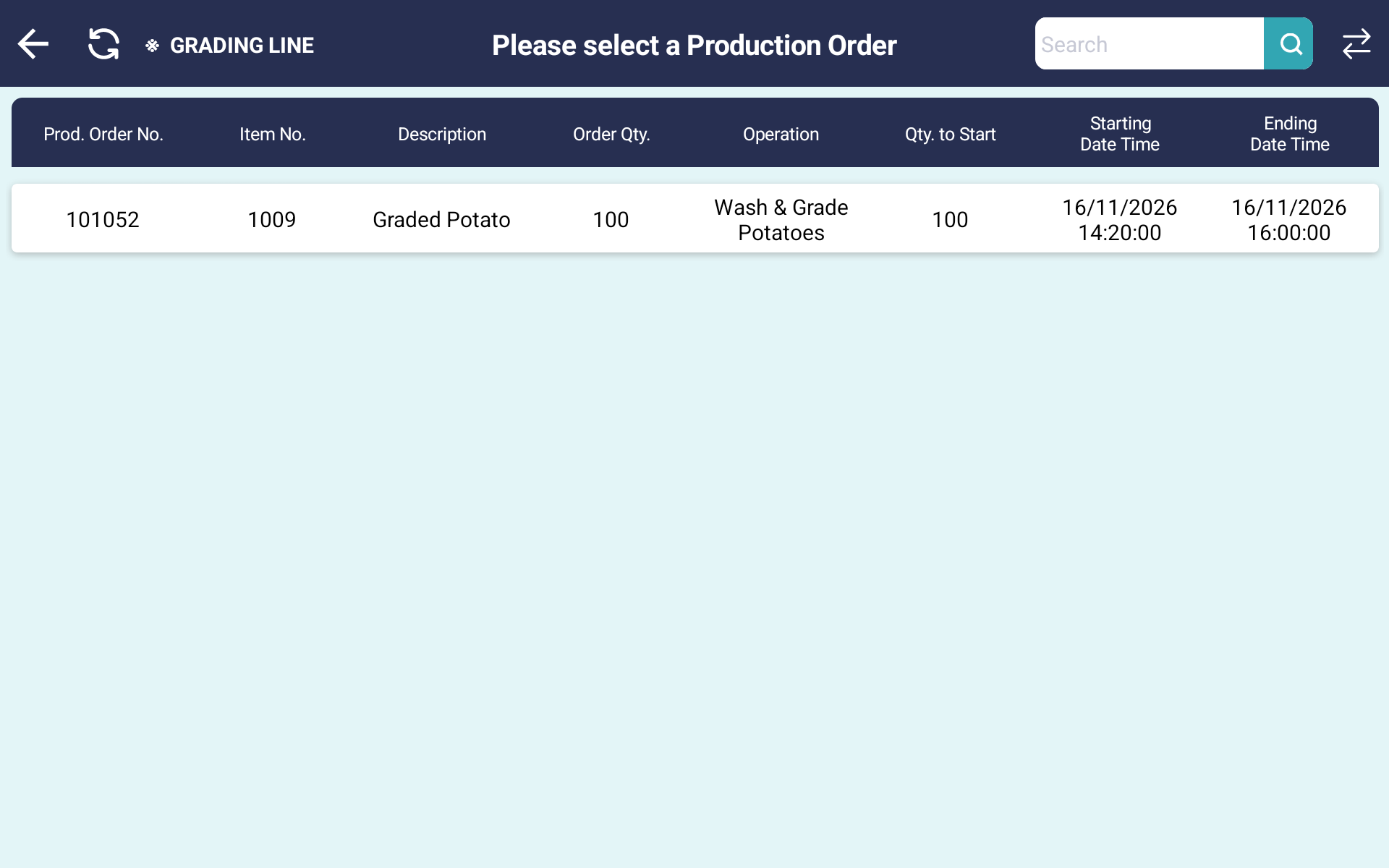
Jobs are normally listed in order of start date. Your administrator can switch this to production order number.
Where the same production order has more than one operation at your centre, each operation has its own row, so make sure you pick the right one.
You're ready to go
Once you've chosen your job, MES takes you to the operation screen, where you start, stop and record your work. The operation screen
Useful controls
| Control | What it does |
| Back arrow (top left) |
Goes back one step, for example from Machine Centres to Work Centres. Only shown when there's something to go back to. |
| Refresh |
Reloads the list. Use it if a new job should have appeared. |
| Switch |
Moves you to a different Workspace. Only shown if your administrator has turned on Allow Device Switching. Switch Workspaces |
If you can't find your job
Check these first. If the job still isn't there, speak to your supervisor or administrator.
Is it routed to your centre? A Work Centre Workspace only shows operations routed to that Work Centre, and a Machine Centre Workspace shows operations routed to that machine
Is anything ready to start? MES normally only lists operations that have quantity available to start, so the previous operation may still need to be finished. Your administrator can choose to show operations with nothing to start
Is someone else already running it? Depending on setup, jobs running on other Workspaces can be hidden
Is the production order released? Only released production orders appear
Has the operation already been completed in MES? Operations marked as complete don't appear
If you can't see your own name when choosing an operator, your administrator needs to check which centres you're assigned to, and that you haven't been blocked.
The list of jobs depends on the centre you're working at, not on who you are. Two operators at the same centre see the same jobs.