The routing line instruction must be a PDF file in order to be displayed on the tablet device.
You can scroll through the document, zoom in and out, and use the viewer's page controls while you read the instructions.
Notes
The Notes tab is always there. When the production order has notes, the tab shows how many, for example Notes (1), as shown below, so you know there's something to read before you start.
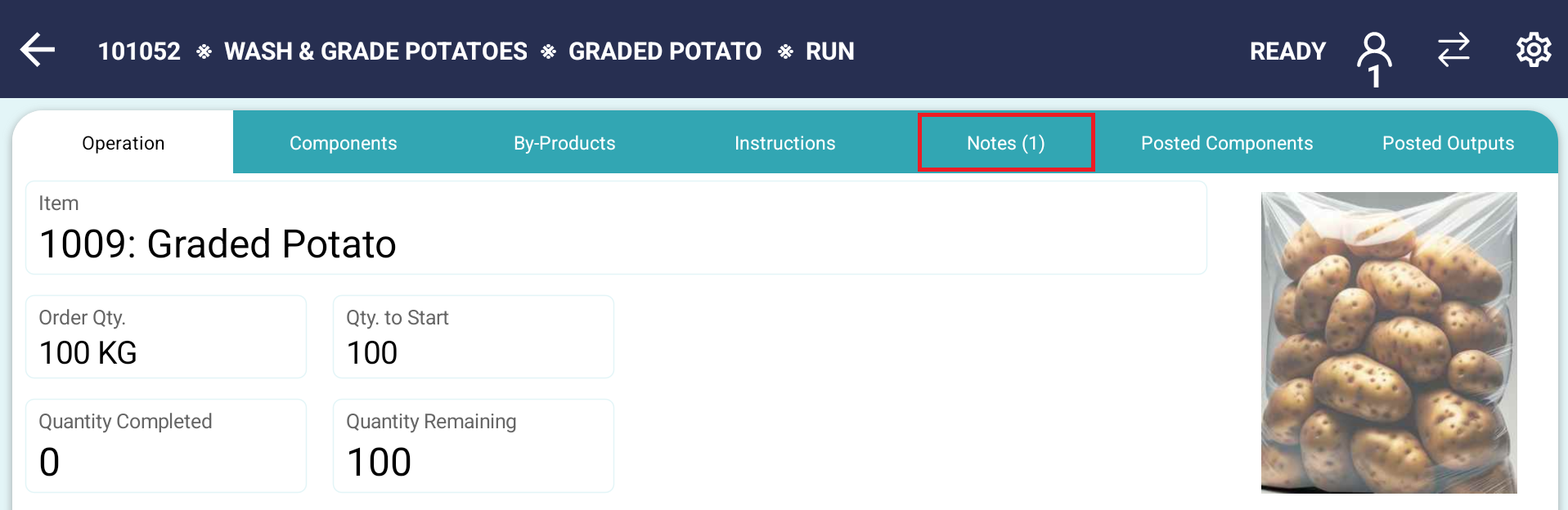
Notes can come from several places.
the production order itself
planning or engineering, for example comments added to the order
other operators, who added a note on the tablet earlier
Clever Comments is also supported through the Notes tab, keeping the formatting applied in Business Central.
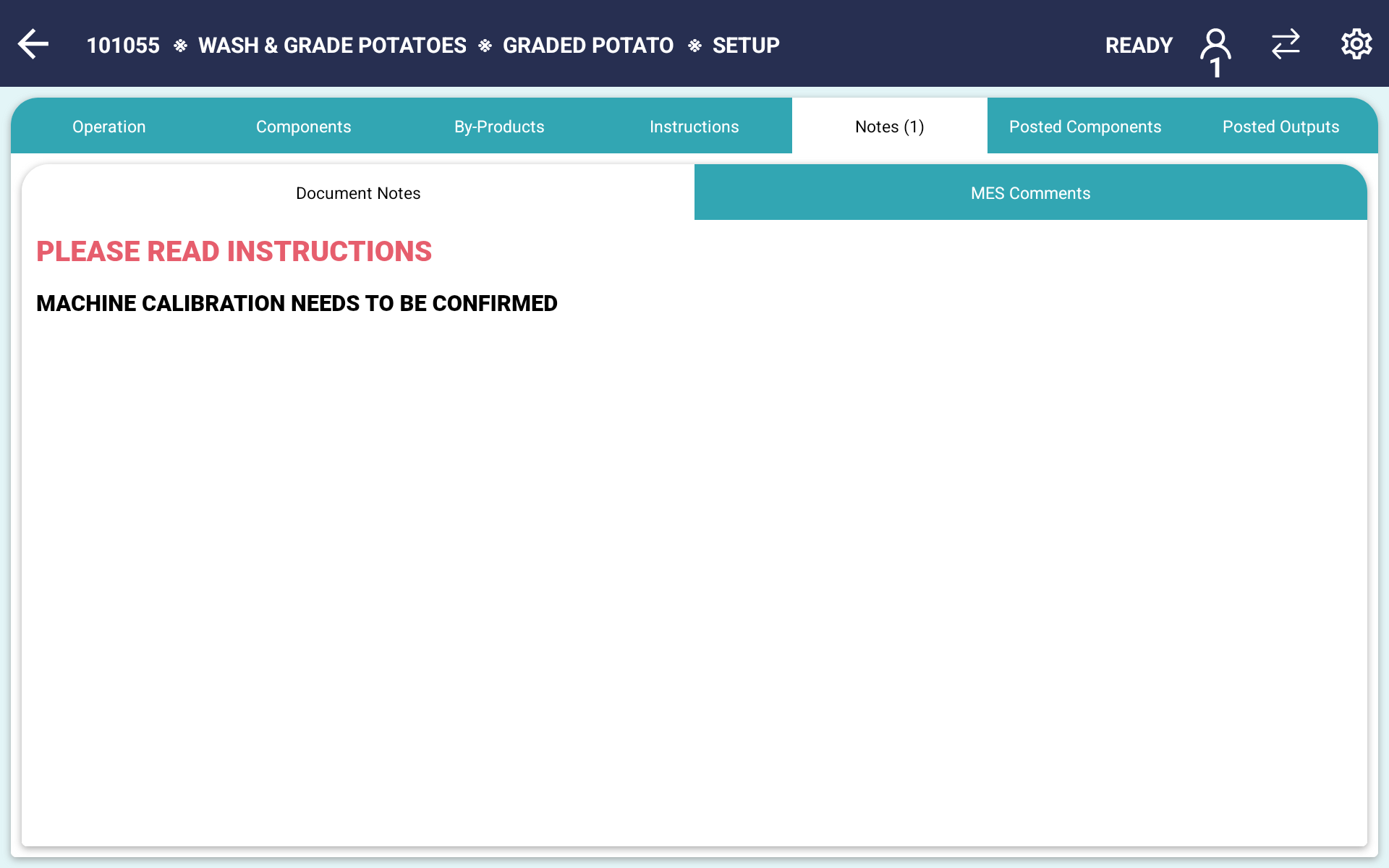
Add a note
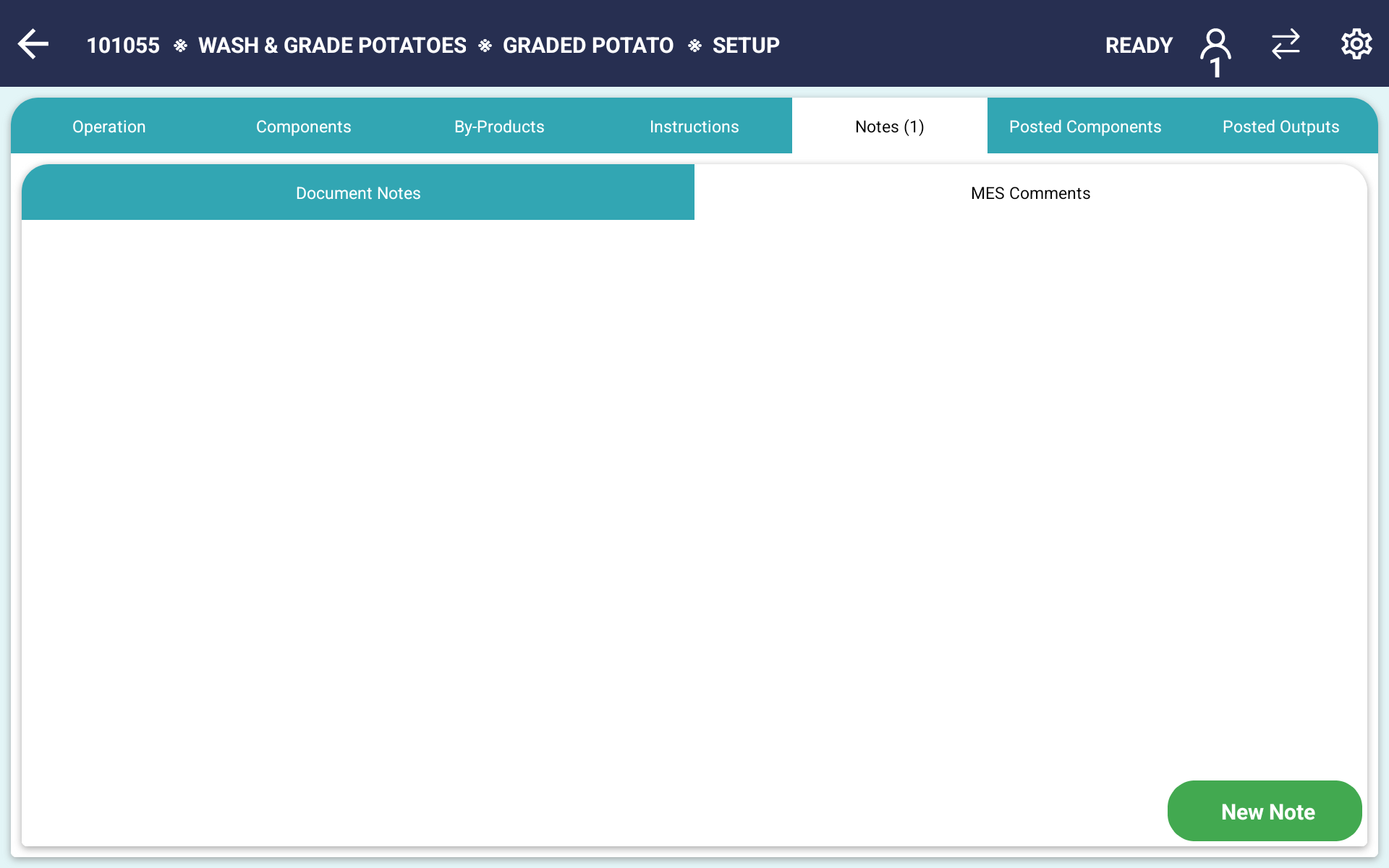
If your administrator has allowed it, you can leave a note for the next person, or simply to make sure that a note is saved against the job in Business Central.
Open the Notes tab
Tap New Note
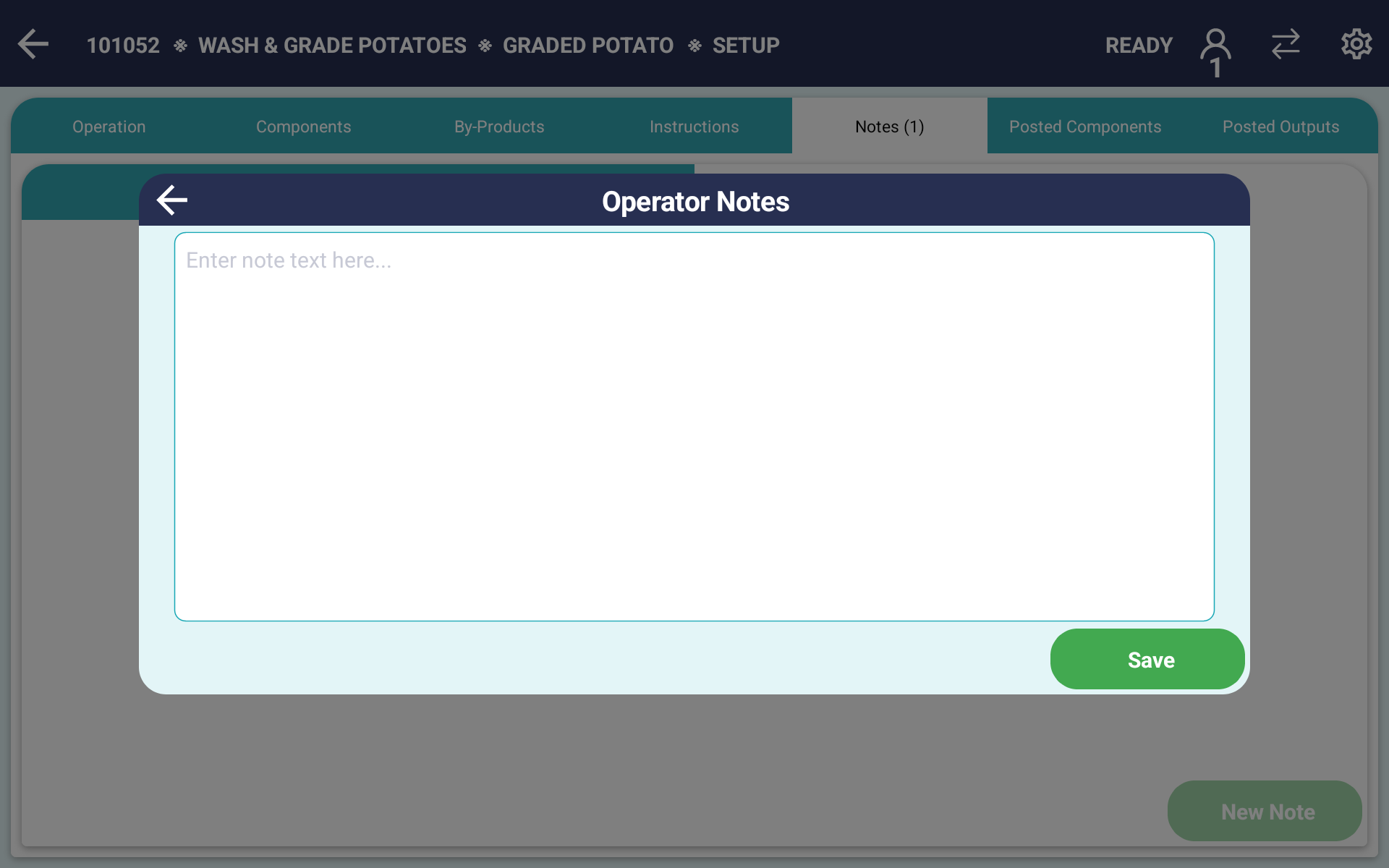
Type your note
Save it
If you try to save an empty note, you'll see Please enter a new Note.
Good notes are short and specific: what happened, which batch, and what the next person should do about it.
Why this matters
A note left on the tablet is a note on the production order in Business Central, so planners and supervisors see it too. It's also a handy record of what happened during the job if someone asks later.
These notes are held on the “MES Comments” screen, opened from the “Released Production Order” screen.