The banner
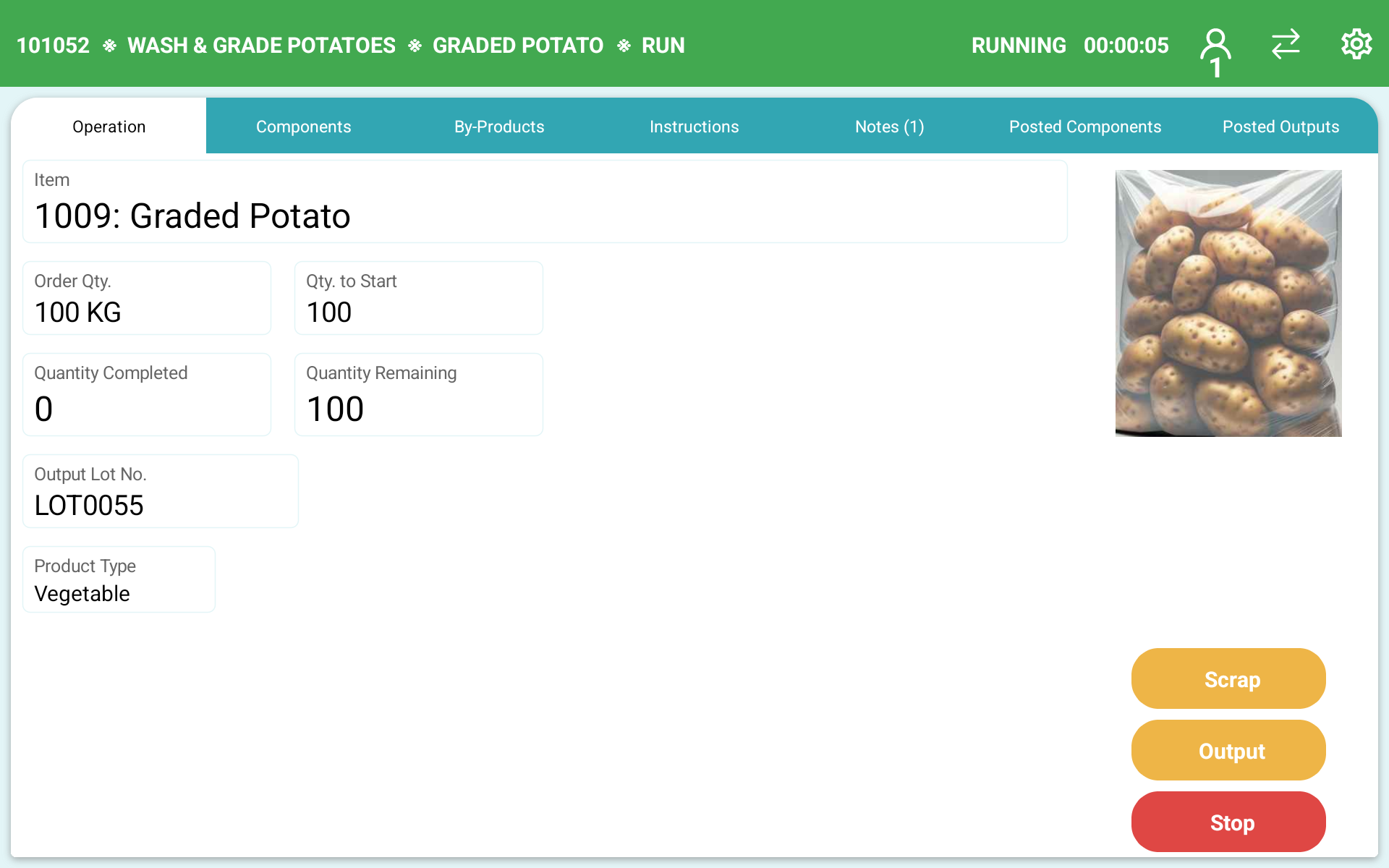
Across the top is a banner that tells you at a glance what's happening.
the production order number
the operation being worked on
the item being made
whether you're in setup or run time
the status: Ready, Running, Stopped or Planned Stop. The banner takes that status's colour, so you can see it from across the room
While Running, a timer shows how long you've been running. While Stopped or on Planned Stop, it shows how long you've been stopped and the reason you gave.
If your factory uses operators, an icon shows how many are signed in. Tap it to add or remove people. If switching is switched on, there's also a switch button. Switch Workspaces
There's a back arrow too, but it only appears when the Workspace is Ready, since you can't walk away from a running operation.
The tabs
Below the banner are tabs. Which ones you see depends on the job and on how Clever MES has been set up from within Business Central.
| Tab | What it's for | When you'll see it |
| Operation |
Quantities, tracking details and the main buttons. |
Always |
| Components |
Post the materials you've used. Post components |
Always |
| By-Products |
Post by-products. Post by-products |
If enabled through the “MES Setup” screen |
| Instructions |
Read the instructions for this operation. Notes and instructions |
If the routing line has instructions |
| Tools |
Check tools in and out. Use tools |
If enabled through the “MES Setup” screen and this operation uses tools |
| Notes |
Read and add notes. The tab shows a count, such as Notes (2). |
Always |
| Posted Components |
Review and reverse what you've posted. Review and reverse posted entries |
If enabled through the “MES Setup” screen |
| Posted Outputs |
The same for output. |
If enabled through the “MES Setup” screen |
The Operation tab
The Operation tab is where you can see the job's numbers.
the item, with its description and variant if it has one
Order Qty., the total quantity on the production order line
Qty. to Start, how much is ready to be worked on
Qty. Completed, how much has been done so far
Qty. Remaining, how much is left
Expd. No. of Operators, if enabled through the “MES Setup” screen
When you're running, you may also see the Output Serial No., Output Lot No. or Output Container No. for the current operation, along with any expiry or warranty dates that have been assigned.
Attributes, such as the colour or temperature the job needs, appear as a row you can scroll sideways.
If your administrator has turned Show Image on for the work/machine centre, you'll see the item's picture. If the item has none, the reserved area for an item picture will be blank.
The buttons
On the right are the buttons you'll use most. They change with the status, so you only see what you can do right now.
| Button | When it appears |
| Start |
Always at the bottom. If the Workspace is currently stopped, it asks you to confirm the reason the operation was stopped first |
| Stop |
While Running |
| Output |
While Running. Hidden during setup unless your administrator allows output during setup as defined in the “MES Setup” screen |
| Exit |
While Stopped |
| Scrap |
If scrap is allowed, as defined in the “MES Setup” screen |
The next article covers these buttons. Start, stop and exit an operation
What if something's missing?
If you expect a tab or button and can't see it, it's probably a setting. Ask your administrator to check the “MES Setup” screen. Configure what operators see